Making a Dynamic Component制作动态组件
To create a dynamic component, you add attributes to a basic component and then create values for those attributes.要创建动态组件,您需要向基本组件添加属性,然后为这些属性创建值。
For simple dynamic components, the process is easier than you might think, especially if you start with SketchUp’s predefined attributes and are familiar with SketchUp’s basic drawing tools and spreadsheet programs’ common functions. 对于简单的动态组件,这个过程比你想象的要容易,特别是如果你从SketchUp的预定义属性开始,并熟悉SketchUp基本绘图工具和电子表格程序的常见功能。You don’t need to be a computer programmer, a math genius, or a benevolent wizard.你不需要成为计算机程序员、数学天才或仁慈的巫师。
So what does that process look like? Here’s an overview of the steps:那么,这个过程是什么样子的呢?以下是步骤概述:
Create a new component that’s made entirely of groups or subcomponents.创建一个完全由组或子组件组成的新组件。Creating a Basic Component explains how to turn selected geometry into a component.创建基本组件解释了如何将选定的几何图形转换为组件。Organizing a Model gives you the lowdown on groups and nesting groups and components in hierarchies.组织模型可以让您了解组的详细信息,并在层次结构中嵌套组和组件。Add attributes that make your component dynamic (that is, tell the component to do something). You can choose from predefined attributes or create custom attributes.添加使组件动态的属性(即告诉组件做某事)。您可以从预定义属性中进行选择,也可以创建自定义属性。For each attribute you add, define a value that tells the attribute how to take action. These values can be a simple number that constrains a component’s size, a formula that uses mathematical operators, or a function that iterates through several options that you define in the formula’s parameters.对于添加的每个属性,定义一个值,“告诉”属性如何执行操作。这些值可以是限制组件大小的简单数字、使用数学运算符的公式或迭代公式参数中定义的多个选项的函数。Test your dynamic component to make sure it works correctly. As mentioned earlier, you’ll probably go back to Step 1 or 2 a few times before the dynamic component works the way you hope.测试动态组件以确保其正常工作。如前所述,在动态组件按您希望的方式工作之前,您可能会多次返回步骤1或2。Save the component in a separate file that you can import into other models via the Components browser or share with others via the 3D Warehouse.将组件保存在单独的文件中,您可以通过组件浏览器将其导入其他模型,或通过3D仓库与他人共享。For the component to work, make sure you context-click the highest level of the component and select Save As from the menu that appears.要使组件正常工作,请确保右键单击组件的最高级别,然后从显示的菜单中选择“另存为”。Then save the resulting然后将生成的skp文件保存在组件集合中。.skpfile in a component collection.
In the video, you can see these steps in action. In the sections that follow, you find details and tips for working through the preceding steps.在视频中,您可以看到这些步骤的实际操作。在接下来的部分中,您将找到完成上述步骤的详细信息和提示。
Tip: After you cover the basics in this article, check out a few examples that walk you through building specific dynamic components. 在您了解了本文的基础知识之后,请查看几个示例,这些示例将引导您构建特定的动态组件。Those examples can help you see how to apply the abstract concepts explained here to create all sorts of dynamic component interactions. 这些示例可以帮助您了解如何应用这里解释的抽象概念来创建各种动态组件交互。You find several specific examples in Creating Common Types of Dynamic Components. Also, you can find the Dynamic Component Training collection in the Components browser and download the following tutorials from the 3D Warehouse:您可以在“创建动态组件的常见类型”中找到几个具体示例。此外,您可以在组件浏览器中找到动态组件训练集合,并从3D仓库下载以下教程:
Table of Contents目录
Befriending all the axes把所有的轴都放在一起
In dynamic component development, component axes are like little elven tricksters, sabotaging your good intentions - unless you remain aware of these axes and keep them working for, rather than against, you. 在动态组件开发中,组件轴就像小精灵骗子,破坏了你的良好意愿——除非你仍然意识到这些轴,并让它们为你工作,而不是反对你。Before you create one attribute, review the following tips for keeping the axes on your side:在创建一个属性之前,请查看以下将轴保持在一侧的提示:
Every component and subcomponent has its own axis origin point.每个组件和子组件都有自己的轴原点。If you use attributes to set the dimensions of, position, or move a dynamic component, the values you enter are relative to the component’s axis origin.如果使用属性设置动态零部件的尺寸、定位或移动,则输入的值相对于零部件的轴原点。If you position more than one subcomponent, each one will have a different axis origin. So know the whereabouts of each component’s axes origin, and reposition it if needed.如果定位多个子组件,则每个子组件都将具有不同的轴原点。因此,了解每个组件轴原点的位置,并在需要时重新定位。The axes’ colors become letters.轴的颜色变成了字母。Everywhere in SketchUp, you see references to the red, green, and blue axes — except in the Component Attributes dialog box.在SketchUp中的任何地方,都可以看到对红色、绿色和蓝色轴的引用,但“组件属性”对话框中除外。Here, the red axis is X, the green axis is Y, and the blue axis is Z. For example, the这里,红色轴是X,绿色轴是Y,蓝色轴是Z。例如,LenXattribute defines the length of the X, or red, axis.LenX属性定义了X轴或红色轴的长度。Gluing and cutting planes can turn the axis origin sideways.胶合和切割平面可以将轴原点侧向旋转。When you create a component, you can set both gluing and cutting planes.创建构件时,可以设置粘合平面和切割平面。When a component glues to only vertical surfaces, the blue (Z) and green (Y) axes are swapped:当一个组件仅粘合到垂直表面时,蓝色(Z)和绿色(Y)轴会交换:LenZhas a length value for the green axis, andLenY’s value is what’s typically the blue axis.LenZ的绿色轴有一个长度值,而LenY的值通常是蓝色轴。For example, if you want to constrain a gluing component that glues to vertical surfaces, such as window, to a specific height, your formula needs to constrain例如,如果要将粘合到垂直表面(如窗)的粘合组件约束到特定高度,则公式需要约束LenY, notLenZ.LenY,而不是LenZ。If your component has a cutting plane, remember that to create that cutting plane on a vertical face, you had to move the axes, because the red/green plane determines the cutting plane.如果零部件有一个切割平面,请记住,要在垂直面上创建该切割平面,必须移动轴,因为红色/绿色平面决定了切割平面。
Adding attributes添加属性
Attributes make components dynamic by telling SketchUp what to do. You can choose from predefined attributes or create custom attributes:属性通过告诉SketchUp该做什么来使组件动态。您可以从预定义的属性中进行选择或创建自定义属性:
Predefined attributes预定义属性enable you to quickly and easily set up dynamic behaviors for common features, such as constraining a dynamic component’s size or applying a material.使您能够快速轻松地为常见特征设置动态行为,例如约束动态组件的大小或应用材质。You can browse predefined attributes in the Component Attributes dialog box, or check out the Dynamic Component predefined attributes reference.您可以在“组件属性”对话框中浏览预定义属性,或查看“动态组件预定义属性”引用。Custom attributes enable you to add your own attributes.自定义属性使您能够添加自己的属性。
To add attributes, follow these steps:要添加属性,请执行以下步骤:
Select the component you want to make dynamic.选择要动态化的组件。On the Dynamic Components toolbar, click the Component Attributes tool (在“动态零部件”工具栏上,单击“零部件属性”工具( ) or select Window > Component Attributes. )或选择“窗口>零部件属性”。
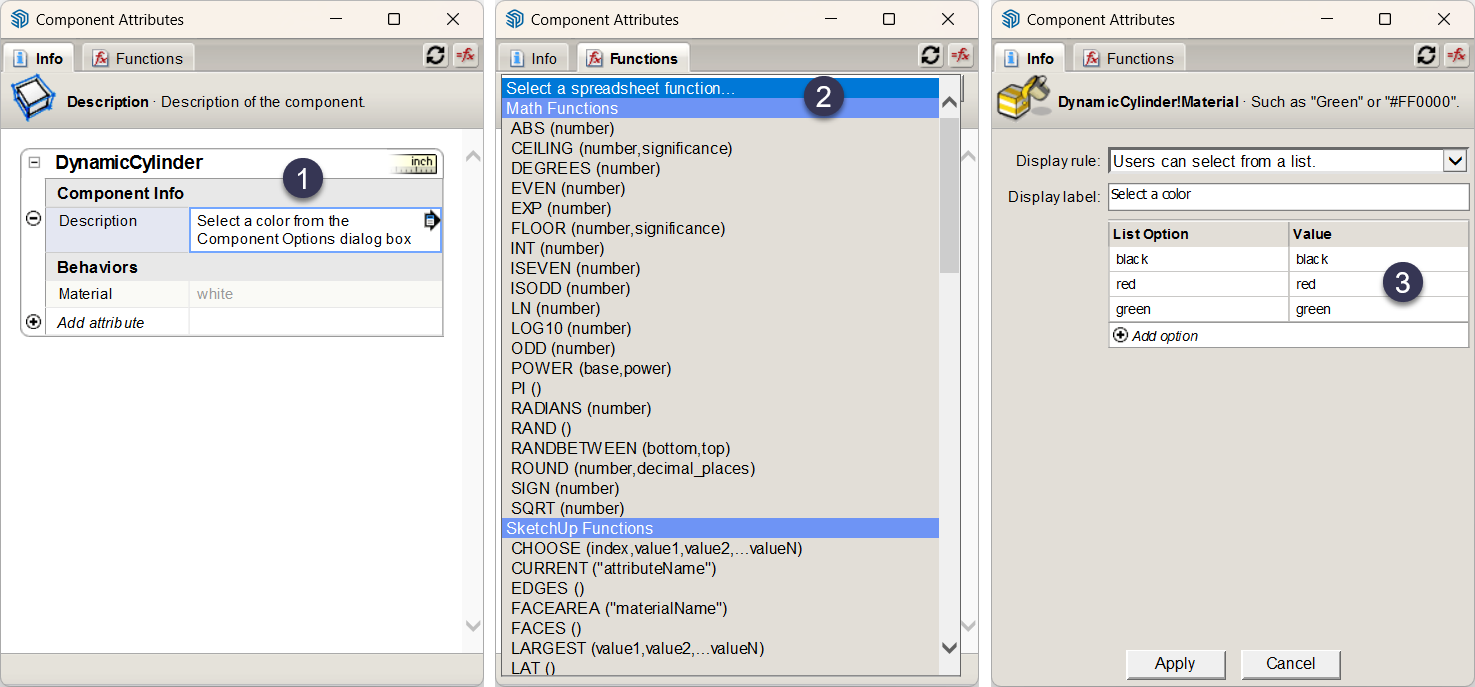
Either way, the Component Attributes dialog box opens, as shown in the following figure. In this example, the Component Attributes dialog box shows the DynamicCylinder component.无论哪种方式,都会打开“组件属性”对话框,如下图所示。在本例中,“组件属性》对话框显示了DynamicCylinder组件。

Click the Add Attribute plus sign icon to see a list of options.单击“添加属性加号”图标以查看选项列表。Select a predefined attribute or select the Or Enter a Custom Name option at the bottom. If you selected a predefined attribute, you’re ready to add values.选择预定义属性或选择底部的“或输入自定义名称”选项。如果选择了预定义的属性,则可以添加值。If you selected to add a custom name, type a name to replace the如果选择添加自定义名称,请键入一个名称以替换出现的Enter Nameplaceholder text that appears.Enter Name占位符文本。Tip:An attribute’s name must start with a letter and cannot contain any spaces. Otherwise, you can name the attribute anything you want. Choosing a name that reminds you what the attribute does is helpful.属性的名称必须以字母开头,不能包含任何空格。否则,您可以随心所欲地命名该属性。选择一个能提醒您属性功能的名称是有帮助的。
In this example, you see the Material attribute added to the DynamicCylinder component.在此示例中,您可以看到添加到DynamicCylinder组件的“材质”属性。

Defining attribute values定义属性值
After you set up an attribute or three, you’re ready to enter values that tell the attributes what to do. You can complete this step in a myriad ways, depending on the attributes you choose.设置一个或三个属性后,您就可以输入值来告诉属性该做什么了。根据您选择的属性,您可以通过多种方式完成此步骤。
Generally speaking, you can define attribute values in the following ways:一般来说,您可以通过以下方式定义属性值:
Type in the attribute value text box.在属性值文本框中键入。For example, add a Description attribute and type a description directly in the value text box. (See Callout 1 in the following figure.)例如,添加“描述”属性并直接在值文本框中键入描述。(见下图中的标注1。)If you’re defining formulas, type an equal sign (=) and then enter your formula.如果要定义公式,请键入等号(=),然后输入公式。Tip:If you want to see the complete formulas in the attribute value box, click the Toggle Formula View button in the upper right of the Component Attributes dialog box.如果要查看属性值框中的完整公式,请单击“组件属性”对话框右上角的“切换公式视图”按钮。If you manipulate a component with a SketchUp tool while the Component Attributes dialog box is open, click the Refresh button to refresh values in the Component Attributes dialog box.如果在“组件属性”对话框打开时使用SketchUp工具操纵组件,请单击“刷新”按钮刷新“组件属性》对话框中的值。Insert a function from the drop-down list.从下拉列表中插入一个函数。To see the drop-down list, click the Functions tab. Open the drop-down list to select from any of the dynamic component functions. (See Callout 2.)要查看下拉列表,请单击“函数”选项卡。打开下拉列表,从任何动态组件函数中进行选择。(见详图2。)After you select a function, you see a brief description (in very tiny text) below the drop-down list.选择一个函数后,您会在下拉列表下方看到一个简短的描述(以非常小的文本)。Select the attribute value text box where you want to insert the function, and click the Insert button to add the function to the text box.选择要插入函数的属性值文本框,然后单击“插入”按钮将函数添加到文本框中。Then you need to customize the value based on the function you chose.然后,您需要根据所选函数自定义值。Click the Details arrow (单击属性值字段中的详细信息箭头( ) in the attribute value field.)。
 You see a drop-down list that enables you to set display values for the attribute. Select whether or not users can see the attribute, and if so, whether the value appears as a text box or a drop-down list.您将看到一个下拉列表,可用于设置属性的显示值。选择用户是否可以看到该属性,如果可以,则选择该值是以文本框还是下拉列表的形式显示。If you select the Users Can Select from a List option, you can then define what values users can select. In this example, adding different materials values enables users to select from a limited range of materials. (See Callout 3.)如果选择“用户可以从列表中选择”选项,则可以定义用户可以选择的值。在此示例中,添加不同的材质值使用户能够从有限的材质范围中进行选择。(见详图3。)
When you create formulas, here are the rules you need to follow:创建公式时,需要遵循以下规则:
Put text in quotes.将文本置于引号内。Concatenate a string with the ampersand (用与号(&). For example:&)连接字符串。例如:="I am a table with the cost of" & variable nameTo display quotes in a text string, use a backslash (要在文本字符串中显示引号,请使用反斜杠(\). For example:\)。例如:="This is the "\official\" retail price for this item:" & variable nameFormulas that return numbers will return them as floating values, never as integers.返回数字的公式将以浮点数的形式返回,而不会以整数的形式返回。So, the formula因此,公式if(5=5,1,0)will return1.0instead of1.if(5=5,1,0)将返回1.0而不是1。All lengths are in inches and angles in degrees.所有长度以英寸为单位,角度以度为单位。Use an exclamation point (使用感叹号(!) to refer to a value outside of the current subcomponent. For example,Fence!spacingrefers to the value of thespacingvariable in theFencecomponent.!)表示当前子组件之外的值。例如,Fence!spacing是指Fence组件中spacing变量的值。
Testing a dynamic component测试动态组件
After you define the attributes and values for a dynamic component, test how it works in the Component Options window, which you can open in any of the following ways:定义动态组件的属性和值后,在“组件选项”窗口中测试其工作原理,您可以通过以下任何方式打开该窗口:
Click the Component Options tool (单击“动态零部件”工具栏上的“零部件选项”工具( ) on the Dynamic Components toolbar.)。
Select Window > Component Options.选择“窗口>组件选项”。Context-click the component and select Dynamic Components > Component Options.右键单击组件,然后选择“动态组件”>“组件选项”。
In the following figure, you see that each attribute appears in a drop-down list. Select an option and click Apply to change the component’s color.在下图中,您可以看到每个属性都显示在下拉列表中。选择一个选项,然后单击“应用”以更改组件的颜色。
