Managing In Model Styles and Collections管理模型样式和集合
In SketchUp, collections help you organize styles and easily access the ones you use most often. SketchUp includes several default collections, but you can create your own and save collections to a favorites list.在SketchUp中,集合可帮助您组织样式并轻松访问最常用的样式。SketchUp包括几个默认集合,但您可以创建自己的集合并将其保存到收藏夹列表中。
The In Model styles collection is particularly helpful, because it contains all the styles currently included with your model file. To see your In Model styles, follow these steps:“模型内样式”集合特别有用,因为它包含了当前包含在模型文件中的所有样式。要查看模型内样式,请执行以下步骤:
Open the Styles panel by selecting Window > Styles.通过选择“窗口>样式”打开“样式”面板。opening the Styles dialog box in the Default Tray.在默认托盘中打开“样式”对话框。On the Select tab, click the In Model icon (在“选择”选项卡上,单击“模型中”图标( ) or select In Model from the Styles Collections drop-down list, as shown in the figure.),或从“样式集合”下拉列表中选择“模型内”,如图所示。

 ) next to the Styles Collections drop-down list and select Purge Unused from the menu that appears, as shown in the figure. SketchUp removes all styles in the In Model styles that are not actually used in your model.),然后从显示的菜单中选择“清除未使用的样式”,如图所示。SketchUp会删除模型内样式中实际未在模型中使用的所有样式。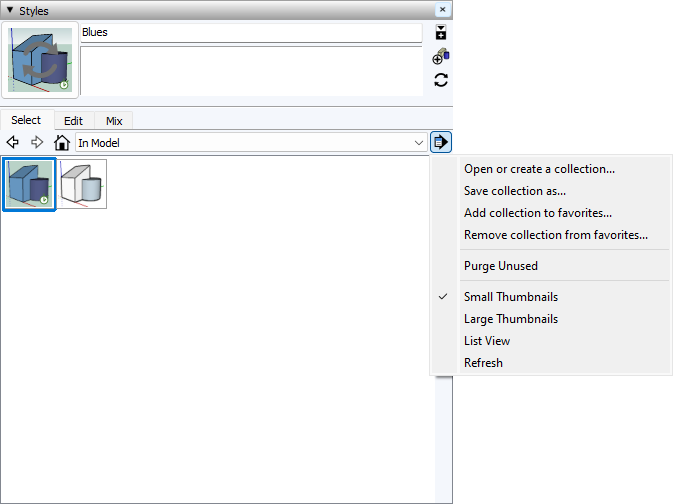
With a custom collection, you can bundle predefined styles that you often use in SketchUp or styles that you created or customized for a specific project. (See Creating and Editing a Style for details.) To create your own collection, follow these steps:使用自定义集合,您可以捆绑在SketchUp中经常使用的预定义样式或为特定项目创建或自定义的样式。(有关详细信息,请参阅创建和编辑样式。)要创建自己的集合,请执行以下步骤:
In the Styles panel, click the Details arrow (在“样式”面板中,单击“详细信息”箭头() and select Open or Create a Collection from the menu that appears.),然后从显示的菜单中选择“打开”或“创建集合”。Click New Folder to create a subfolder in your selected folder and give your folder a name.单击“新建文件夹”在所选文件夹中创建子文件夹,并为文件夹命名。Click the Display Secondary Selection Pane icon (单击“显示次选择窗格”图标( ) to open a pane below your new collection, which is currently empty.)打开当前为空的新集合下方的窗格。
In the secondary selection pane, navigate to a style you want to add to your collection.在辅助选择窗格中,导航到要添加到集合中的样式。Drag the style from the secondary selection pane into your new collection. Continue navigating to and dragging styles to your collection until it contains all the styles you want.将样式从辅助选择窗格拖动到新集合中。继续导航到集合并将样式拖动到集合,直到它包含您想要的所有样式。In the Styles panel, click the Details arrow (在“样式”面板中,单击“详细信息”箭头(
) and select Create a new collection from the menu that appears.),然后从显示的菜单中选择“创建新集合”。In the Save dialog box, navigate to the place on your hard drive where you want to save the collection.在“保存”对话框中,导航到硬盘上要保存集合的位置。Click New Folder to create a subfolder in your selected folder and give your folder a name.单击“新建文件夹”在所选文件夹中创建子文件夹,并为文件夹命名。Click Save, and SketchUp takes you back to the Select tab in the Styles panel. Your new collection is selected in the Styles Collections drop-down list.单击“保存”,SketchUp将带您返回“样式”面板中的“选择”选项卡。您的新集合已在“样式集合”下拉列表中选定。Click the Display Secondary Selection Pane icon (单击“显示次选择窗格”图标() to open a pane below your new collection, which is currently empty.)打开当前为空的新集合下方的窗格。In the secondary selection pane, navigate to a style you want to add to your collection.在辅助选择窗格中,导航到要添加到集合中的样式。Drag the style from the secondary selection pane into your new collection. Continue navigating to and dragging styles to your collection until it contains all the styles you want.将样式从辅助选择窗格拖动到新集合中。继续导航到集合并将样式拖动到集合,直到它包含您想要的所有样式。
) and select Save Collection As. SketchUp prompts you to save the collection under a new name so that you can easily open the collection in another model.)并选择“集合另存为”。SketchUp会提示您以新名称保存集合,以便您可以在另一个模型中轻松打开集合。After you create a custom collection, accessing it in another model is easy. You simply open it — and if you use the collection frequently, add it to your favorites:创建自定义集合后,在另一个模型中访问它很容易。您只需打开它,如果您经常使用该集合,请将其添加到收藏夹中: