The Aggregation Pipeline Builder in MongoDB Compass helps you create aggregation pipelines to process documents from a collection or view and return computed results.MongoDB Compass中的聚合管道生成器可帮助您创建聚合管道,以处理来自集合或视图的文档并返回计算结果。
About this Task关于此任务
MongoDB Compass provides different modes to create aggregation pipelines:MongoDB Compass提供了不同的模式来创建聚合管道:
Stage View Mode, a visual pipeline editor that preloads pipeline syntax based on your selected stages.阶段视图模式,一个可视化的管道编辑器,根据您选择的阶段预加载管道语法。Stage Wizard, a feature of Stage View Mode that provides a set of templates for simple aggregation stage use cases. The Stage Wizard only includes simple use cases to help you get started with your aggregation pipeline.阶段向导,阶段视图模式的一个功能,为简单的聚合阶段用例提供了一组模板。阶段向导仅包含简单的用例,以帮助您开始使用聚合管道。Focus Mode, a feature of Stage View Mode where you edit one pipeline stage at a time. Focus Mode helps you manage complex or deeply nested aggregation pipeline stages.焦点模式,阶段视图模式的一项功能,您可以在其中一次编辑一个管道阶段。焦点模式可帮助您管理复杂或深度嵌套的聚合管道阶段。Text View Mode, a text-based pipeline editor that accepts raw pipeline syntax.文本视图模式,一个接受原始管道语法的基于文本的管道编辑器。
Before You Begin开始之前
To build an aggregation pipeline, choose a collection and click the Aggregations tab. Compass displays a blank aggregation pipeline. The Preview of Documents in the Collection section shows 10 documents randomly sampled from the chosen collection.要构建聚合管道,请选择一个集合并单击“聚合”选项卡。Compass将显示一个空白聚合管道。“集合中的文档预览”部分显示了从所选集合中随机抽取的10个文档。
Note
Atlas Search StagesAtlas搜索阶段
When you connect to a MongoDB deployment hosted on Atlas, Atlas-only stages $search and $searchMeta become available in the Aggregation Pipeline Builder. 当您连接到Atlas上托管的MongoDB部署时,Atlas只会在聚合管道生成器中提供$search和$searchMeta。Use these stages to perform full-text search on Atlas collections.使用这些阶段对Atlas集合执行全文搜索。
Steps步骤
To see how to create an aggregation pipeline, select the tab corresponding to your chosen view mode:要查看如何创建聚合管道,请选择与所选视图模式对应的选项卡:
Stage View Mode阶段视图模式
Select the Stages view选择“阶段”视图
In the aggregation pipeline pane, ensure the {} Stages toggle switch is selected.在聚合管道窗格中,确保选中了{}Stages切换开关。

Add an aggregation stage添加聚合阶段
At the bottom of the aggregation pipeline pane, click the + Add Stage button.在聚合管道窗格的底部,单击+添加阶段按钮。
Select an aggregation pipeline stage选择聚合管道阶段
On the upper-left corner of the aggregation stage card, click the Select drop-down menu and select the aggregation pipeline stage to use for the first stage of the pipeline.在聚合阶段卡的左上角,单击“选择”下拉菜单,选择要用于管道第一阶段的聚合管道阶段。
Fill in your pipeline stage填写管道阶段
Fill in your selected stage. You can adjust the width of the pipeline stage by dragging its border to the right.填写您选择的阶段。您可以通过向右拖动管道阶段的边框来调整其宽度。
Note
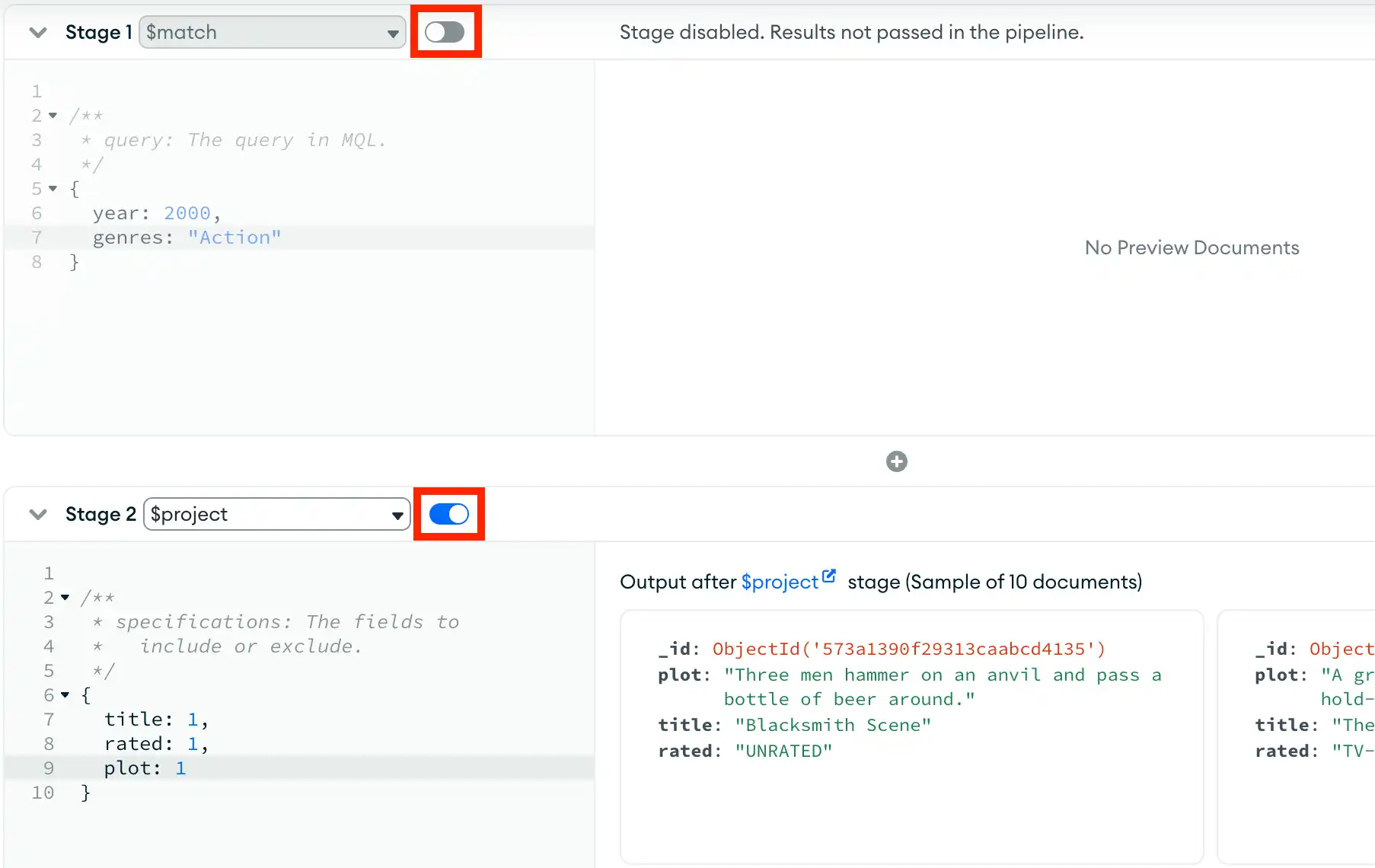
The toggle to the right of each pipeline stage name dictates whether that stage is included in the pipeline. Toggling a pipeline stage also updates the pipeline preview, which updates based on whether or not that stage is included.每个管道阶段名称右侧的切换指示该阶段是否包含在管道中。切换管道阶段也会更新管道预览,该预览会根据是否包含该阶段而更新。
For example, the following pipeline excludes the first $match stage and only includes the $project stage:例如,以下管道不包括第一个$match阶段,只包括$project阶段:
Add additional pipeline stages添加其他管道阶段
To add an additional pipeline stage after your last aggregation stage, click Add Stage. To add an aggregation stage before your most recently added stage, click the + icon above the stage card.要在上一个聚合阶段之后添加其他管道阶段,请单击“添加阶段”。要在最近添加的阶段之前添加聚合阶段,请单击阶段卡上方的+图标。
Repeat steps 3 and 4 for each additional stage.对每个附加阶段重复步骤3和4。
Note
You can change the order of pipeline stages by dragging the header of each stage card.您可以通过拖动每个阶段卡的标题来更改管道阶段的顺序。
Run the pipeline运行管道
At the top-right corner of the pipeline builder, click Run. Compass returns your results in the document view.在管道生成器的右上角,单击“运行”。Compass在文档视图中返回结果。
Warning
Some aggregation operators, like 一些聚合运算符,如$merge and $out, can modify your collection's data.$merge和$out,可以修改集合的数据。
If your aggregation pipeline contains operators that can modify your collection's data, you are prompted for confirmation before the pipeline is executed.如果聚合管道包含可以修改集合数据的运算符,则会在执行管道之前提示您进行确认。
Stage Wizard阶段向导
Select the Stages view选择“阶段”视图
In the aggregation pipeline pane, ensure the {} Stages toggle switch is selected.在聚合管道窗格中,确保选中了{} Stages切换开关。
Open the Stage Wizard card打开“阶段向导”卡
To the right of the view mode toggle, click the wand icon to open the Stage Wizard card.在视图模式切换的右侧,单击扫描棒图标打开“阶段向导”卡。

(Optional) Search for an aggregation use case(可选)搜索聚合用例
On the Stage Wizard card, you can filter the use cases by searching for keywords associated with the use case or aggregation stage.在“阶段向导”卡上,您可以通过搜索与用例或聚合阶段关联的键来筛选用例。
Select an aggregation pipeline stage use case选择聚合管道阶段用例
On the Stage Wizard card, select a stage use case for the first stage of your pipeline. You can click the stage card to add it to the end of your pipeline or drag it to your preferred position.在“阶段向导”卡上,为管道的第一阶段选择一个阶段用例。您可以单击舞台卡片将其添加到管道的末尾,或将其拖动到首选位置。
After you select a use case, Compass populates the stage card with a form that corresponds to the selected aggregation pipeline stage.选择用例后,Compass会用与所选聚合管道阶段相对应的表单填充阶段卡。
The Stage Wizard use cases include the following aggregation stages:阶段向导用例包括以下聚合阶段:
Fill in your pipeline stage填写管道阶段
Fill in the form for your selected stage and click Apply. After you click Apply, the form will turn into a stage card that you can edit in Stage View Mode, Focus Mode, or Text View Mode.填写所选阶段的表格,然后单击“应用”。单击“应用”后,表单将变成舞台卡片,您可以在舞台视图模式、焦点模式或文本视图模式下编辑。
Compass populates the Stage Output with up to ten sample output documents.Compass使用最多十个示例输出文档填充Stage Output。
Note
You cannot edit an existing stage through the Stage Wizard. The Stage Wizard can only add new stages. To edit an existing stage, use Stage View Mode, Focus Mode, or Text View Mode.您无法通过舞台向导编辑现有舞台。舞台向导只能添加新舞台。要编辑现有舞台,请使用舞台视图模式、焦点模式或文本视图模式。
Focus Mode聚焦模式
Select the Stages view选择“阶段”视图
In the aggregation pipeline pane, ensure the {} Stages toggle switch is selected.在聚合管道窗格中,确保选中了{} Stages切换开关。
Add an aggregation stage添加聚合阶段
If you have not already created an aggregation stage, click the + Add Stage button at the bottom of the aggregation pipeline pane.如果您尚未创建聚合阶段,请单击聚合管道窗格底部的“+ 添加阶段”按钮。
Open Focus Mode打开焦点模式
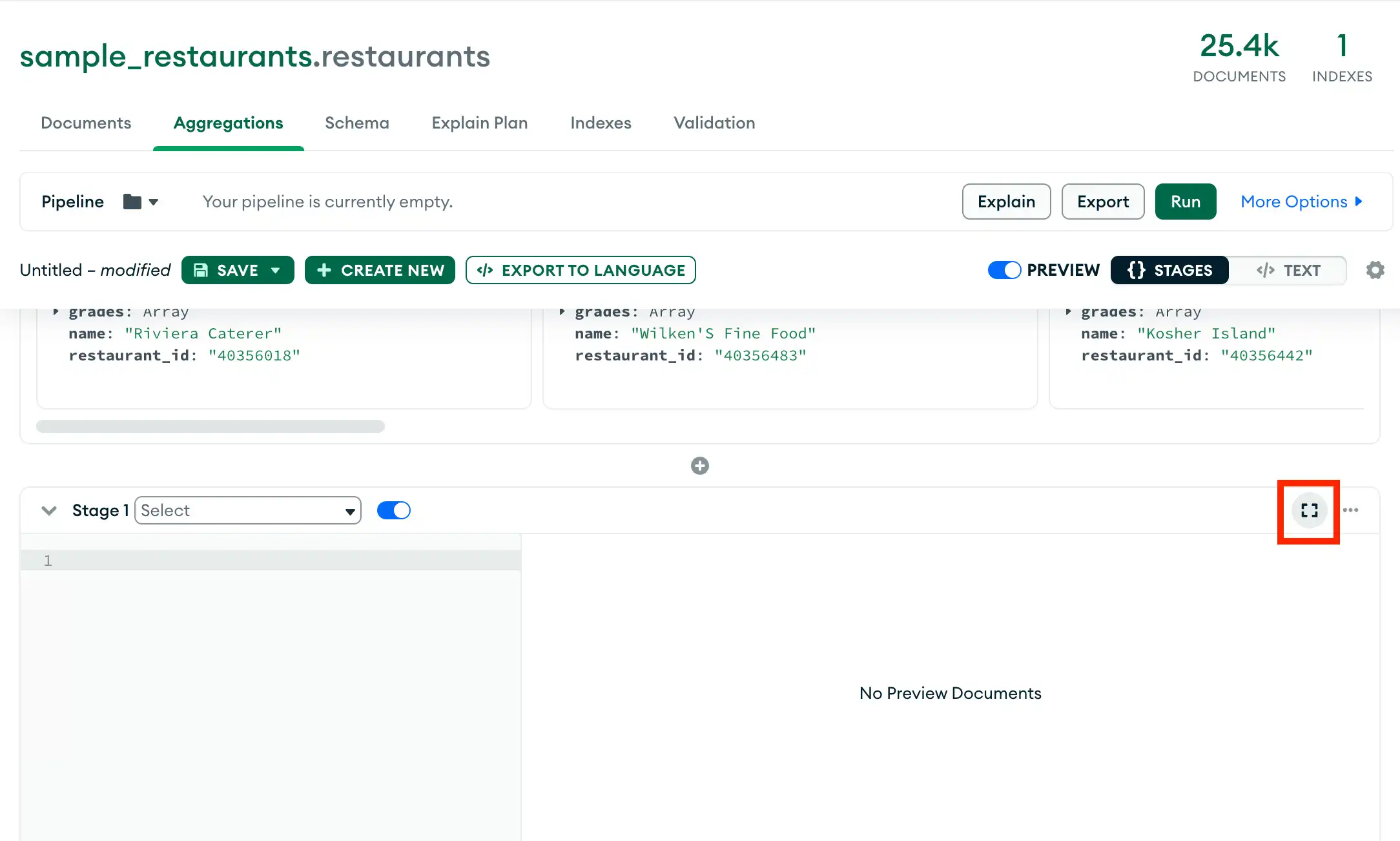
On the upper-right corner of the stage card, click the Focus Mode icon.在舞台卡片的右上角,单击焦点模式图标。
Select an aggregation pipeline stage选择聚合管道阶段
Click the Select drop-down menu and select the aggregation pipeline stage to use for the first stage of the pipeline.单击“选择”下拉菜单,然后选择要用于管道第一阶段的聚合管道阶段。
Fill in your pipeline stage填写管道阶段
Fill in your selected stage. Compass populates the Stage Output with up to ten sample output documents.填写您选择的阶段。Compass使用最多十个示例输出文档填充“阶段输出”。
You can adjust the width of the Stage Input, stage editor, and the Stage Output by dragging their border to the desired size.通过将“阶段输入”、“阶段编辑器”和“阶段输出”的边框拖动到所需大小,可以调整它们的宽度。
Note
The toggle to the right of each pipeline stage name dictates whether that stage is included in the pipeline. Toggling a pipeline stage also updates the pipeline preview, which updates based on whether or not that stage is included.每个管道阶段名称右侧的切换指示该阶段是否包含在管道中。切换管道阶段也会更新管道预览,该预览会根据是否包含该阶段而更新。
Add additional pipeline stages添加其他管道阶段
Click the Add Stage dropdown to add additional aggregation stages before or after your last aggregation stage. Repeat steps 4 and 5 for each additional stage.单击“添加阶段”下拉列表,在最后一个聚合阶段之前或之后添加其他聚合阶段。对每个附加阶段重复步骤4和5。
You can add stages with the following keyboard shortcuts:您可以使用以下键盘快捷键添加阶段:
To add a stage after the current stage:要在当前阶段之后添加阶段,请执行以下操作:- Windows / Linux: Ctrl + Shift + A
- Mac: ⌘ + Shift + A
To add a stage before the current stage:要在当前阶段之前添加阶段,请执行以下操作:- Windows / Linux: Ctrl + Shift + B
- Mac: ⌘ + Shift + B
Navigate between stages在阶段之间导航
To navigate between different stages, select the stage you want to edit from the Stage dropdown in the upper-left corner of the Focus Mode modal.要在不同阶段之间导航,请从“聚焦模式”模式左上角的“阶段”下拉列表中选择要编辑的阶段。
You can navigate between stages with the following keyboard shortcuts:您可以使用以下键盘快捷键在阶段之间导航:
To go to the stage before the current stage:要进入当前阶段之前的阶段:- Windows / Linux: Ctrl + Shift + 9
- Mac: ⌘ + Shift + 9
To add a stage before the current stage:
- Windows / Linux: Ctrl + Shift + 0
- Mac: ⌘ + Shift + 0
TextView Mode文本视图模式
Select the Text view选择“文本”视图
In the aggregation pipeline pane, click the </> Text toggle switch to enable text mode for pipeline editing.在聚合管道窗格中,单击</> Text切换开关以启用管道编辑的文本模式。

Enter your aggregation pipeline输入聚合管道
Enter valid aggregation syntax into the text editor. The text editor provides real-time linting for correct syntax and debugging information.在文本编辑器中输入有效的聚合语法。文本编辑器提供实时linting,以获取正确的语法和调试信息。
You can also use Text View Mode to import aggregation pipelines from plain text by typing or pasting your pipeline into the text editor.您还可以使用文本视图模式,通过在文本编辑器中键入或粘贴管道,从纯文本导入聚合管道。
For example, following pipeline limits the query results to 例如,以下管道将查询结果限制为4 documents.4个文档。
[ { "$limit" : 4 } ]Note
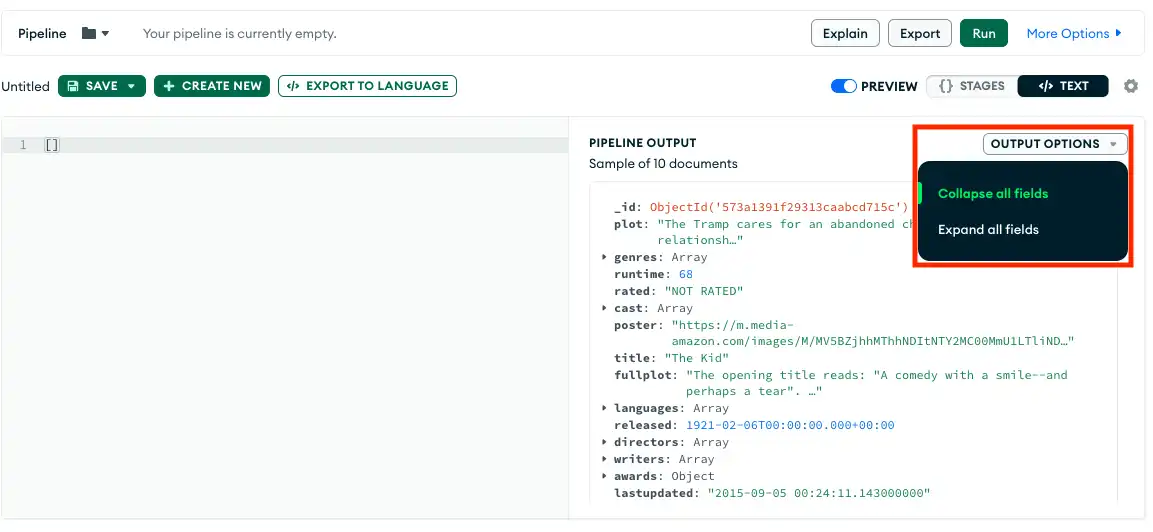
To expand all embedded fields and documents within the preview results, click Output Options and select Expand all fields.要展开预览结果中的所有嵌入字段和文档,请单击“输出选项”,然后选择“展开所有字段”。