You can edit existing documents in your collection.您可以编辑集合中的现有文档。
When you edit a document in List or Table view, Compass performs a findOneAndUpdate operation and updates only those fields that you have changed.当您在列表或表格视图中编辑文档时,Compass会执行findOneAndUpdate操作,并仅更新您更改的字段。
When you edit a document in JSON view, Compass performs a findOneAndReplace operation and replaces the document.在JSON视图中编辑文档时,Compass会执行findOneAndReplace操作并替换文档。
Limitations局限性
Modifying documents is not permitted in MongoDB Compass Readonly Edition.MongoDB Compass只读版不允许修改文档。
Procedure过程
Select the appropriate tab based on whether you are viewing your documents in List, JSON, or Table view:根据您是在列表、JSON还是表视图中查看文档,选择相应的选项卡:

List View
To modify a document, hover over the document and click the pencil icon:要修改文档,请将鼠标悬停在文档上,然后单击铅笔图标:
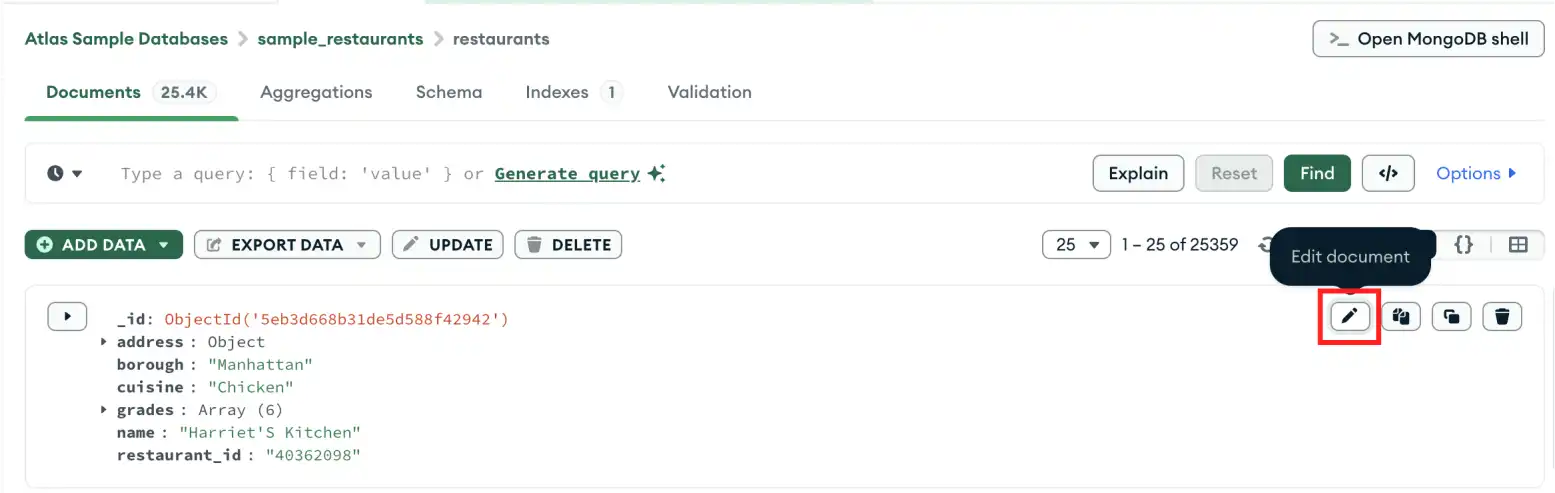
Alternatively, you can right-click on the document and select Edit document from the drop-down menu.或者,您可以右键单击文档,然后从下拉菜单中选择“编辑文档”。
After you click the pencil icon or select Edit document, the document enters edit mode. You can now make changes to the fields, values, or data types of values.单击铅笔图标或选择编辑文档后,文档将进入编辑模式。现在,您可以对字段、值或值的数据类型进行更改。
Delete Fields删除字段
To delete a field from a document, click the icon to the left of the field:要从文档中删除字段,请单击字段左侧的图标:
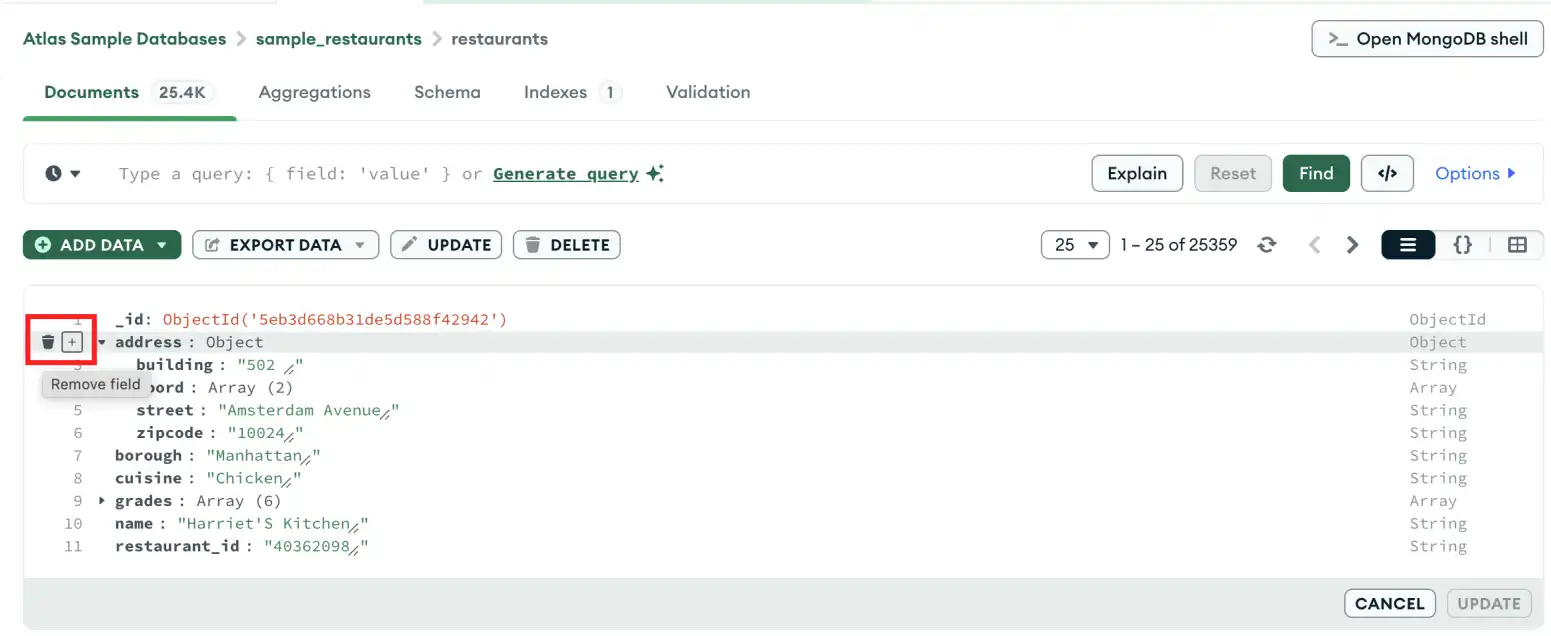
Once selected, the field is marked for removal and appears highlighted in red. Compass asks for confirmation that you want to update the document by removing the field.选择后,该字段将标记为删除,并以红色突出显示。Compass会要求您确认是否要通过删除该字段来更新文档。
Add New Fields添加新字段
To add a new field in the document after an existing field, hover over the row number in the dialog and click on the plus sign. The row number is not part of the document but is part of the dialog display.要在现有字段之后在文档中添加新字段,请将鼠标悬停在对话框中的行号上,然后单击加号。行号不是文档的一部分,而是对话框显示的一部分。
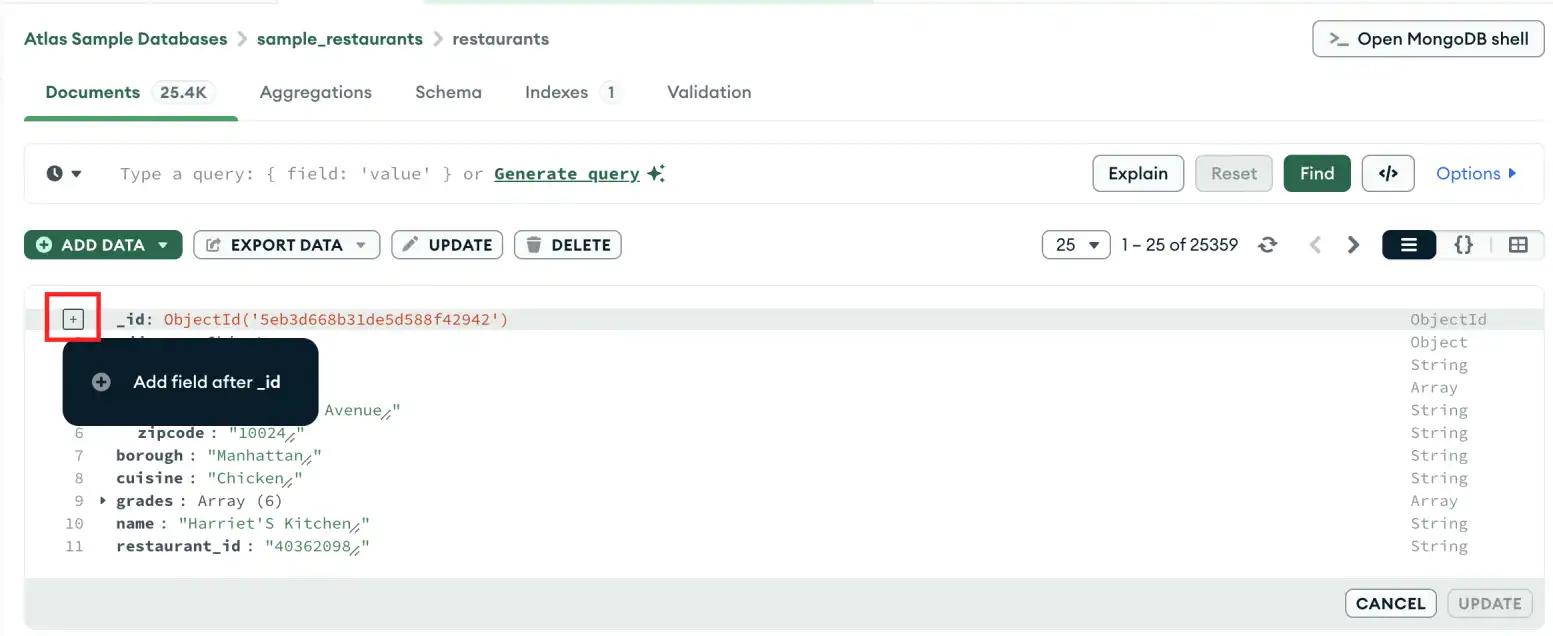
You can also add a new field at the end of the document by pressing the tab key when your text cursor is in the value of the last document field.当文本游标位于最后一个文档字段的值中时,您还可以通过按tab键在文档末尾添加新字段。
Modify an Existing Field修改现有字段
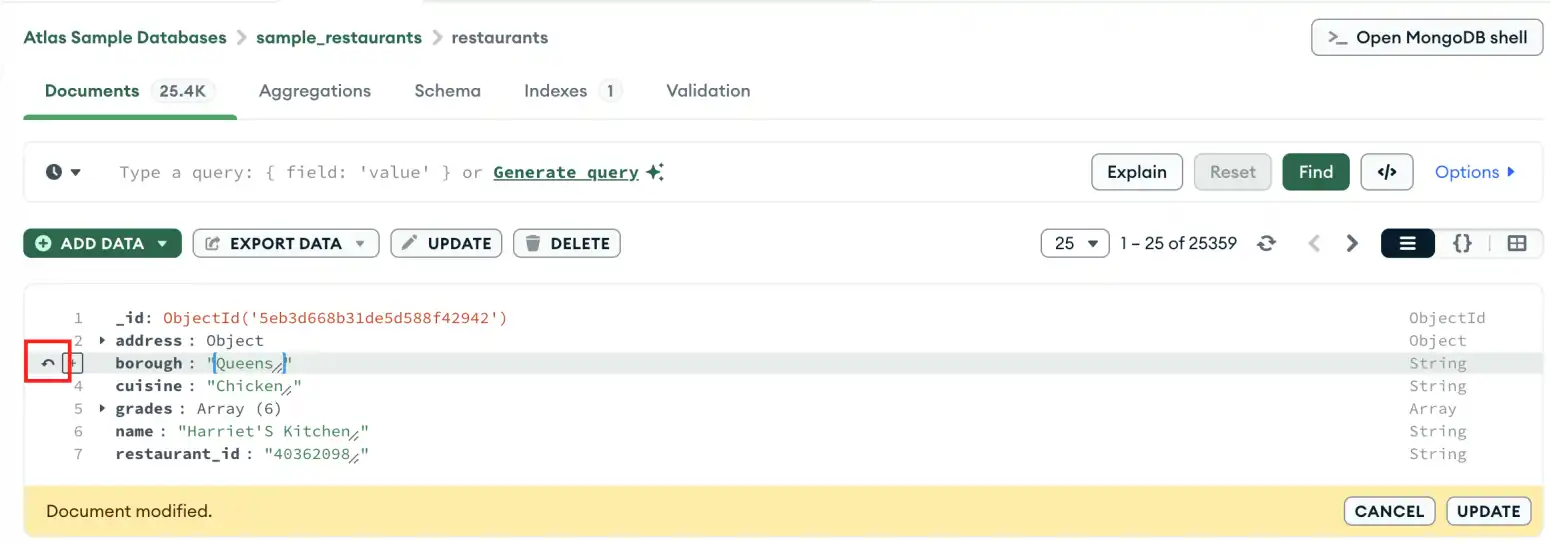
To modify documents, click on existing field names or values and make changes. In this example, the 要修改文档,请单击现有的字段名称或值并进行更改。在这个例子中,该borough was changed from Manhattan to Queens. Changed fields appear highlighted in yellow:borough(行政区)从Manhattan(曼哈顿)改为Queens(皇后区)。更改的字段以黄色突出显示:
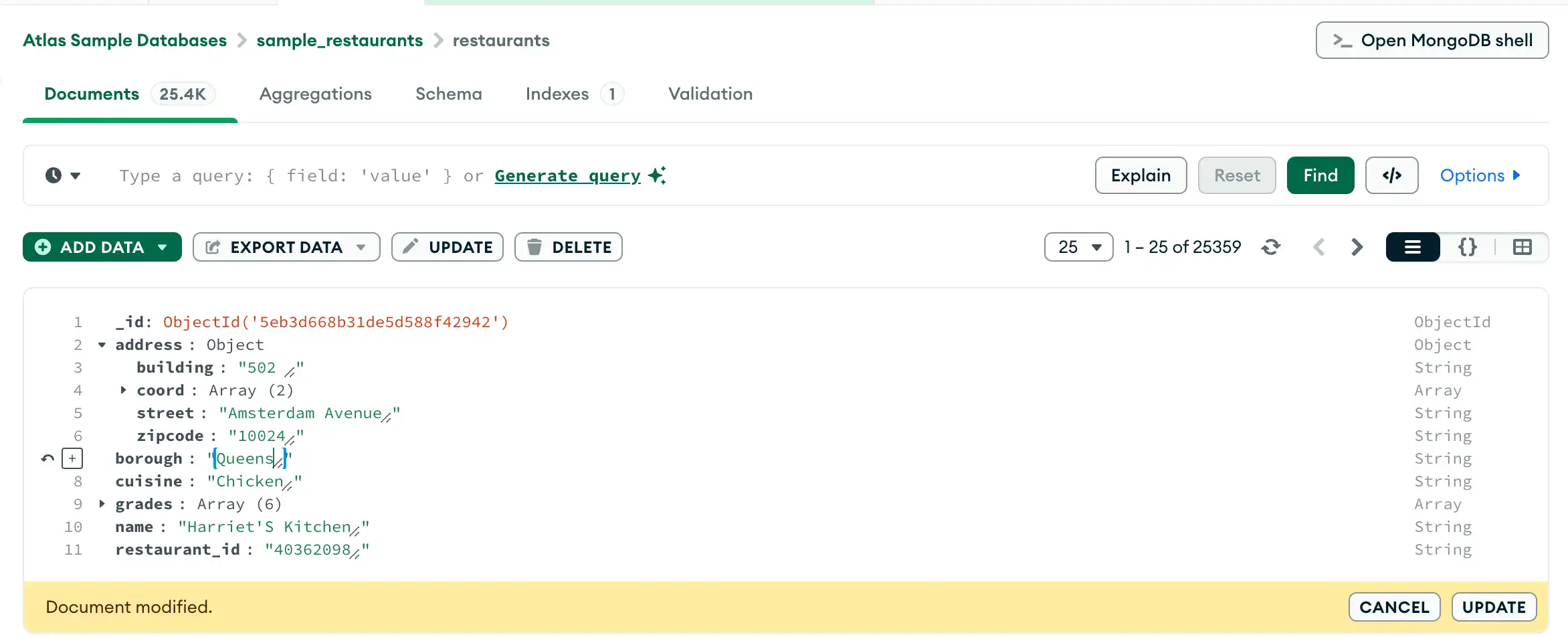
When you edit a document in List or Table view, Compass performs a findOneAndUpdate operation and updates only those fields that you have changed.当您在列表或表格视图中编辑文档时,Compass会执行findOneAndUpdate操作,并仅更新您更改的字段。
If Compass detects that you have changed fields that were modified outside of Compass, it notifies you, preventing you from accidentally overwriting the changes made outside of Compass. You can choose to proceed and replace the document by clicking Update, or cancel your changes.如果Compass检测到您更改了在Compass外部修改的字段,它会通知您,防止您意外覆盖在Compass之外所做的更改。您可以选择继续并通过单击“更新”替换文档,也可以取消更改。
Save Changes保存更改
When you are finished editing the document, click the 编辑完文档后,单击“更新”按钮提交更改。Update button to commit your changes.
Revert a Change还原更改
To revert changes to a document, hover over the edited field and click the revert icon which appears to the left of the field's line number.要还原对文档的更改,请将鼠标悬停在已编辑的字段上,然后单击字段行号左侧显示的还原图标。
Json View
To modify a document, hover over the document and click the pencil icon:要修改文档,请将鼠标悬停在文档上,然后单击铅笔图标:

Alternatively, you can right-click on the document and select Edit document from the drop-down menu.或者,您可以右键单击文档,然后从下拉菜单中选择“编辑文档”。
After you click the pencil icon or select Edit document, the document enters edit mode. You can now add, remove, and edit field values by modifying the JSON document.单击铅笔图标或选择“编辑文档”后,文档将进入编辑模式。现在,您可以通过修改JSON文档来添加、删除和编辑字段值。
By default, this view hides embedded objects and arrays. To expand embedded objects and array elements, hover over the target document and click the top arrow on the left side of the document.默认情况下,此视图隐藏嵌入的对象和数组。要展开嵌入式对象和数组元素,请将鼠标悬停在目标文档上,然后单击文档左侧的顶部箭头。
To expand individual objects and arrays, click the arrow to the left of the desired field.要展开单个对象和数组,请单击所需字段左侧的箭头。

When you edit a document in JSON view, Compass performs a findOneAndReplace operation and replaces the document.在JSON视图中编辑文档时,Compass会执行findOneAndReplace操作并替换文档。
If Compass detects that you have changed fields that were modified outside of Compass, it notifies you, preventing you from accidentally overwriting the changes made outside of Compass. You can choose to proceed and replace the document by clicking Update, or cancel your changes.如果Compass检测到您更改了在Compass外部修改的字段,它会通知您,防止您意外覆盖在Compass之外所做的更改。您可以选择继续并通过单击“更新”替换文档,也可以取消更改。
Table View
To modify a document, hover over the document and click the pencil icon:要修改文档,请将鼠标悬停在文档上,然后单击铅笔图标:
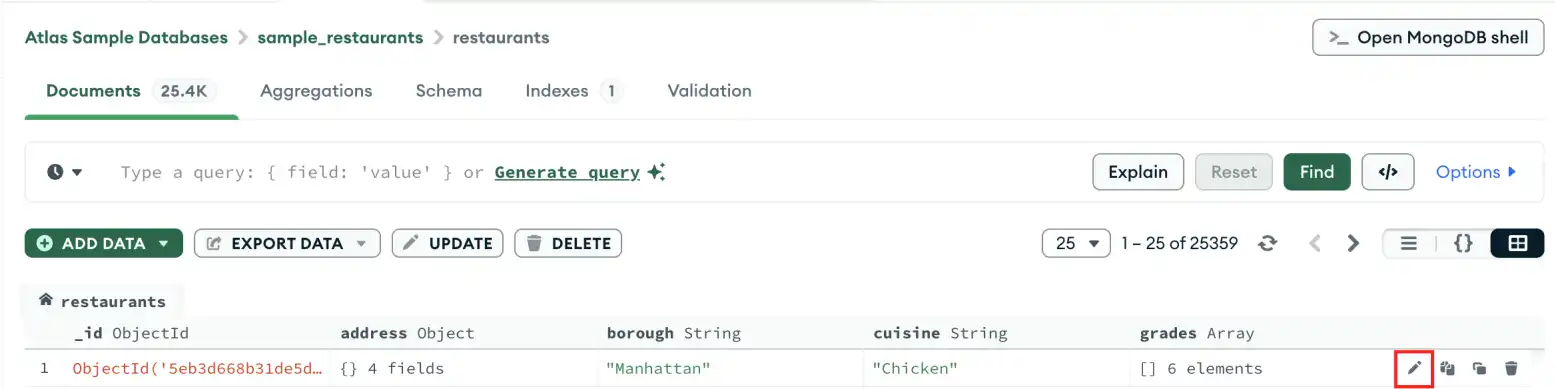
After you click the pencil icon, the document enters edit mode.单击铅笔图标后,文档将进入编辑模式。
When you edit a document in List or Table view, Compass performs a findOneAndUpdate operation and updates only those fields that you have changed.当您在列表或表格视图中编辑文档时,Compass会执行findOneAndUpdate操作,并仅更新您更改的字段。
If Compass detects that you have changed fields that were modified outside of Compass, it notifies you, preventing you from accidentally overwriting the changes made outside of Compass. You can choose to proceed and replace the document by clicking Update, or cancel your changes.如果Compass检测到您更改了在Compass外部修改的字段,它会通知您,防止您意外覆盖在Compass之外所做的更改。您可以选择继续并通过单击“更新”替换文档,也可以取消更改。
Delete Fields删除字段
To delete a field from a document:要从文档中删除字段,请执行以下操作:
Click the value of the field you want to delete.单击要删除的字段的值。Click the icon.单击图标。Click Update to confirm your changes.单击“更新”以确认更改。
Add New Fields添加新字段
To add a new field to the document:要在文档中添加新字段,请执行以下操作:
Click the field after which you wish to add the new field.单击要添加新字段的字段。Click the icon.单击方框加号图标。Click Add Field after <Field Name>.单击<字段名称>后面的“添加字段”。Populate your newly created field.填充新创建的字段。Click Update to confirm your changes.单击“更新”以确认更改。
Revert a Change还原更改
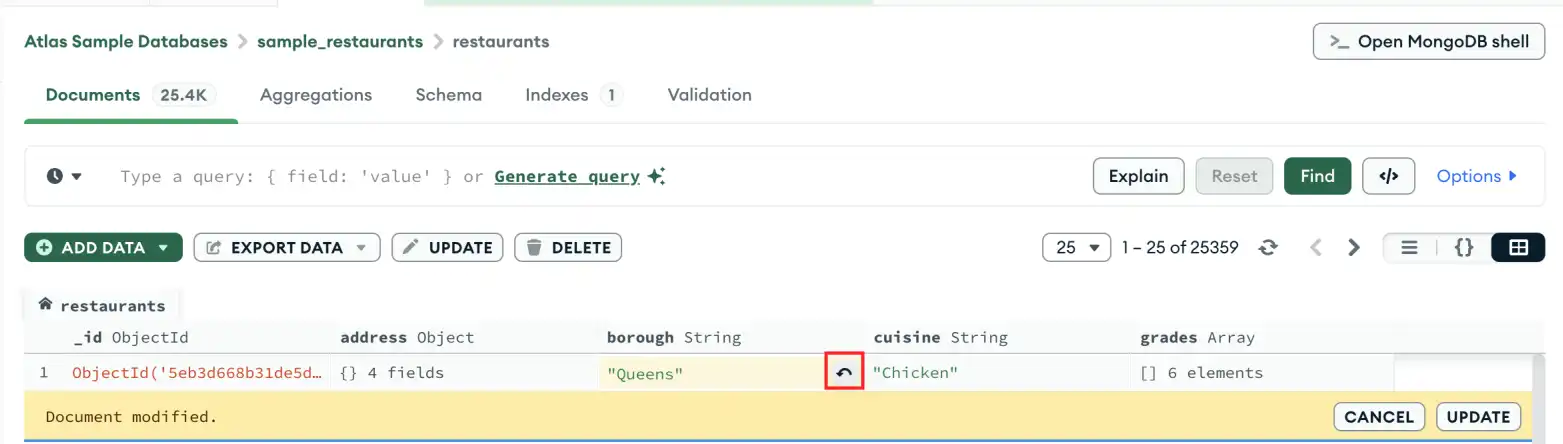
While modifying a document, you have the option to revert changes made to a field prior to saving the modified document.在修改文档时,您可以选择在保存修改后的文档之前还原对字段所做的更改。
Click the revert icon which appears on the right side of the edited table element.单击显示在已编辑表元素右侧的还原图标。
Cancel Changes取消更改
To exit the edit mode and cancel all pending changes to the document, click the Cancel button.要退出编辑模式并取消对文档的所有待定更改,请单击“取消”按钮。
Modify Multiple Documents修改多个文档
You can use the bulk update operations workflow to update multiple documents in Compass. For details, see Modify Multiple Documents.您可以使用批量更新操作工作流在Compass中更新多个文档。有关详细信息,请参阅修改多个文档。
Note
You can also use the db.collection.updateMany() method in the embedded MongoDB Shell to update multiple documents in a single operation.您还可以使用嵌入式MongoDB Shell中的db.collection.updateMany()方法在一次操作中更新多个文档。