Editing a Component编辑组件
When you edit a SketchUp component, you can edit the component definition or the instance. When you edit the definition, you change every component instance. 编辑SketchUp组件时,可以编辑组件定义或实例。编辑定义时,会更改每个组件实例。When you edit the instance, the component becomes an unique component and no longer reflects changes to its fellow components.编辑实例时,该组件将成为一个唯一的组件,不再反映对其他组件的更改。
For example, say you're modeling a picket fence. In your fence model, shown in the following figure, the Fence Panel component contains subcomponents: Post, Rail, and Picket.例如,假设你正在建模一个尖桩围栏。在您的围栏模型中,如下图所示,围栏面板组件包含子组件:立柱、栏杆和栅栏。
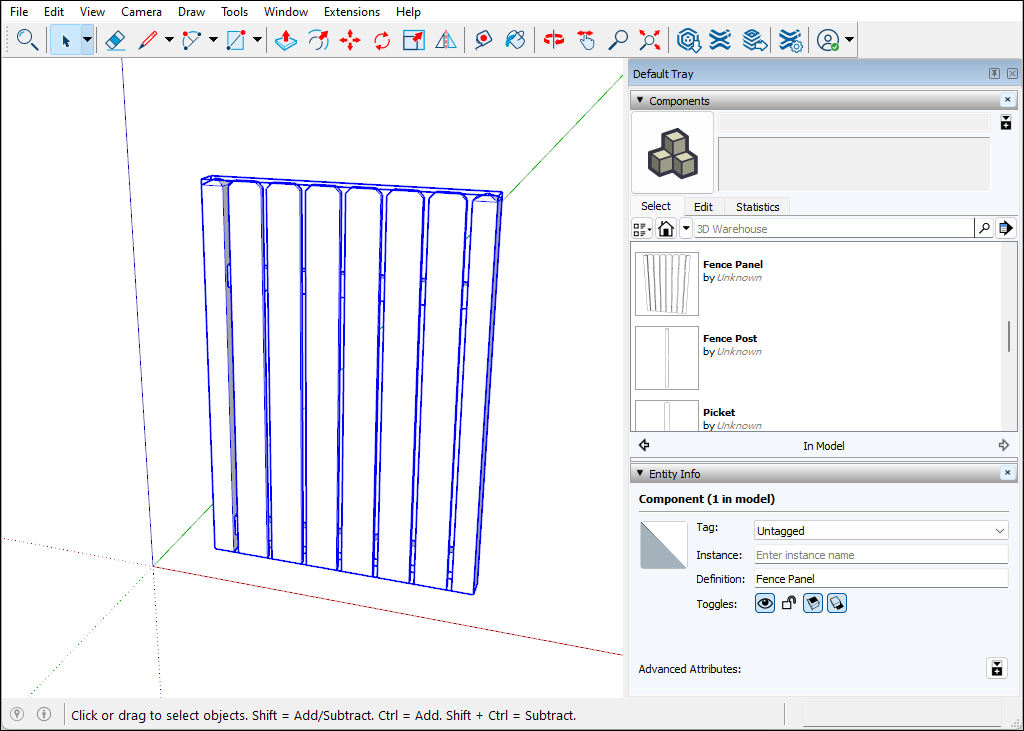
The following sections explain a few different ways you can edit components, using the Fence Panel component as an example.以下部分以围栏面板组件为例,解释了编辑组件的几种不同方法。
Table of Contents目录
Editing all instances of a component编辑组件的所有实例
To edit all instances of a component, follow these steps:要编辑组件的所有实例,请执行以下步骤:
Open the context for the component you want to edit.打开要编辑的组件的上下文。In this example, that's the Picket component. To open the context, you can double-click the component.在这个例子中,这是Picket组件。要打开上下文,可以双击组件。Or select it, context-click the selection, and choose Edit Component, or simply hit Enter.或者选择它,右键单击所选内容,然后选择“编辑组件”,或者只需按Enter键。Use the SketchUp drawing tools to edit your component.使用SketchUp绘图工具编辑组件。In this example, we used the Line, Tape Measure, 2 Point Arc, and Push/Pull tool to change the top of the Picket component. All component instances change as you draw.在这个例子中,我们使用直线、卷尺、两点弧和推/拉工具来更改Picket组件的顶部。绘制时,所有组件实例都会发生变化。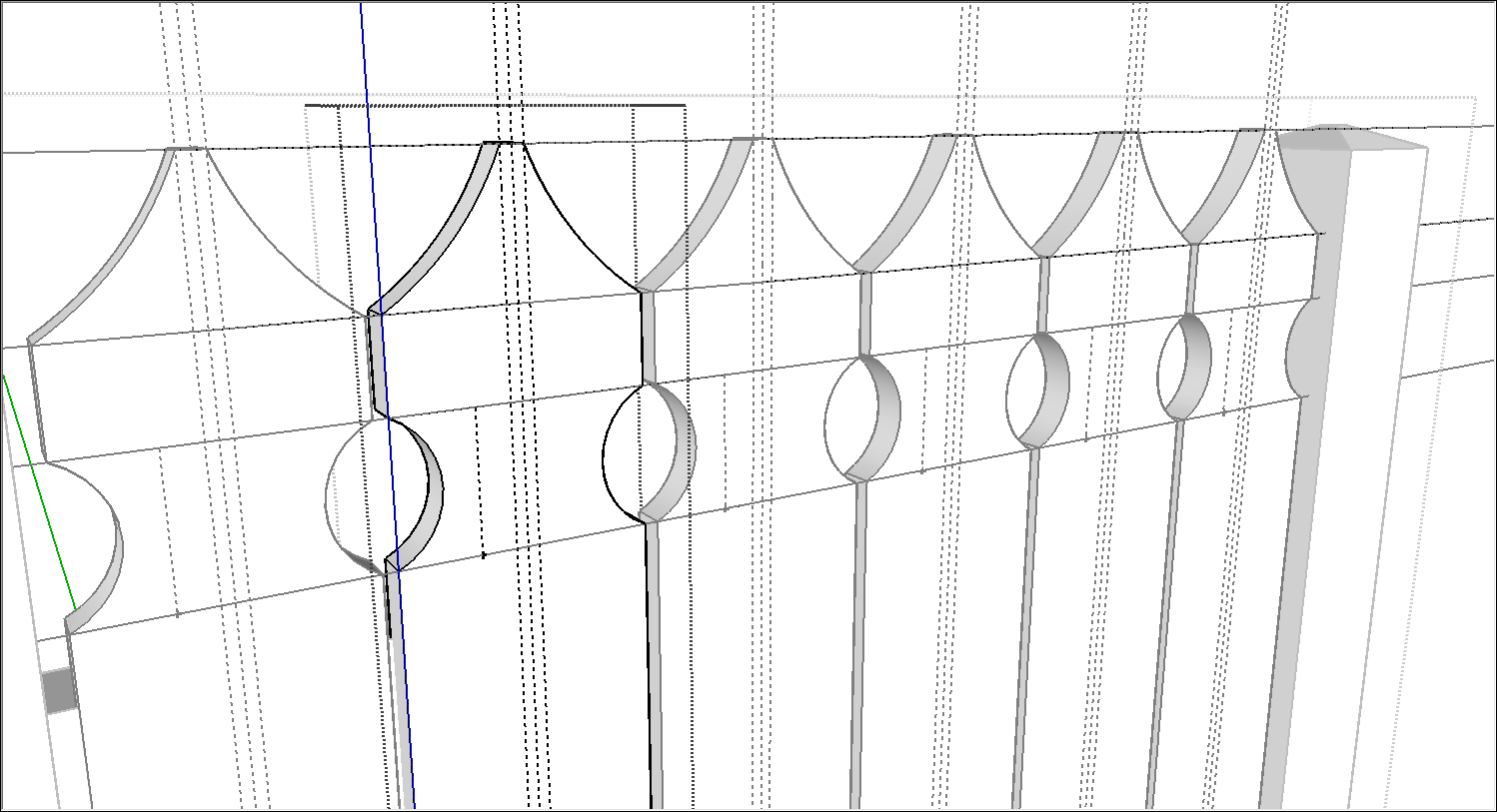
Click outside the component's context and save your work. SketchUp automatically updates the component definition to reflect your edits.在组件上下文之外单击并保存您的工作。SketchUp会自动更新组件定义以反映您的编辑。
Changing a single component instance更改单个组件实例
Say you want to edit only one instance of a component. For example, perhaps you want to model two or more picket styles so that you can experiment with the options. Follow these steps to edit one instance but leave the other component instances as they are:假设您只想编辑一个组件的一个实例。例如,也许您想模拟两种或多种纠察队风格,以便您可以尝试这些选项。按照以下步骤编辑一个实例,但保留其他组件实例不变:
Select the component instance that you want to edit.选择要编辑的组件实例。Context-click the selected instance and choose Make Unique, as shown in the figure.右键单击所选实例并选择“唯一化”,如图所示。If you have the Entity Info panel open, you see that SketchUp changes the Definition by adding #1, or something similar.如果您打开了“实体信息”面板,您会看到SketchUp通过添加#1或类似内容来更改定义。By making the instance unique, you're basically creating a new component based on your original.通过使实例独一无二,您基本上是在原始组件的基础上创建了一个新组件。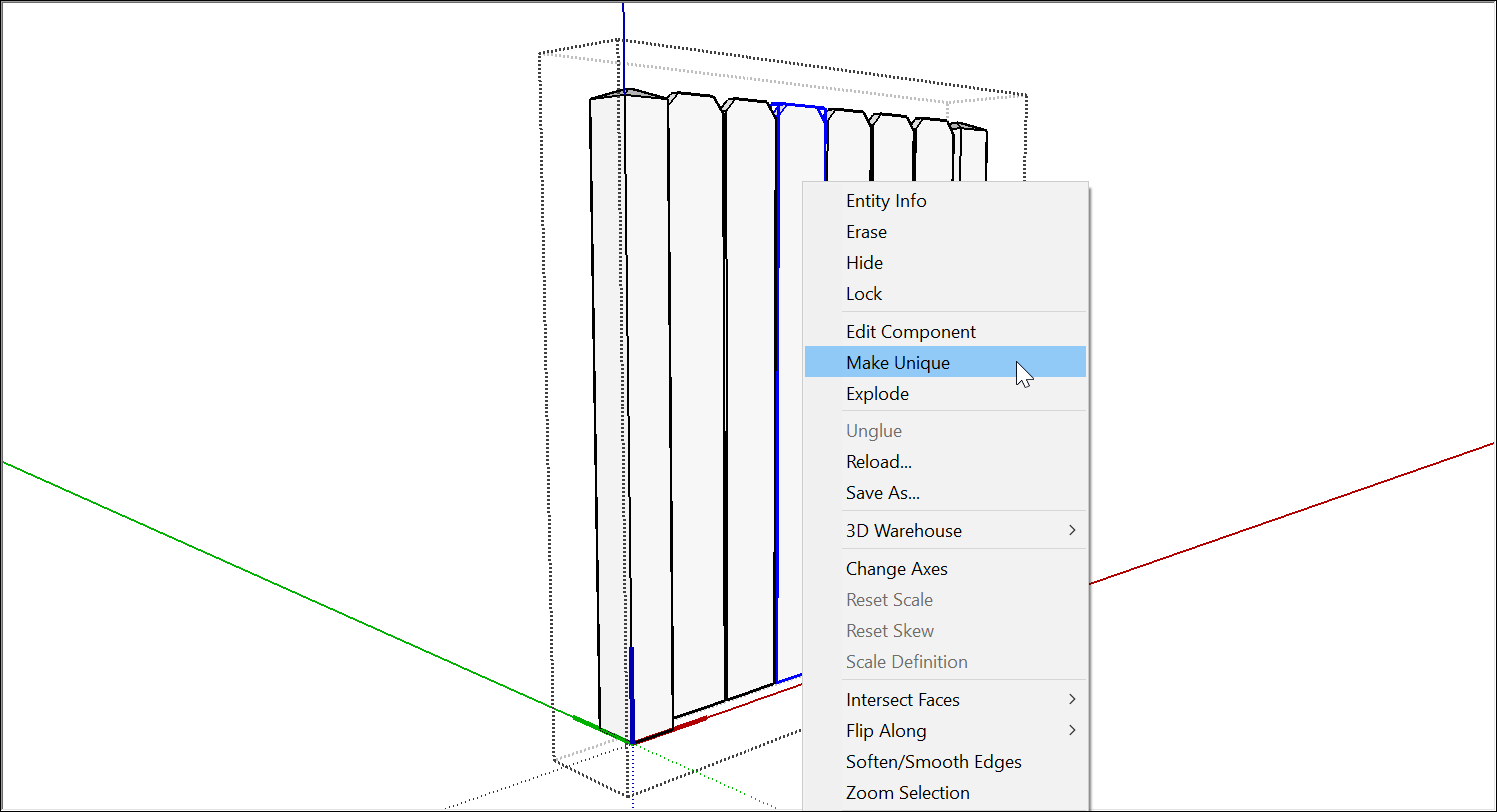
Open the context for the unique component. To open the context, you can double-click the component. Or select it, context-click the selection, and choose Edit Component.打开唯一组件的上下文。要打开上下文,可以双击组件。或者选择它,右键单击所选内容,然后选择“编辑组件”。Use the SketchUp drawing tools to make changes to the component. In this case, we made a slight change by selecting the edges on each side of the picket and moving them inward 5/16 inch. This made the picket width slightly narrower.使用SketchUp绘图工具对组件进行更改。在这种情况下,我们通过选择尖桩两侧的边缘并将其向内移动5/16英寸进行了轻微的更改。这使得纠察线的宽度略微变窄。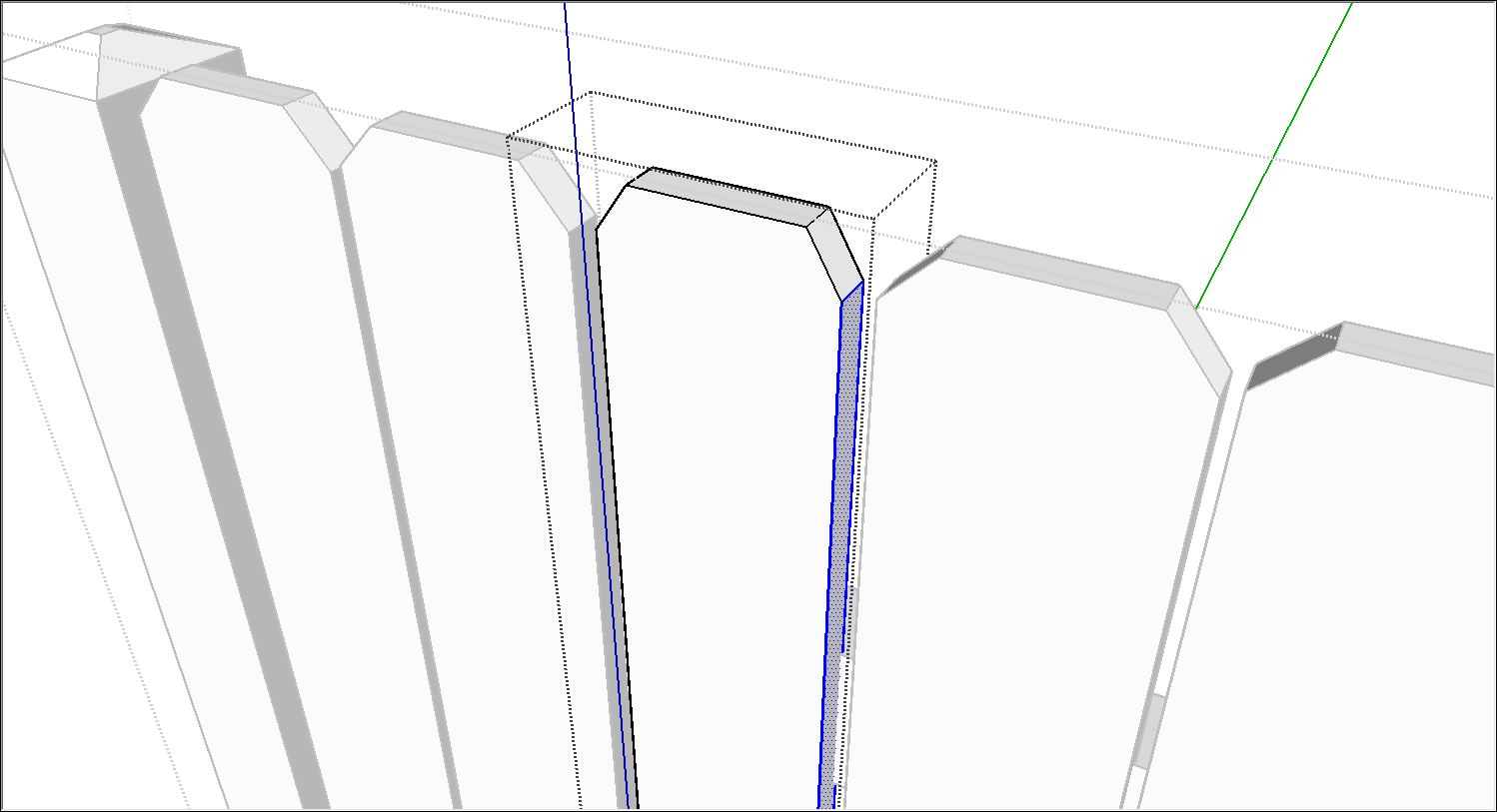
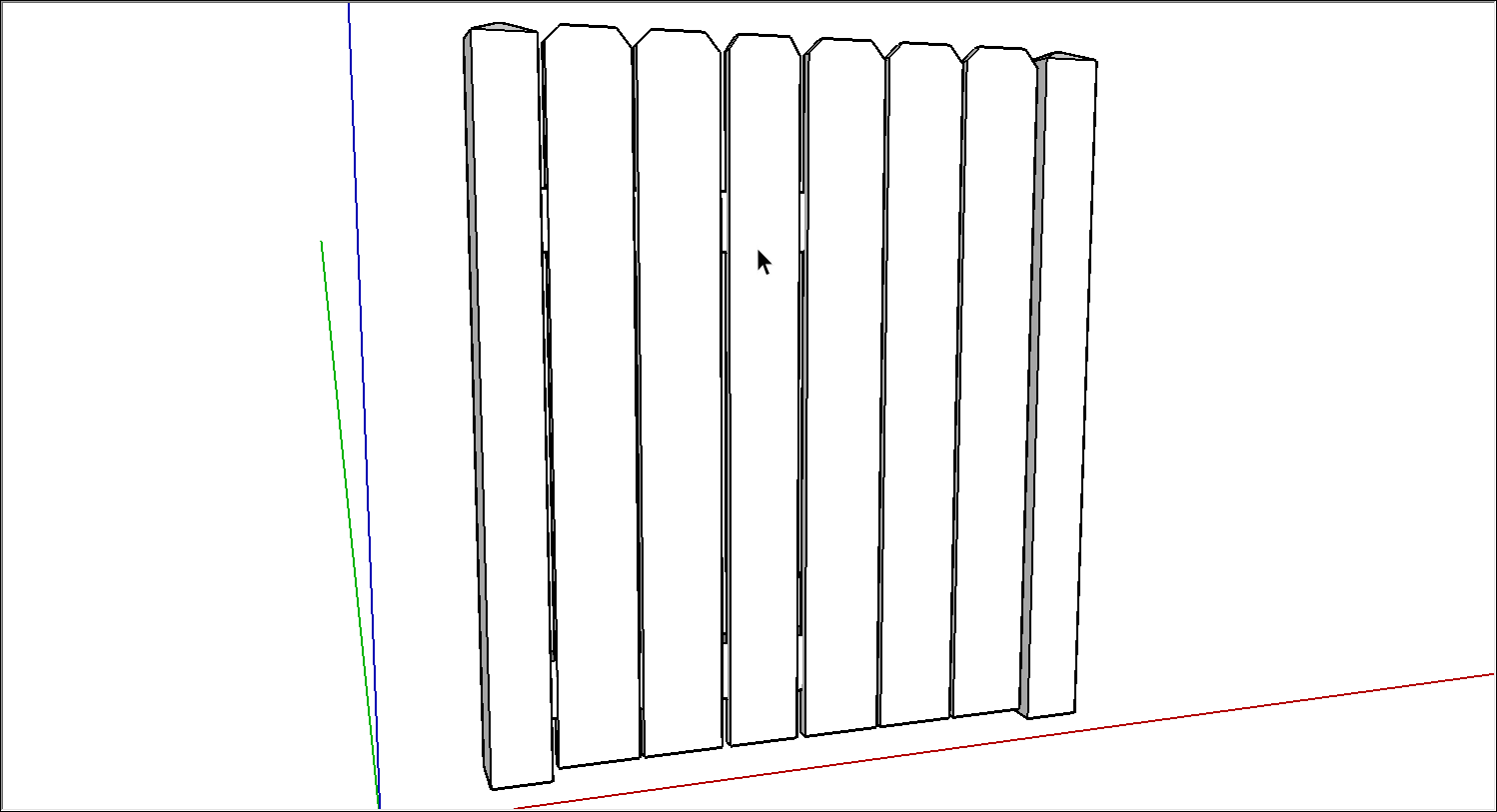
Click outside the component context when you're done editing. In the figure, you can see that one picket is slightly narrower than the others.编辑完成后,在组件上下文外单击。在图中,你可以看到一个纠察队比其他纠察队稍微窄一些。
Replacing all component instances with another component用另一个组件替换所有组件实例
When you use instances of the same component throughout a model, you can easily replace all instances of a component with a completely different component. To replace one component with another, follow these steps:当您在整个模型中使用同一组件的实例时,您可以轻松地用完全不同的组件替换组件的所有实例。要用另一个组件替换一个组件,请执行以下步骤:
In the Components panel, click the In Model icon.在“零部件”面板中,单击“模型内”图标。In the area that lists all the components in your model, context-click the component you want to replace and choose Select Instances.在列出模型中所有组件的区域中,右键单击要替换的组件,然后选择“选择实例”。Still in the Components panel, navigate to the component you want to use instead.仍然在“组件”面板中,导航到要使用的组件。Context-click the new component and select Replace Selected from the menu that appears.右键单击新组件,然后从显示的菜单中选择“替换选定组件”。
Editing a component with the Solid tools使用Solid工具编辑组件
When you edit a component with the Solid tools, the steps are little different than the steps for editing components with the other drawing tools.使用Solid工具编辑零部件时,步骤与使用其他绘图工具编辑零部件的步骤几乎没有什么不同。
The following steps explain how to edit a component with the Solid tools, using the fence model as an example:以下步骤以围栏模型为例,解释了如何使用Solid工具编辑组件:
Edit the component with a Solid tool In this example, the Subtract tool cuts a hole in the Picket component. In the Entity Info panel, notice that the name of the component instance changes from Picket to Difference.使用实体工具编辑零部件在本例中,减法工具在拾取零部件中切割一个孔。在“实体信息”面板中,请注意组件实例的名称从Picket更改为Difference。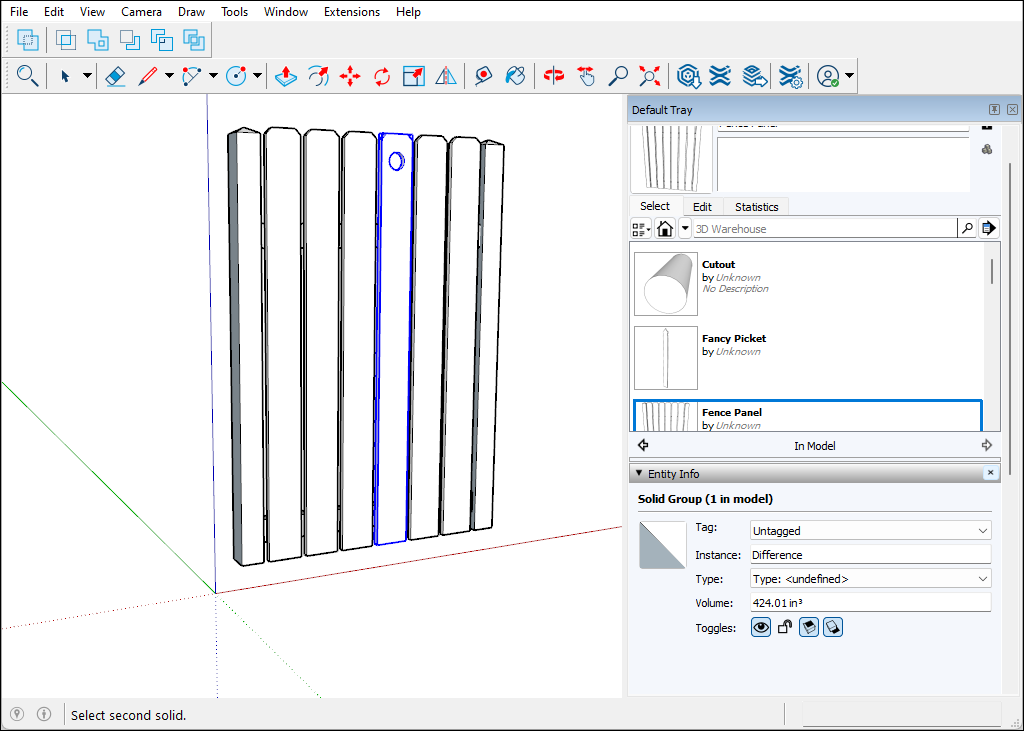
To update the component definition so that all pickets reflect your changes, context-click the modified picket and select Make Component.要更新组件定义,使所有纠察线都反映您的更改,请在上下文中单击修改后的纠察线,然后选择“生成组件”。In the Create Component dialog box, make sure the component Definition matches the original component name. In this example, that name is Picket.在“创建组件”对话框中,确保组件定义与原始组件名称匹配。在这个例子中,这个名字是Picket。Click the Create button. A dialog box asks whether you want to replace the component definition.单击“创建”按钮。一个对话框询问您是否要替换组件定义。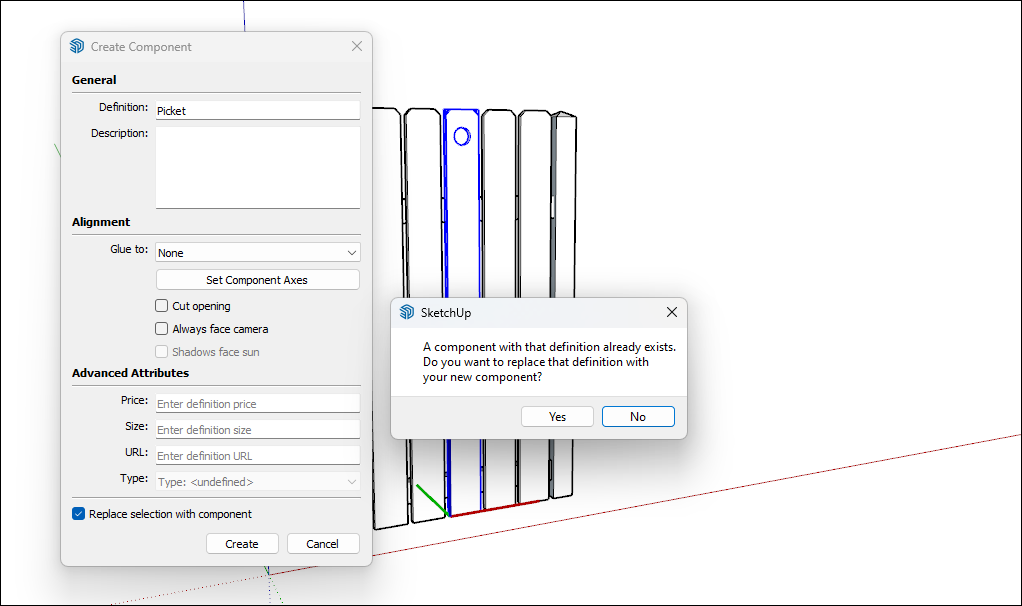
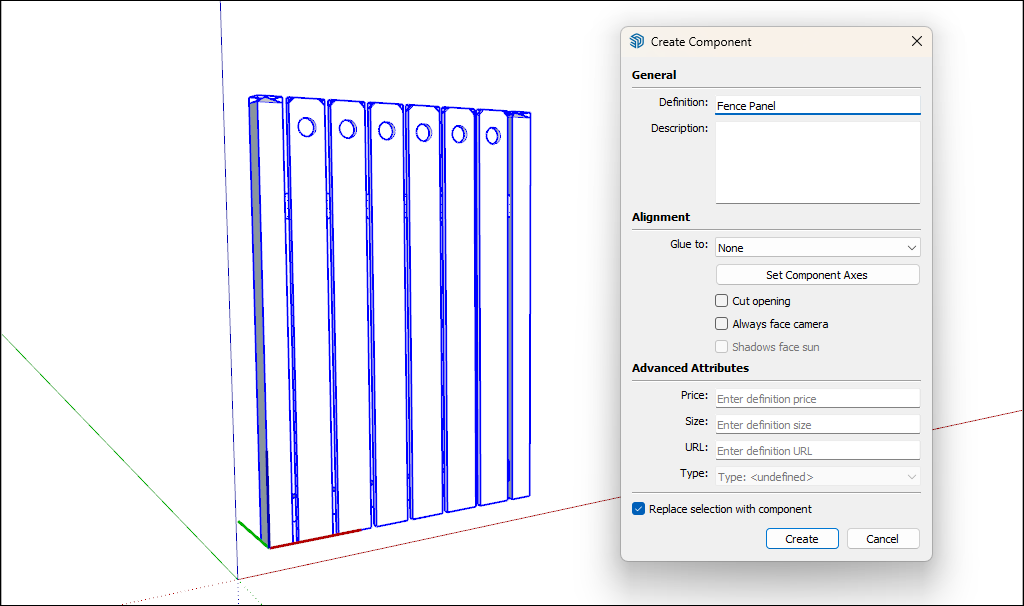
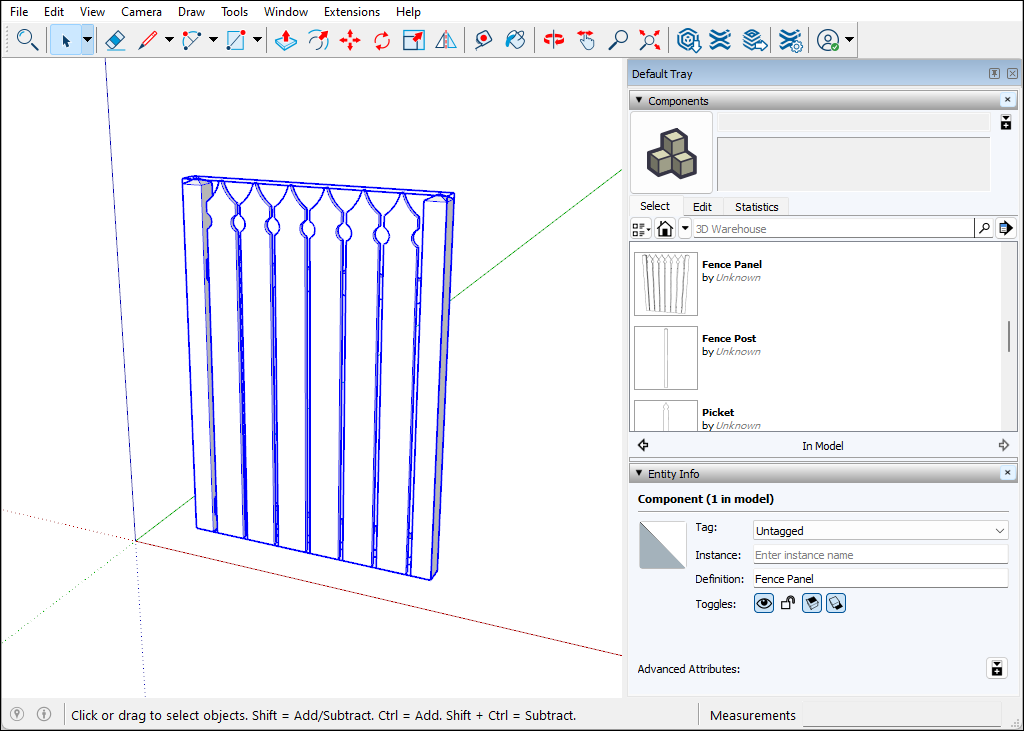
Click Yes. All instances of your component reflect the change you made with the Solid tool or tools.单击“是”。组件的所有实例都反映了您使用Solid工具所做的更改。(Optional) If you exploded a component to access subcomponents, you can re-create the component. For example, select all the entities in the updated fence and re-create the Fence Panel component.(可选)如果分解组件以访问子组件,则可以重新创建组件。例如,选择更新的围栏中的所有实体,然后重新创建围栏面板组件。