Note
Starting in version 1.44.0, you can connect to multiple MongoDB instances at once through Compass.从1.44.0版本开始,您可以通过Compass一次连接到多个MongoDB实例。
The Connections Sidebar on the left of the Compass window contains the following options:Compass窗口左侧的连接侧边栏包含以下选项:
icon to add new connections图标以添加新连接icon to import and export connections用于导入和导出连接的图标Search bar to search active connections搜索栏用于搜索活动连接Connections list“连接”列表

You can also right-click on the Connections header to open a menu with the following options:您还可以右键单击Connections标题,打开一个包含以下选项的菜单:
Collapse all connections折叠所有连接Add new connection添加新连接Import connections导入连接Export connections导出连接
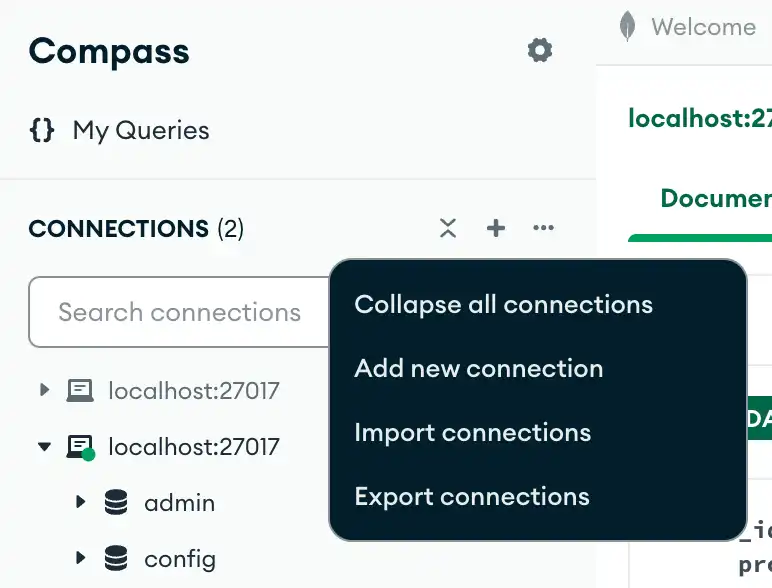
Connections List连接列表
The Connections list in the sidebar contains your favorite and saved connections. Favorite connections have a next to the connection name and always appear at the top of the connections list.侧边栏中的“连接”列表包含您收藏和保存的连接。常用连接在连接名称旁边有一个星号,并且始终显示在连接列表的顶部。
Filter Connections List筛选器连接列表
You can filter the Connections list to only display your currently active connections by clicking the filter icon to the right of the active connections search bar and toggling Show only active connections on:您可以通过单击活动连接搜索栏右侧的筛选器图标并切换“仅在以下位置显示活动连接”来筛选“连接”列表,以仅显示当前活动的连接:

Connect to MongoDB连接到MongoDB
To connect to a saved or favorite deployment, hover over the name of the connection in the Connections list, then click Connect. You can also click the icon to open a drop-down menu to choose whether to Connect in the current Compass window or In New Window.要连接到已保存或集合的部署,请将鼠标悬停在“连接”列表中的连接名称上,然后单击“连接”。您还可以单击图标打开下拉菜单,选择是在当前Compass窗口中连接还是在新窗口中连接。
If a connection error occurs, Compass shows a toast with error information and displays a red triangle next to the connection name. To see additional error information, click Review in the error toast.如果发生连接错误,Compass会显示一个带有错误信息的吐司,并在连接名称旁边显示一个红色三角形。要查看其他错误信息,请单击错误吐司中的“查看”。
To add a new connection to Compass, click the button at the top of the Connections Sidebar to open the New Connection modal. For more information, see Connect Compass to MongoDB.要向Compass添加新连接,请单击“连接”侧边栏顶部的按钮打开“新建连接”模式。有关更多信息,请参阅将Compass连接到MongoDB。
To switch between connections, click the name of the connection you want to interact with to open the Databases tab. When you open a database, MongoDB opens a new tab and labels it with the name of the MongoDB instance that contains that database. 要在连接之间切换,请单击要与之交互的连接的名称以打开“数据库”选项卡。打开数据库时,MongoDB会打开一个新选项卡,并用包含该数据库的MongoDB实例的名称标记它。For more information about the Databases tab and instructions on viewing a database, see Databases.有关“数据库”选项卡的详细信息和查看数据库的说明,请参阅数据库。
Edit Connections编辑连接
Starting in version 1.44.5, you can edit a connected connection's name, color, and favorite status:从1.44.5版本开始,您可以编辑连接的名称、颜色和收藏夹状态:
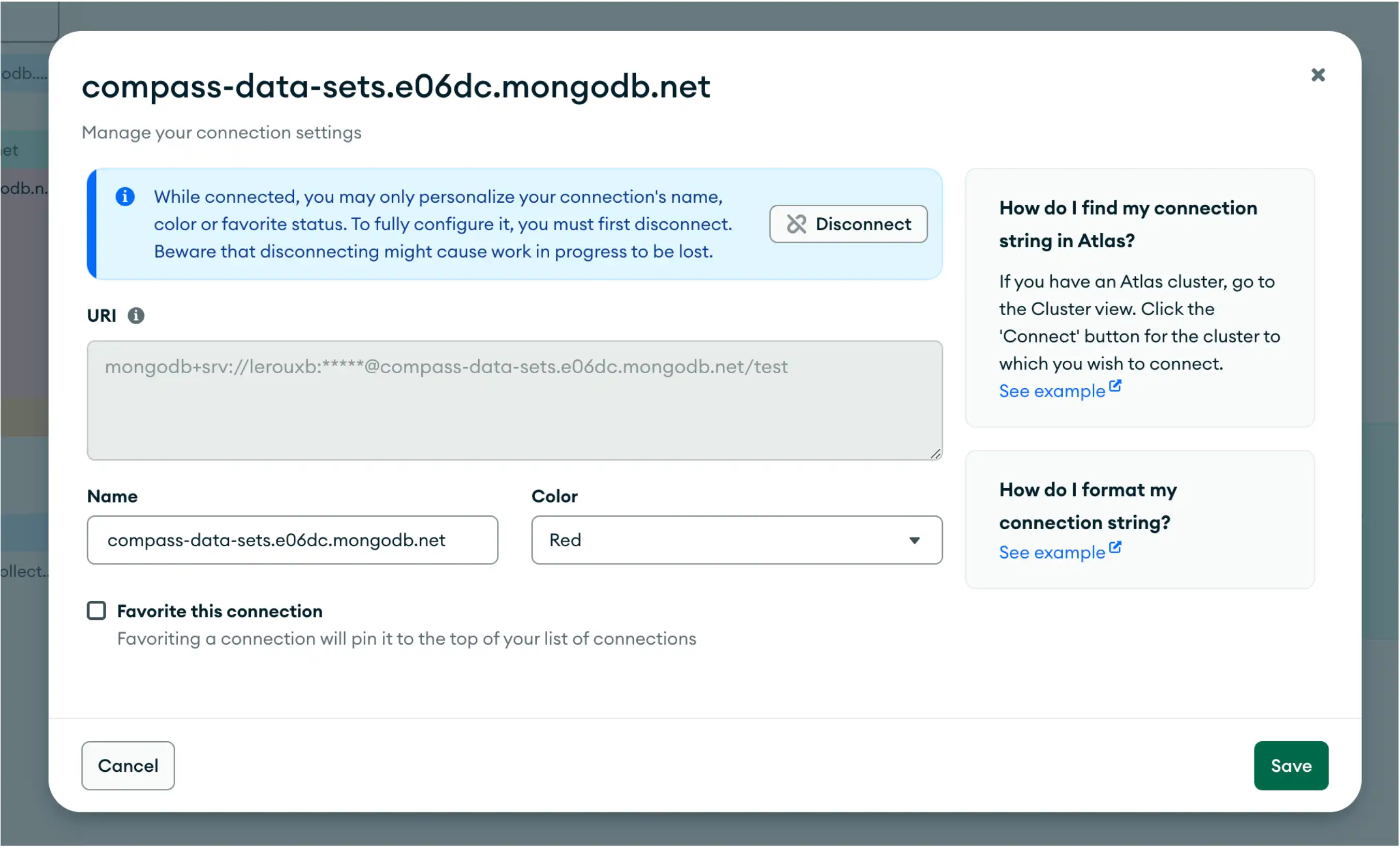
Connection Options连接选项
To see connection options, hover over the name of the connection in the Connections list. Then, right-click on the row or click on the icon to open a menu with the following items:要查看连接选项,请将鼠标悬停在“连接”列表中的连接名称上。然后,右键单击该行或单击图标打开一个包含以下项目的菜单:
View performance metrics查看性能指标Show connection information显示连接信息Refresh databases刷新数据库Disconnect断开Copy connection string复制连接字符串Favorite (or Unfavorite)最喜欢(或不喜欢)Duplicate复制Remove移除
If you right-click to open the menu, it also includes the following item:如果右键单击打开菜单,它还包括以下项目:
Open MongoDB Shell打开MongoDB外壳
To open the MongoDB Shell, click the icon on the right of the connection name.要打开MongoDB Shell,请单击连接名称右侧的图标。