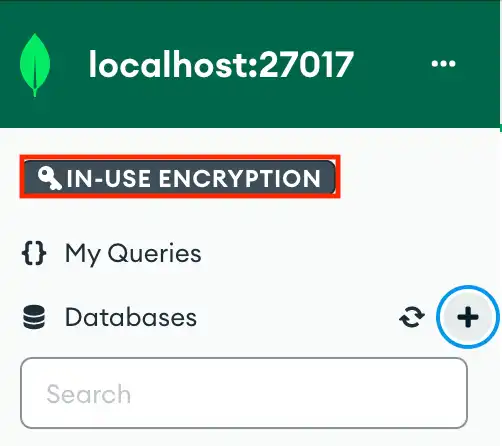
In-Use Encryption allows you to connect to your deployments using Queryable Encryption. This connection method allows you to encrypt a subset of fields in your collections.使用中加密允许您使用可查询加密连接到部署。此连接方法允许您加密集合中的字段子集。
You can also use CSFLE to encrypt a subset of fields in your collection. CSFLE encryption is enabled through the schema editor.您还可以使用CSFLE对集合中的字段子集进行加密。CSFLE加密是通过模式编辑器启用的。
Overview概述
This guide shows you how to connect to your deployment and collections using Queryable Encryption.本指南向您展示了如何使用可查询加密连接到部署和集合。
This guide uses the air_airlines.json data set in the guided examples. The guide covers the process of importing your data set.本指南使用指导示例中的air_airlines.json数据集。本指南介绍了导入数据集的过程。
Requirements and Limitations要求和限制
In-Use Encryption is an Enterprise/Atlas only feature.正在使用的加密是企业/Atlas独有的功能。You need a replica set to use this connection option. Your replica set can be a single node or larger.您需要一个副本集才能使用此连接选项。副本集可以是单个节点或更大的节点。You need to connect to your deployment on Compass using In-Use Encryption. For more information on how to connect to your deployment, see In-Use Encryption Connection tab.您需要使用使用中加密连接到Compass上的部署。有关如何连接到部署的更多信息,请参阅正在使用的加密连接选项卡。
Create Your Encrypted Collection创建加密集合
Once your deployment is connected using In-Use Encryption, create your collection using Queryable Encryption. You can create a new database and collection or you can create a new collection in an existing database.使用In Use Encryption连接部署后,使用Queryable Encryption创建集合。您可以创建新的数据库和集合,也可以在现有数据库中创建新的集合。
Queryable Encryption supports new collections only. You can't enable Queryable Encryption on existing collections.可查询加密仅支持新集合。您无法在现有集合上启用可查询加密。
Procedure过程
Click the Create a Database button or the Create a Collection button.单击“创建数据库”按钮或“创建集合”按钮。
Enter the name of the database and/or collection.输入数据库和/或集合的名称。
Specify your Encrypted Fields.指定“加密字段”。
Change the 将path field value from encryptedField to the name of the field you want encrypted.path(路径)字段值从encryptedField更改为要加密的字段的名称。
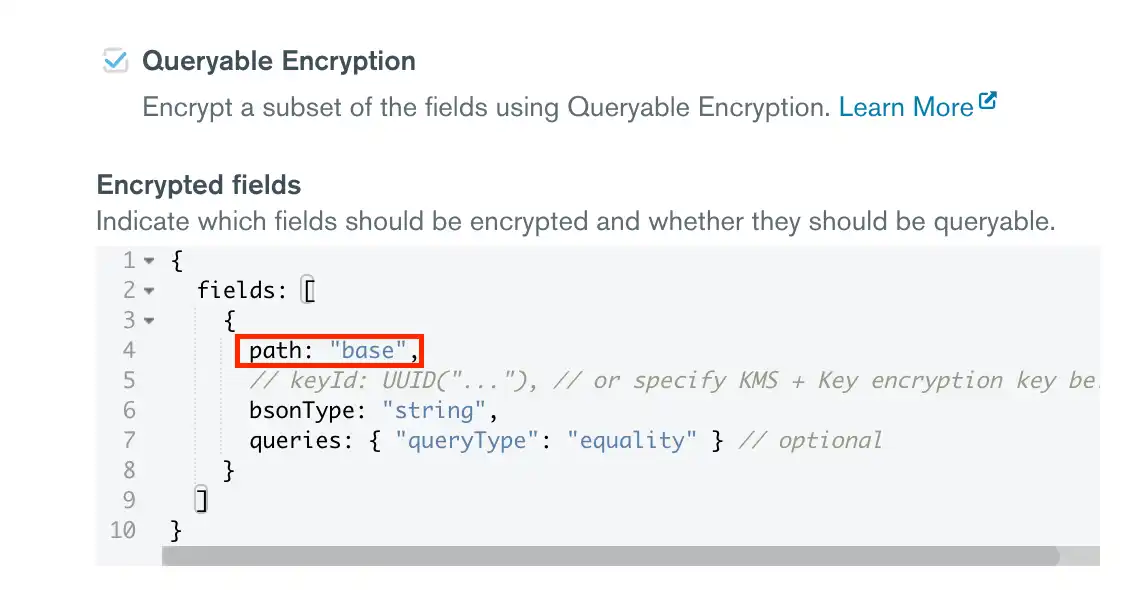
Here, the encrypted field is the 这里,加密字段是base field of the air_airlines data set.air_airlines数据集的base字段。
For more information, see Encrypted Fields.有关更多信息,请参阅加密字段。
(Optional) Specify KMS Provider.(可选)指定KMS提供程序。
(Optional) Specify Key Encryption Key.(可选)指定键加密键。
Import Your Data导入数据
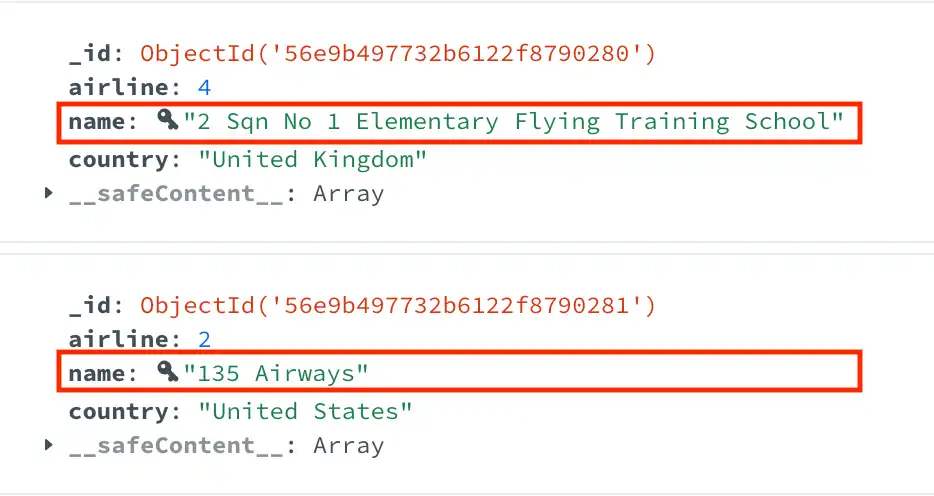
Enable and Disable In-Use Encryption启用和禁用正在使用的加密
You can enable and disable In-Use Encryption in your deployment.您可以在部署中启用和禁用正在使用的加密。
When In-Use Encryption is enabled:启用使用中加密时:
You can modify encrypted values.您可以修改加密值。You can insert documents and specified fields will be encrypted.您可以插入文档,指定的字段将被加密。
When In-Use Encryption is disabled:禁用使用中加密时:
You cannot modify encrypted values. Compass displays the values of these fields as a series of asterisks.您无法修改加密值。Compass将这些字段的值显示为一系列星号。Inserted documents can not encrypt fields.插入的文档无法加密字段。
Disable In-Use Encryption禁用正在使用的加密
To disable In-Use Encryption:要禁用正在使用的加密,请执行以下操作: