You can use MongoDB Compass to import and export data to and from collections. Compass supports import and export for both JSON and CSV files. 您可以使用MongoDB Compass在集合之间导入和导出数据。Compass支持JSON和CSV文件的导入和导出。To import or export data to or from a collection, navigate to the detailed collection view by either selecting the collection from the Databases tab or clicking the collection in the left-side navigation.要将数据导入集合或从集合导出数据,请通过从“数据库”选项卡中选择集合或单击左侧导航中的集合来导航到详细的集合视图。
Note
Compass is not a tool for backing up data. For information on backup solutions, see Backup Methods for a Self-Managed Deployment.Compass不是备份数据的工具。有关备份解决方案的信息,请参阅自我管理部署的备份方法。
Import Data into a Collection将数据导入集合
MongoDB Compass can import data into a collection from either a JSON or CSV file.MongoDB Compass可以将数据从JSON或CSV文件导入到集合中。
Limitations局限性
Importing data into a collection is not permitted in MongoDB Compass Readonly Edition.MongoDB Compass只读版不允许将数据导入集合。
Format Your Data格式化数据
Before you can import your data into MongoDB Compass you must first ensure that it is formatted correctly.在将数据导入MongoDB Compass之前,您必须首先确保其格式正确。
JSON
When importing data from a JSON file, you can format your data as:从JSON文件导入数据时,您可以将数据格式化为:
Newline-delimited documents, or以换行符分隔的文档,或Comma-separated documents in an array数组中逗号分隔的文档
Example示例
The following newline-delimited 以下换行符分隔的.json file is formatted correctly:.json文件格式正确:
{ "type": "home", "number": "212-555-1234" }
{ "type": "cell", "number": "646-555-4567" }
{ "type": "office", "number": "202-555-0182"}
The following comma-separated 以下逗号分隔的.json array file is also formatted correctly:.json数组文件的格式也正确:
[{ "type": "home", "number": "212-555-1234" }, { "type": "cell", "number": "646-555-4567" }, { "type": "office", "number": "202-555-0182"}]Compass ignores line breaks in JSON arrays.Compass忽略JSON数组中的换行符。
Compass automatically generates ObjectIDs for these objects on import since no ObjectIDs were specified in the initial JSON.Compass在导入时自动为这些对象生成ObjectIDs,因为在初始JSON中没有指定ObjectID。
CSV
When importing data from a CSV file, the first line of the file must be a comma-separated list of your document field names. Subsequent lines in the file must be comma-separated field values in the order corresponding with the field order in the first line.从CSV文件导入数据时,文件的第一行必须是逗号分隔的文档字段名称列表。文件中的后续行必须是逗号分隔的字段值,其顺序与第一行中的字段顺序对应。
Example示例
The following 以下.csv file imports three documents:.csv文件导入三个文档:
name,age,fav_color,pet
Jeff,25,green,Bongo
Alice,20,purple,Hazel
Tim,32,red,Lassie
MongoDB Compass automatically generates ObjectIDs for these objects on import since no ObjectIDs were specified in the initial CSV file.MongoDB Compass在导入时自动为这些对象生成ObjectIDs,因为初始CSV文件中没有指定ObjectID。
Procedure过程
To import your formatted data into a collection:要将格式化数据导入集合,请执行以下操作:
Connect to the deployment containing the collection you wish to import data into.连接到包含要导入数据的集合的部署。
To learn how to connect to a deployment, see Connect Compass to MongoDB.要了解如何连接到部署,请参阅将Compass连接到MongoDB。
Navigate to your target collection.导航到目标集合集。
You can either select the collection from the Collections tab or click the collection in the left-hand pane.您可以从“集合”选项卡中选择集合,也可以单击左侧窗格中的集合。
Click the Add Data dropdown and select Import JSON or CSV file.单击“添加数据”下拉列表,然后选择“导入JSON或CSV文件”。
Alternatively, you can also right-click on the query bar or its surrounding whitespace, and then select Import JSON or CSV file from the drop-down menu.或者,您也可以右键单击查询栏或其周围的空白,然后从下拉菜单中选择“导入JSON或CSV文件”。
Select the appropriate file type.选择适当的文件类型。
Select either a JSON or CSV file to import and click Select.选择要导入的JSON或CSV文件,然后单击“选择”。
If you are importing a CSV file, you may specify fields to import and the types of those fields under Specify Fields and Types.如果要导入CSV文件,可以在“指定字段和类型”下指定要导入的字段以及这些字段的类型。
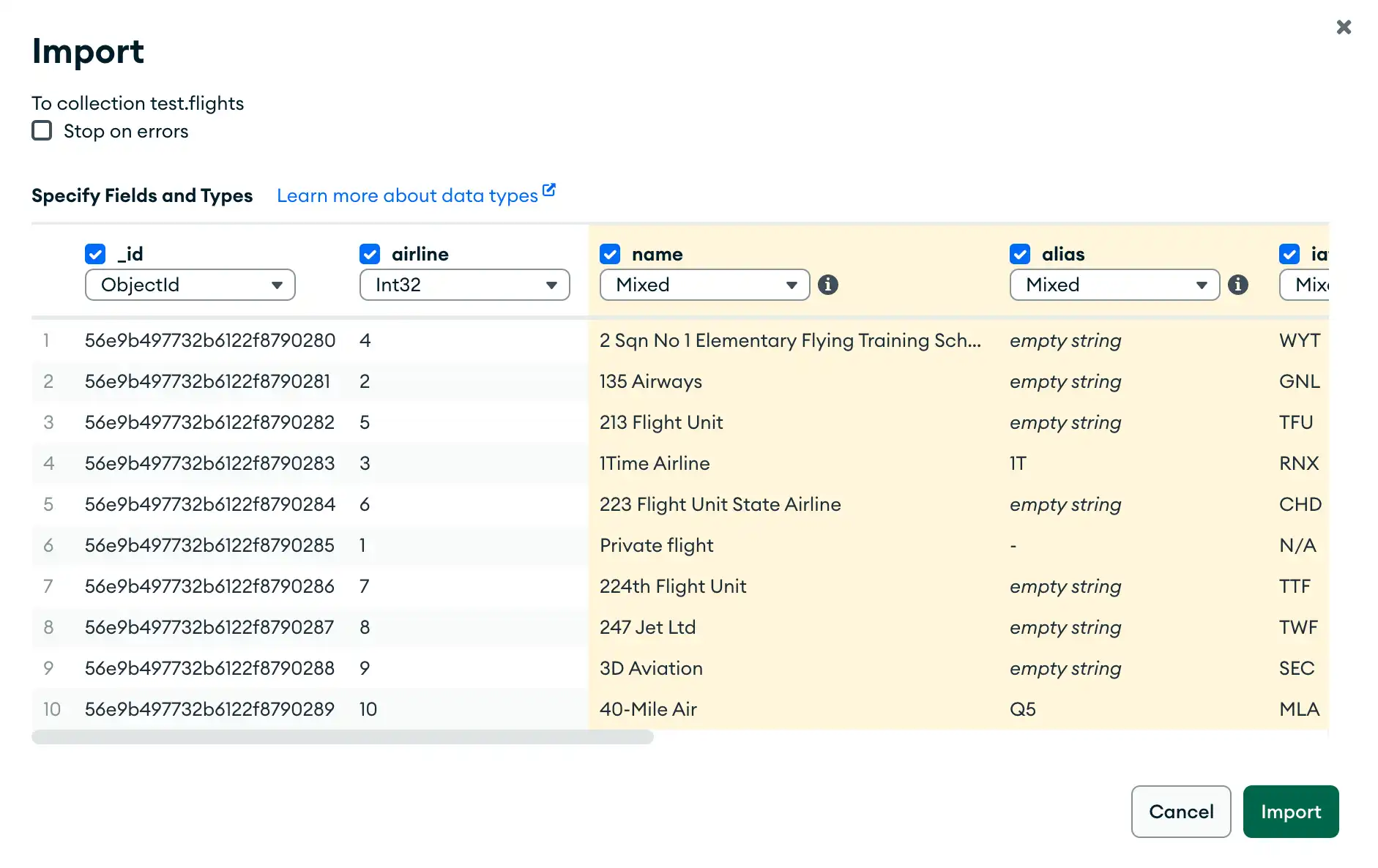
To exclude a field from a CSV file you are importing, uncheck the checkbox next to that field name. To select a type for a field, use the dropdown menu below that field name.要从要导入的CSV文件中排除字段,请取消选中该字段名称旁边的复选框。要为字段选择类型,请使用该字段名称下方的下拉菜单。
Configure import options.配置导入选项。
Under Options, configure the import options for your use case.在“选项”下,为用例配置导入选项。
If you are importing a CSV file, you may select how your data is delimited.如果要导入CSV文件,可以选择数据的分隔方式。
For both JSON and CSV file imports, you can toggle Ignore empty strings and Stop on errors:对于JSON和CSV文件导入,您可以切换“忽略空字符串”和“出错时停止”:
If checked, Ignore empty strings drops fields with empty string values from your imported documents. The document is still imported with all other fields.如果选中,“忽略空字符串”将从导入的文档中删除具有空字符串值的字段。文档仍与所有其他字段一起导入。If checked, Stop on errors prevents any data from being imported in the event of an error. If unchecked, data is inserted until an error is encountered and successful inserts are not rolled back. The import operation will not continue after encountering an error in either case.如果选中,“错误时停止”会阻止在发生错误时导入任何数据。如果未选中,则插入数据,直到遇到错误并且成功插入不会回滚。在任何一种情况下,导入操作在遇到错误后都不会继续。
A progress bar displays the status of the import. If an error occurs during import, the progress bar turns red and an error message appears in the dialog. To see all errors, click View Log.进度条显示导入的状态。如果在导入过程中发生错误,进度条将变为红色,对话框中会显示错误消息。要查看所有错误,请单击查看日志。
After successful import, the dialog closes and Compass displays the collection page containing the newly imported documents.成功导入后,对话框关闭,Compass显示包含新导入文档的集合页面。
Export Data from a Collection从集合导出数据
MongoDB Compass can export data from a collection as either a JSON or CSV file. If you specify a filter or aggregation pipeline for your collection, Compass only exports documents which match the specified query or pipeline results.MongoDB Compass可以将集合中的数据导出为JSON或CSV文件。如果为集合指定筛选器或聚合管道,Compass将仅导出与指定查询或管道结果匹配的文档。
Behavior行为
Avoid exporting to CSV files when possible. CSV files may lose type information and are not suitable for backing up your data.尽可能避免导出到CSV文件。CSV文件可能会丢失类型信息,不适合备份数据。You can use a query filter to export only the documents that match the filter.您可以使用查询筛选器仅导出与筛选器匹配的文档。You can use the Project field in the query bar to specify the fields to return or export.您可以使用查询栏中的“投影”字段指定要返回或导出的字段。
Procedure过程
Export Entire Collection导出整个集合
To export an entire collection to a file:要将整个集合导出到文件,请执行以下操作:
Connect to the deployment containing the collection you wish to export data from.连接到包含要从中导出数据的集合的部署。
To learn how to connect to a deployment, see Connect Compass to MongoDB.要了解如何连接到部署,请参阅将Compass连接到MongoDB。
Navigate to your desired collection.导航到所需的集合。
You can either select the collection from the Collections tab or click the collection in the left-hand pane.您可以从“集合”选项卡中选择集合,也可以单击左侧窗格中的集合。
Click the Export Data dropdown and select Export the full collection.单击“导出数据”下拉列表,然后选择“导出完整集合”。
You can also right-click the query bar or its surrounding whitespace, and then select Export full collection... from the drop-down menu.您还可以右键单击查询栏或其周围的空白,然后从下拉菜单中选择“导出完整集合…”。
Select your file type.选择文件类型。
You can select either JSON or CSV. If you select JSON, you can expand the Advanced JSON Format dropdown and select from the following extended JSON formats:您可以选择JSON或CSV。如果选择JSON,则可以展开“高级JSON格式”下拉列表,并从以下扩展JSON格式中进行选择:
| |
A progress bar displays the status of the export. If an error occurs during export, the progress bar turns red and an error message appears in the dialog. After successful export, the dialog closes.进度条显示导出的状态。如果导出过程中发生错误,进度条将变为红色,对话框中会显示错误消息。成功导出后,对话框关闭。
Export Filtered Subset of a Collection导出集合的筛选子集
To export a subset of documents from a collection:要从集合中导出文档子集,请执行以下操作:
Connect to the deployment containing the collection you wish to export data from.连接到包含要从中导出数据的集合的部署。
To learn how to connect to a deployment, see Connect Compass to MongoDB.要了解如何连接到部署,请参阅将Compass连接到MongoDB。
Navigate to your desired collection.导航到所需的集合。
You can either select the collection from the Collections tab or click the collection in the left-hand pane.您可以从“集合”选项卡中选择集合,也可以单击左侧窗格中的集合。
Specify a filter in the query bar.在“查询栏”中指定筛选器。
Specify a filter in the query bar to export only the documents which match the filter.在查询栏中指定一个筛选器,以便仅导出与筛选器匹配的文档。
Click the Export Data dropdown and select Export query results.单击“导出数据”下拉列表,然后选择“导出查询结果”。
The top section of the export dialog displays the query entered in the query bar.导出对话框的顶部显示在查询栏中输入的查询。
Alternatively, you can right-click the query bar or its surrounding whitespace, and then select Export query results... from the drop-down menu.或者,您可以右键单击查询栏或其周围的空白,然后从下拉菜单中选择“导出查询结果…”。
Select document fields to include in your exported file.选择要包含在导出文件中的文档字段。
You can choose to export All Fields or Select fields in table. In the query bar, you can also use the Project field to specify the fields to return or export.您可以选择导出表中的“所有字段”或“选择字段”。在查询栏中,您还可以使用“投影”字段指定要返回或导出的字段。
Only fields that are checked are included in the exported file.只有选中的字段才会包含在导出的文件中。
You can add document fields to include with the Add Field button if the field you want to include is not automatically detected.如果未自动检测到要包含的字段,则可以使用“添加字段”按钮添加要包含的文档字段。
Select the appropriate file type.选择适当的文件类型。
Under Export File Type, select either JSON or CSV. If you select JSON, you can expand the Advanced JSON Format dropdown and select from the following extended JSON formats:在“导出文件类型”下,选择JSON或CSV。如果选择JSON,则可以展开高级JSON格式下拉列表,并从以下扩展JSON格式中进行选择:
| |
A progress bar displays the status of the export. If an error occurs during export, the progress bar turns red and an error message appears in the dialog. After successful export, the dialog closes.进度条显示导出的状态。如果导出过程中发生错误,进度条将变为红色,对话框中会显示错误消息。成功导出后,对话框关闭。
Export Aggregation Result导出聚合结果
To export results from your aggregation pipeline:要从聚合管道导出结果,请执行以下操作:
Connect to the deployment containing the collection you wish to export data from.连接到包含要从中导出数据的集合的部署。
To learn how to connect to a deployment, see Connect Compass to MongoDB.要了解如何连接到部署,请参阅将Compass连接到MongoDB。
Navigate to your target collection.导航到目标集合集。
You can either select the collection from the Collections tab or click the collection in the left-hand pane.您可以从“集合”选项卡中选择集合,也可以单击左侧窗格中的集合。
Create an aggregation pipeline and run for results.创建聚合管道并运行以获取结果。
To learn how to create an aggregation pipeline, see Create an Aggregation Pipeline.要了解如何创建聚合管道,请参阅创建聚合管道。
Select the appropriate file type.选择适当的文件类型。
Under Export File Type, select either JSON or CSV. If you select JSON, you can expand the Advanced JSON Format dropdown and select from the following extended JSON formats:在“导出文件类型”下,选择JSON或CSV。如果选择JSON,则可以展开高级JSON格式下拉列表,并从以下扩展JSON格式中进行选择:
| ||
| | |
|
Import and Export Data from the Command Line从命令行导入和导出数据
To import and export data from the command line, you can use MongoDB's Database Tools. 要从命令行导入和导出数据,可以使用MongoDB的数据库工具。See mongoimport and mongoexport.请参阅mongoimport和mongoexport。