Starting in MongoDB Compass 1.31, you can load saved queries and aggregations from the My Queries view once you are connected to your cluster. This page explains how to add and view favorite queries and aggregations.从MongoDB Compass 1.31开始,连接到集群后,您可以从“我的查询”视图加载保存的查询和聚合。本页介绍如何添加和查看收藏夹查询和聚合。
Saving an Aggregation Pipeline保存聚合管道
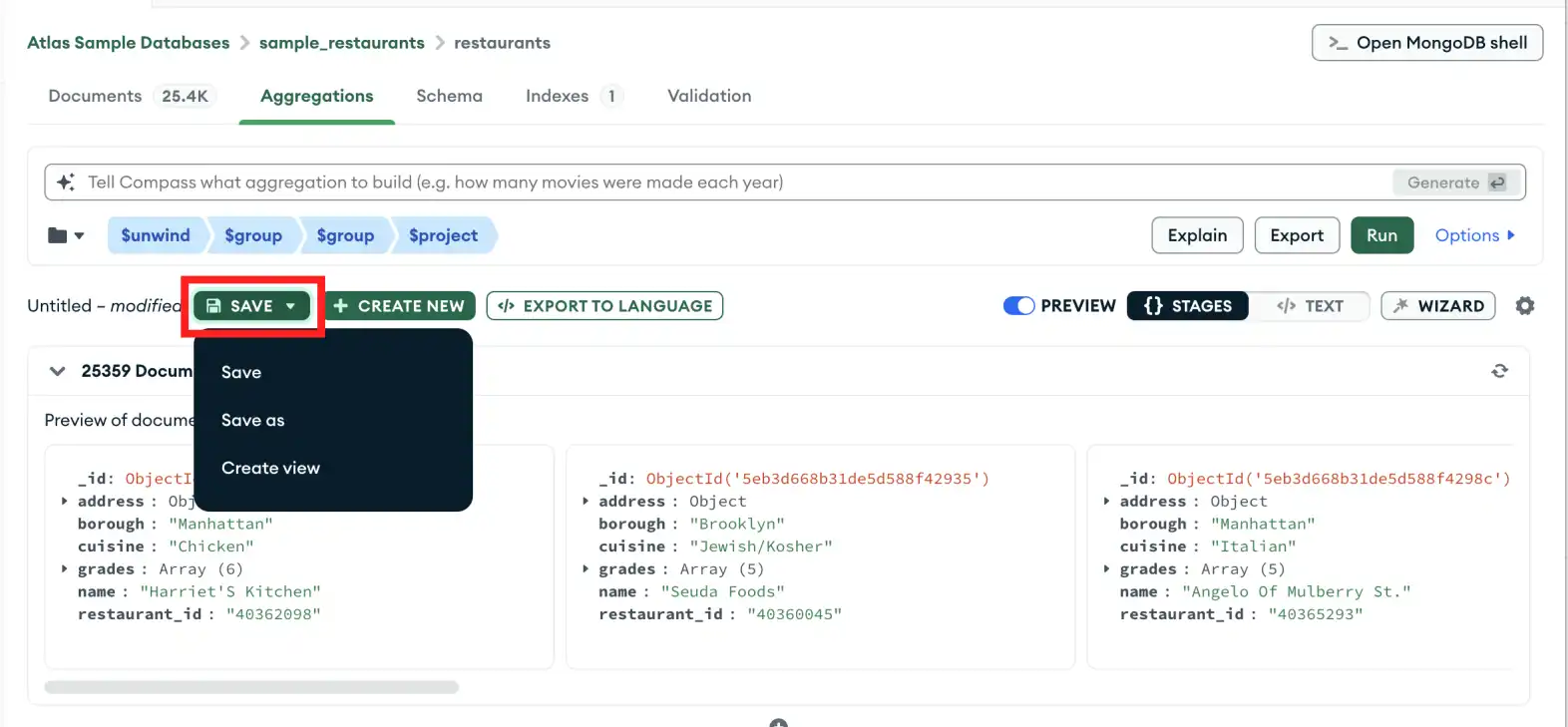
You can save a pipeline so that you can find it later. If you load a saved pipeline, you can change it without changing the original saved copy. You can also create a view from your pipeline results.您可以保存一个管道,以便以后可以找到它。如果加载已保存的管道,则可以在不更改原始已保存副本的情况下对其进行更改。您还可以根据管道结果创建视图。
To save your pipeline:要保存管道,请执行以下操作:
Saving a Favorite Query保存收藏夹查询
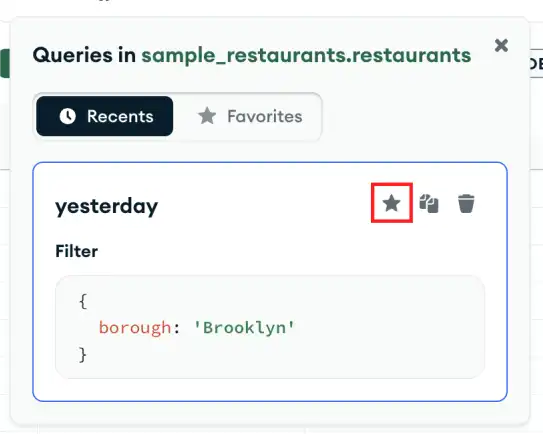
You can favorite a query so that you can find it later. If you load a favorite query, you can change it without changing the original saved copy.您可以集合一个查询,以便以后可以找到它。如果加载收藏夹查询,则可以在不更改原始保存副本的情况下对其进行更改。
To add a query to your favorites:要将查询添加到收藏夹,请执行以下操作:
Viewing Saved Queries查看已保存的查询
Starting in MongoDB Compass 1.31, you can view your saved queries and aggregation pipelines on the My Queries tab once connected to your cluster.从MongoDB Compass 1.31开始,连接到集群后,您可以在“我的查询”选项卡上查看已保存的查询和聚合管道。
Using the My Queries Tab使用“我的查询”选项卡
When you click a saved or favorite query tile, Compass opens the Documents tab with the filter loaded.当您单击已保存或集合的查询图块时,Compass会打开加载了筛选器的“文档”选项卡。
When you click a saved or favorite pipeline tile, Compass opens the Aggregations tab with the pipeline loaded.当您单击已保存或集合的管道图块时,Compass会打开加载了管道的“聚合”选项卡。
Using the Favorites Tab使用“收藏夹”选项卡
You can also view favorite queries from the Favorites tab from in the Documents view. To open the Favorites tab:您还可以从“文档”视图中的“收藏夹”选项卡查看收藏夹查询。要打开“收藏夹”选项卡,请执行以下操作:
Open query history打开查询历史记录
Click the History button at the top of the Documents tab.单击“文档”选项卡顶部的“历史记录”按钮。

Click the Favorites button in the past queries pane.单击过去查询窗格中的收藏夹按钮。
Select your favorited operation.选择您喜欢的操作。
If your favorited operation is a query, only a Filter statement displays in the Favorites list view along with copy and delete icons.如果您最喜欢的操作是查询,则“收藏夹”列表视图中只会显示“筛选器”语句以及复制和删除图标。Note
Clicking a favorited query in the Favorites list view populates your Query Bar with that query.在“收藏夹”列表视图中单击集合的查询将用该查询填充查询栏。If your favorited operation is a bulk update statement, a Filter and Update statement display in the Favorites list view along with copy , delete , and open in modal icons.如果您喜欢的操作是批量更新语句,则“收藏夹”列表视图中会显示“筛选器”和“更新”语句,以及复制、删除和在模态杠中打开图标。Note
Clicking the icon opens the bulk update statement and the filter criteria in the Update Documents modal. For details on bulk update statements in Compass, see Modify Multiple Documents.单击图标打开批量更新语句和更新文档模式中的筛选条件。有关Compass中批量更新语句的详细信息,请参阅修改多个文档。
Viewing Query History查看查询历史记录
For details on how to view query history see viewing recent query history.有关如何查看查询历史记录的详细信息,请参阅查看最近的查询历史记录。