Model Templates模型模板
The template you choose when you first create a new model determines a lot of your model’s settings. SketchUp includes a few templates that represent the most common applications including architecture, construction, urban planning, and landscaping among others. 首次创建新模型时选择的模板决定了模型的许多设置。SketchUp包括一些模板,这些模板代表了最常见的应用程序,包括建筑、施工、城市规划和景观美化等。You can select from one of these default templates from the Home section of the Welcome Window.您可以从欢迎窗口的主页部分从这些默认模板中选择一个。
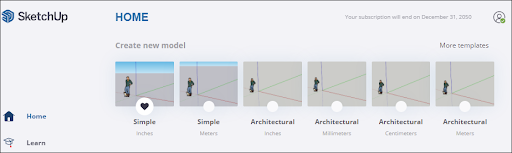
If you don’t see the template you want to use, you can click More templates to see a full list of default templates. You can also see all available templates in the Templates section of Preferences.如果看不到要使用的模板,可以单击“更多模板”查看默认模板的完整列表。您还可以在首选项的模板部分看到所有可用的模板。
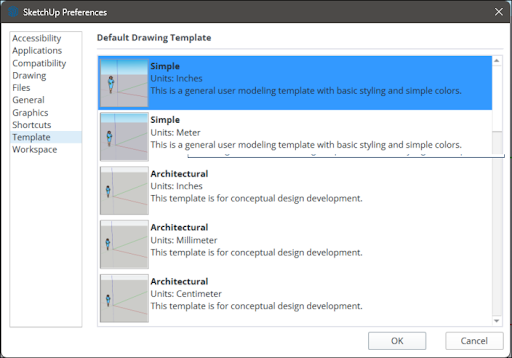
You can change which default template your model is using at any time by selecting one of these options in the Template section of Preferences and clicking OK.通过在“首选项”的“模板”部分选择这些选项之一并单击“确定”,您可以随时更改模型正在使用的默认模板。
Model Info型号信息
The Model Info window contains settings that apply to your entire model and reflects all the settings relevant to the template you choose. You can open the Model Info window from the Window menu, or you can click the Model Info icon in the lower left corner of the SketchUp interface.“模型信息”窗口包含适用于整个模型的设置,并反映与您选择的模板相关的所有设置。您可以从“窗口”菜单打开“模型信息”窗口,也可以单击SketchUp界面左下角的“模型信息》图标。

The following options are available in the Model Info window:“模型信息”窗口中提供以下选项:
Animation动画: If you animate scenes, as explained in Communicating Your Designs, the settings here set the timing for the transitions and delay between scenes.:如果您按照“传达您的设计”中的说明为场景设置动画,则此处的设置将设置场景之间的过渡和延迟的时间。Classifications分类: If you use BIM (building information modeling) and classification data, as explained in Classifying Objects, you can import classification systems here.:如果您使用BIM(建筑信息建模)和分类数据,如分类对象中所述,您可以在此处导入分类系统。Components组件: Set preferences for how components and groups appear when you're editing inside the component or group context.:设置在组件或组上下文中编辑时组件和组的显示方式的首选项。You can also toggle the visibility of component axes.您还可以切换零部件轴的可见性。See Grouping Geometry and Developing Components and Dynamic Components for more information.有关详细信息,请参阅对几何图形进行分组以及开发零部件和动态零部件。Credits信用: You can view who created a model or click Claim Credit to add the name of the SketchUp license owner to the model.:您可以查看谁创建了模型,也可以单击“索赔信用”将SketchUp许可证所有者的名称添加到模型中。See Using the Credits Feature for more details.有关更多详细信息,请参阅使用积分功能。Dimensions尺寸: Set the defaults for dimension text. Adding Text to a Model can help you learn more.:设置标注文字的默认值。向模型添加文本可以帮助您了解更多信息。File文件: See basic data about the model file.:请参阅模型文件的基本数据。- Geo-location
: Check whether your model is geolocated. See Add Location for geo-location details.:检查您的模型是否具有地理位置。有关地理位置的详细信息,请参阅添加位置。 Rendering渲染: Anti-aliased textures can improve performance.:抗锯齿纹理可以提高性能。Statistics统计: This pane keeps track of all the entities your model contains. You’ll also find tools for purging unused entities and fixing some common problems.:此窗格跟踪模型包含的所有实体。您还可以找到用于清除未使用的实体和修复一些常见问题的工具。Text文本: Set defaults for screen text and leader text, as explained in Adding Text to a Model.:设置屏幕文本和指引线文本的默认值,如向模型添加文本中所述。Units单位: Choose the default unit of measurement for your model.:为您的模型选择默认计量单位。See Managing Units of Measurement for more information.有关更多信息,请参阅管理计量单位。
Making a Custom Template制作自定义模板
If the default templates just aren’t the right fit, you can customize them and save them as a custom file. 如果默认模板不合适,您可以对其进行自定义并将其另存为自定义文件。If you’re always making the same change or set of changes after creating a new model, customizing a template is the best way to save those changes for the next model you work on.如果在创建新模型后总是进行相同的更改或更改集,则自定义模板是为下一个模型保存这些更改的最佳方法。
To create a custom template:要创建自定义模板,请执行以下操作:
Create a new SketchUp file with your current default template.使用当前默认模板创建新的SketchUp文件。Make only the modifications that you want to save with the template. Templates include all the settings in the Model Info dialog box, Style settings, and Shadow settings.只进行要与模板一起保存的修改。模板包括“模型信息”对话框、“样式”设置和“阴影”设置中的所有设置。You can also create any base geometry.您还可以创建任何基础几何图形。Select File > Save As Template.选择“文件”>“另存为模板”。Navigate to the location where you want to save your template.导航到要保存模板的位置。Give the template a name.为模板命名。Click the Save button.单击保存按钮。