connection-string
This page outlines how to use MongoDB for VS Code Extension to connect to a MongoDB host. You can connect to a standalone, replica set, or sharded cluster host.本页概述了如何使用MongoDB for VS Code Extension连接到MongoDB主机。您可以连接到独立、副本集或分片群集主机。
Note
MongoDB Atlas
If you need to create a MongoDB host, consider using MongoDB Atlas. Atlas is a cloud-hosted database-as-a-service which requires no installation, offers a free tier to get started, and provides a copyable URI to easily connect VS Code Extension to your deployment.如果你需要创建一个MongoDB主机,可以考虑使用MongoDB Atlas。Atlas是一种云托管的数据库即服务,不需要安装,提供免费的入门层,并提供可复制的URI,可以轻松地将VS Code扩展连接到部署。
To create a cluster on the Atlas free tier, run the command 要在Atlas自由层上创建集群,请在Visual Studio Code命令面板中运行命令MongoDB: Open Overview Page in the Visual Studio Code Command Palette and then click Create free cluster.MongoDB: Open Overview Page,然后单击创建自由集群。
To create an Atlas cluster using a Terraform template included with VS Code Extension, see Create an Atlas Cluster from a Template using Terraform.要使用VS Code扩展中包含的Terraform模板创建Atlas集群,请参阅使用Terraform从模板创建Atlas群集。
If you need to install VS Code Extension, see Install MongoDB for VS Code Extension for instructions.如果需要安装VS Code扩展,请参阅安装MongoDB for VS Code扩展以获取说明。
Considerations注意事项
When connecting VS Code Extension to a replica set, use either the replica set SRV record or Replica Set Name when filling in your connection information. It is not recommended to connect directly to an individual replica set member.将VS Code扩展连接到副本集时,请在填写连接信息时使用副本集SRV记录或副本集名称。不建议直接连接到单个副本集成员。You can't connect VS Code Extension directly to an analytics node.您无法将VS Code扩展直接连接到分析节点。VS Code Extension appends theVS Code扩展为所有部署连接在appNameconnection string option with a value ofmongodb-vscode <version>for all deployment connections.appName连接字符串选项后附加mongodb vscode <version>值。VS Code Extension automatically starts the MongoDB MCP Server when you connect to your MongoDB deployment. You can disable this behavior upon first connection, or at any time by using the mdb.mcp.server setting.当您连接到MongoDB部署时,VS Code扩展会自动启动MongoDB MCP服务器。您可以在第一次连接时禁用此行为,也可以在任何时候使用mdb.mcp.server设置禁用此行为。To learn more, see MongoDB MCP Server in MongoDB VS Code Extension.要了解更多信息,请参阅MongoDB VS Code扩展中的MongoDB MCP服务器。
Create a Connection创建连接
Select the method you want to use to connect to your deployment using the selector option at the top of the page. VS Code Extension provides three options to connect to your deployment:使用页面顶部的选择器选项选择要用于连接到部署的方法。VS Code扩展提供了三种连接到部署的选项:
| Atlas CLI |
Note
To specify where VS Code Extension connections are saved, use the Default Connection Saving Location setting.要指定VS Code扩展连接的保存位置,请使用默认连接保存位置设置。
VS Code Extension uses the VS Code API to store and encrypt connection strings and credentials. To learn more about how VS Code encrypts connections, see the VS Code API documentation.VS Code扩展使用VS CodeAPI存储和加密连接字符串和凭据。要了解有关VS Code如何加密连接的更多信息,请参阅VS Code API文档。
When you provide a connection string, VS Code Extension supports most Connection String Options supported by MongoDB.当您提供连接字符串时,VS Code扩展支持MongoDB支持的大多数连接字符串选项。
Obtain your connection string.获取连接字符串。
You can use either the Standard Connection String Format or the DNS Seedlist Connection Format.您可以使用标准连接字符串格式或DNS种子列表连接格式。
To obtain the connection string for an Atlas cluster:要获取Atlas集群的连接字符串,请执行以下操作:Navigate to your Atlas Clusters view.导航到Atlas“群集”视图。Click Connect for your desired cluster.单击所需群集的“连接”。Click Connect with MongoDB Compass.单击“连接MongoDB Compass”。Copy the provided connection string.复制提供的连接字符串。
To learn how to format the connection string for a deployment which is not hosted on Atlas, see Connection String URI Format.要了解如何为不在Atlas上托管的部署格式化连接字符串,请参阅连接字符串URI格式。
Open the Visual Studio Code Command Palette.打开Visual Studio Code命令选项板。
Open the Visual Studio Code Command Palette to paste your connection string and connect to your cluster. You can open the Command Palette in one of the following ways:打开Visual Studio Code命令面板粘贴连接字符串并连接到集群。您可以通过以下方式之一打开“命令选项板”:
Open from the Activity Bar从活动栏打开
Select the MongoDB icon from the left side menu bar in VSCode.在VSCode的左侧菜单栏中选择MongoDB图标。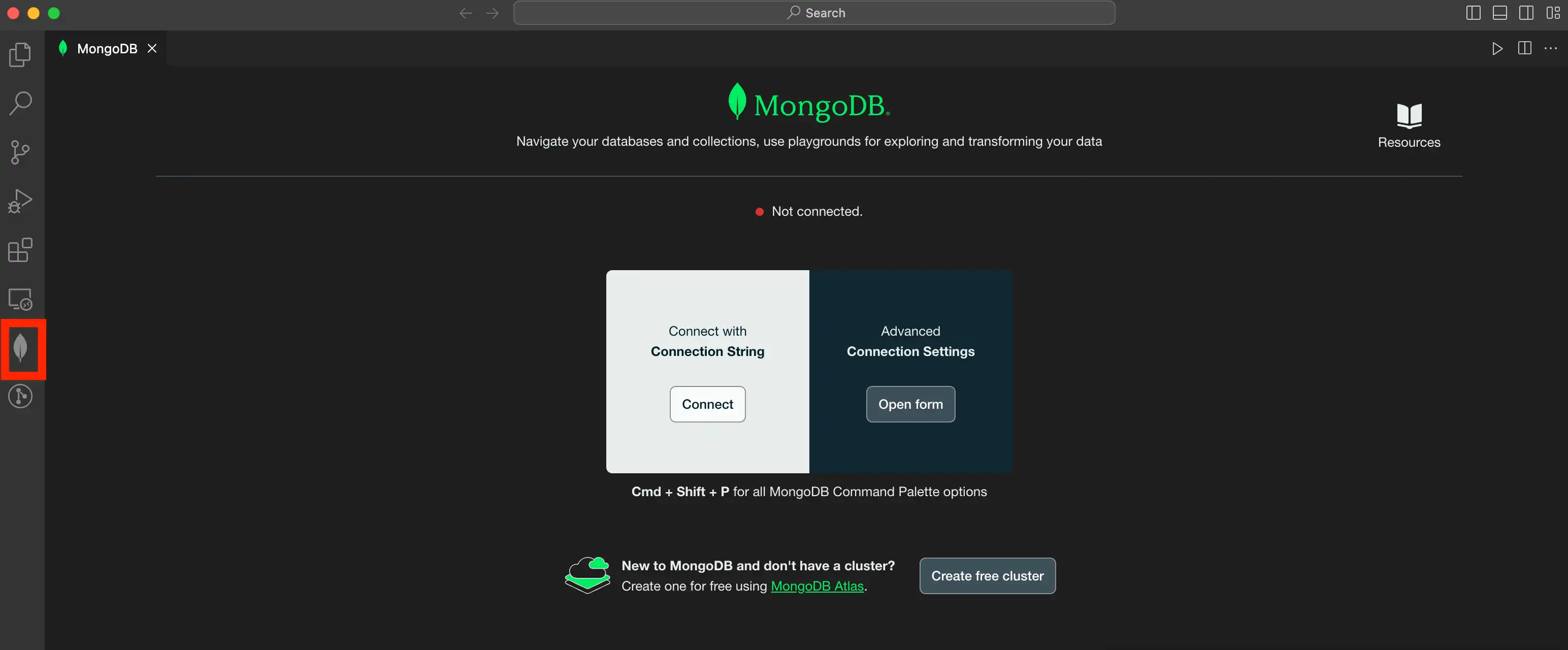
Expand the Connections pane in the left navigation if it is collapsed.如果左侧导航中的“连接”窗格已折叠,请展开它。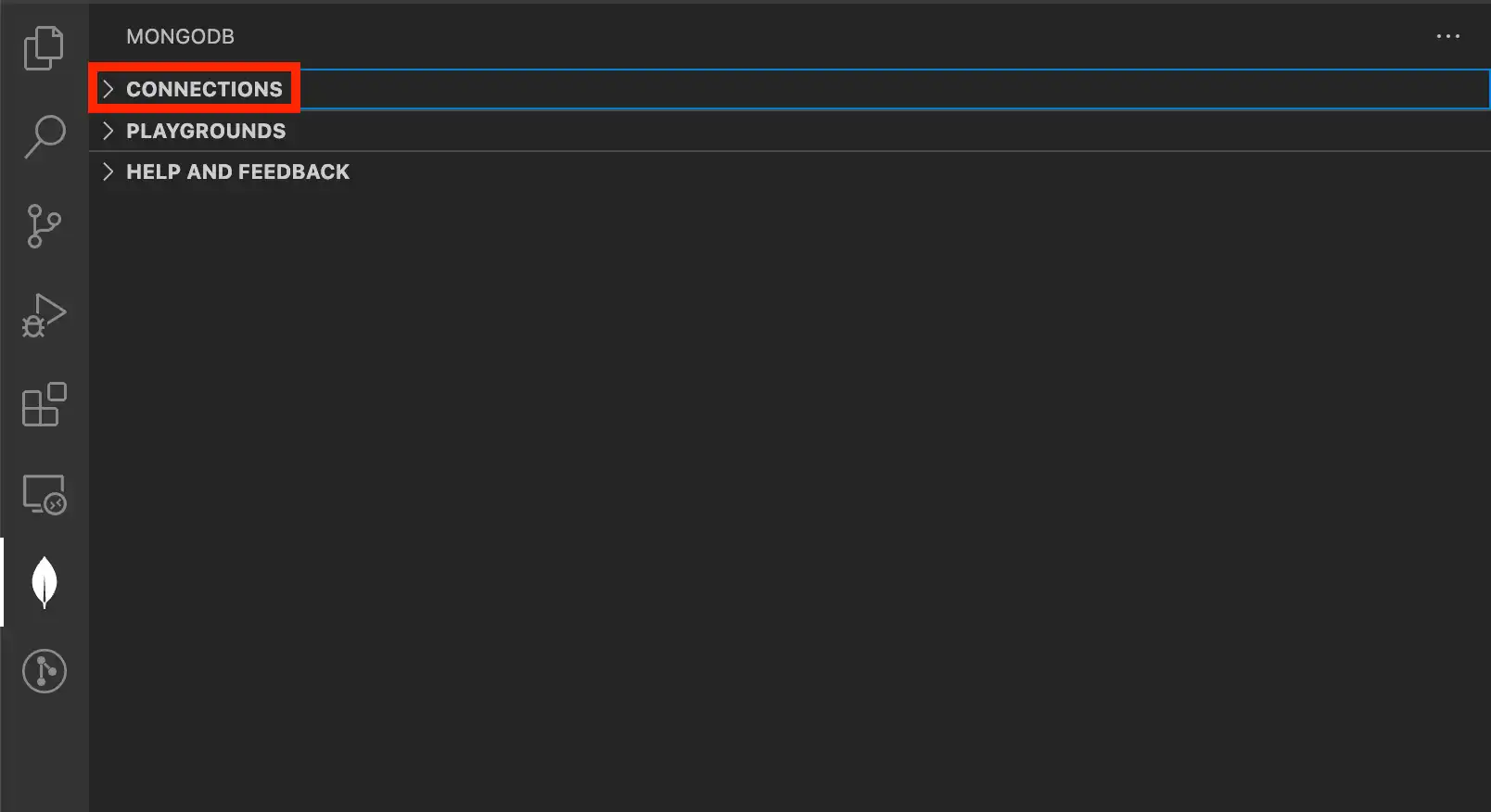
Click the More Actions menu (...) and select Add MongoDB Connection with Connection String....单击“更多操作”菜单(…),然后选择“添加带有连接字符串的MongoDB连接…”。
Open from Overview Page.从概述页面打开。
Perform the action described in the following table for your operating system and method:针对操作系统和方法执行下表中描述的操作:Operating System操作系统Method方法Actions行动Any Visual Studio Code Menu菜单View > Command Palette“视图”>“命令选项板”MacOS Keyboard Shortcut键盘快捷键Press Command+Shift+PWindows and Linux Keyboard Shortcut键盘快捷键Press Control+Shift+PFrom the Command Palette, select MongoDB: Open Overview Page.从命令面板中,选择“MongoDB:打开概述页面”。Tip
Enter在命令面板中输入mongodbin the Command Palette to display all of the VS Code Extension commands you can use.mongodb以显示可以使用的所有VS Code扩展命令。In the Overview page, click Connect under the Connect with Connection String.在“概述”页面中,单击“使用连接字符串连接”下的“连接”。
Open Directly直接打开
Perform the action described in the following table for your operating system and method:针对操作系统和方法执行下表中描述的操作:Operating System操作系统Method方法Actions行动Any Visual Studio Code Menu菜单View > Command Palette“视图”>“命令选项板”MacOS Keyboard Shortcut键盘快捷键Press Command+Shift+PWindows and Linux Keyboard Shortcut键盘快捷键Press Control+Shift+PFrom the Command Palette, select MongoDB: Connect with Connection String....从命令面板中,选择“MongoDB:使用连接字符串连接…”。Tip
Enter在命令面板中输入mongodbin the Command Palette to display all of the VS Code Extension commands you can use.mongodb以显示可以使用的所有VS Code扩展命令。
Paste your connection string into the Command Palette.将连接字符串粘贴到命令面板中。
Important
If your deployment requires authentication, ensure that you update the connection string with credentials of a database user for your deployment. The connection might succeed without these credentials, but you won't be able to interact with data in your deployment.如果部署需要身份验证,请确保使用部署的数据库用户的凭据更新连接字符串。如果没有这些凭据,连接可能会成功,但您将无法与部署中的数据进行交互。
Connect to Atlas Stream Processing连接到Atlas流处理
New in version 1.50.在版本1.50中新增。
You can use VS Code Extension to connect to Atlas Stream Processing by providing a Stream Processing Workspace (SPW) connection string.您可以通过提供流处理工作区(SPW)连接字符串,使用VS Code扩展连接到Atlas流处理。
For details on how to configure Atlas Stream Processing, see Manage Stream Processing Workspaces.有关如何配置Atlas流处理的详细信息,请参阅管理流处理工作区。
Open the connections pane打开连接窗格
Expand the Connections pane in the left navigation if it is collapsed.如果左侧导航中的“连接”窗格已折叠,请展开它。Click the More Actions menu (...) and select Add MongoDB Connection with Connection String...单击“更多操作”菜单(…),然后选择“添加带有连接字符串的MongoDB连接…”。
Paste in an SPW connection string粘贴SPW连接字符串
To obtain an SPW connection string login to your Atlas account. Click Stream Processing from the left-hand navigation and then select a Stream Processing Workspace. Click Connect and choose MongoDB for VSCode from the Choose a Connection Method page of the connect dialog.要获取SPW连接字符串,请登录Atlas帐户。从左侧导航中单击“流处理”,然后选择流处理工作区。单击“连接”,然后从连接对话框的“选择连接方法”页面中选择“MongoDB for VSCode”。
Tip
For full details on using and configuring Atlas Stream Processing, see Atlas Stream Processing.有关使用和配置Atlas流处理的完整详细信息,请参阅Atlas流处理。
The following code block is an example of SPW connection string:以下代码块是SPW连接字符串的示例:
mongodb://user1:password1@atlas-stream-xxxxxxxxxxxxxxxxxxxxxxxx-yyyyy.virginia-usa.a.query.mongodb.net/?authSource=admin&readPreference=primary&ssl=true&directConnection=trueOnce you are connected, the stream connection displays under the Connections pane:连接后,流连接将显示在“连接”窗格下:

Open a new VS Code Extension playground打开一个新的VS Code扩展游乐场
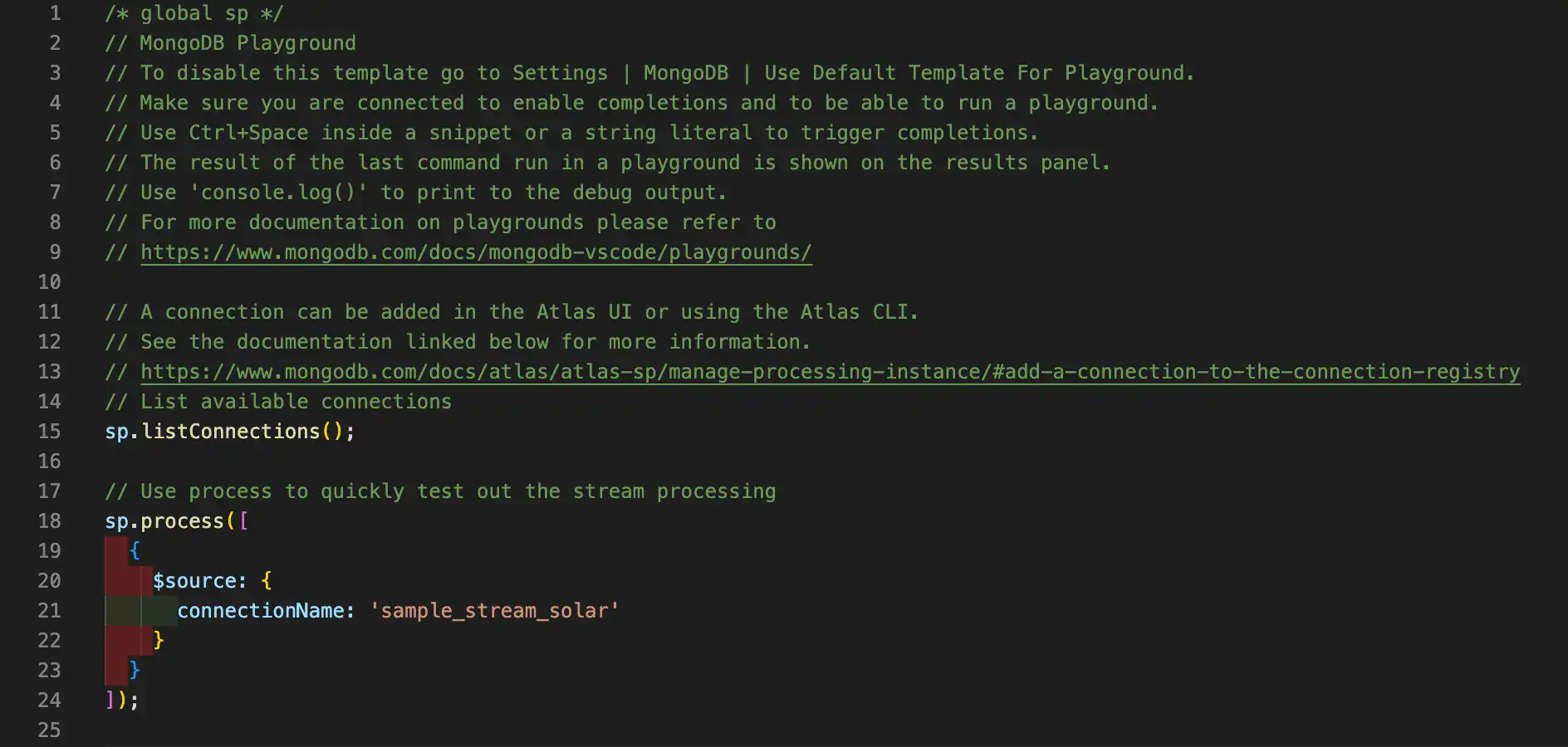
After successfully connecting to your Atlas Stream, click Create New Playground on the Playgrounds pane. A stream processing playground template displays with pre-populated code that allows you to list stream connections and process stream data:成功连接到Atlas流后,单击“游乐场”窗格上的“创建新游乐场”。流处理游乐场模板显示了预填充的代码,允许您列出流连接和处理流数据:
Activate a Connection激活连接
You can connect VS Code Extension to only one deployment at a time. To change the active connection to a different deployment, or to connect to a deployment from which you were disconnected:一次只能将VS Code扩展连接到一个部署。要将活动连接更改为其他部署,或连接到已断开连接的部署,请执行以下操作:
Launch MongoDB Shell启动MongoDB Shell
You can connect the MongoDB Shell or legacy 您可以将MongoDB Shell或旧版mongo shell to your active deployment.mongo Shell连接到活动部署。
Considerations注意事项
The shell that VS Code Extension uses to connect to your deployment is determined by the Shell setting in your extension settings.VS Code扩展用于连接到部署的shell由扩展设置中的shell设置决定。You can choose either the MongoDB Shell or the legacy您可以选择MongoDB Shell或传统的mongoshell.mongoShell。The path to your selected shell must exist in your system's所选shell的路径必须存在于系统的PATH. If it does not exist in yourPATH, the operation errors.PATH中。如果它不存在于PATH中,则操作错误。
Procedure过程
To connect the shell to your active deployment:要将shell连接到活动部署,请执行以下操作:
In the VS Code Extension Connections list, right-click your active deployment.在VS Code扩展“连接”列表中,右键单击活动部署。Select Launch MongoDB Shell.选择“启动MongoDB Shell”。
VS Code Extension opens the Terminal window in VS Code and launches the shell connected to your selected deployment.VS Code Extension在VS Code中打开“终端”窗口,并启动连接到所选部署的shell。
Edit a Connection编辑连接
In Visual Studio Code, click the MongoDB icon in the Activity Bar在Visual Studio Code中,单击“活动栏”中的MongoDB图标
Expand the Connections pane展开“连接”窗格
Expand the Connections pane in the left navigation if it's collapsed.如果左侧导航中的“连接”窗格已折叠,请展开它。
Select a connection选择连接
From the Connections menu, right-click the connection and select Edit Connection...从“连接”菜单中,右键单击连接并选择“编辑连接…”。
Make changes and save进行更改并保存
Click Advanced Connection Options to display the advanced connection form.单击“高级连接选项”以显示高级连接窗体。
Tip
You can also click the Edit Connection String toggle in the top-right of the form to edit the connection string URI directly.您还可以单击表单右上角的“编辑连接字符串”开关,直接编辑连接字符串URI。
Once you are done editing the connection options click Save & Connect.编辑完连接选项后,单击“保存并连接”。
Copy a Connection复制连接
You can copy a connection string from an existing Visual Studio Code connection.您可以从现有的Visual Studio Code连接中复制连接字符串。
Rename a Connection重命名连接
To rename a connection to a deployment in VS Code Extension:要重命名与VS Code扩展中的部署的连接,请执行以下操作:
Disconnect from a Deployment断开与部署的连接
VS Code Extension provides two methods to disconnect from a deployment. You can:VS Code扩展提供了两种断开与部署连接的方法。你可以:
Disconnect with the Command Palette.断开与命令选项板的连接。Disconnect from the MongoDB view in the Activity Bar.断开与“活动栏”中的MongoDB视图的连接。
Command Palette命令面板
MongoDB View
Disconnecting from a MongoDB instance closes the VS Code Extension connection to the active instance. You must reconnect to interact with data in your deployment again.断开与MongoDB实例的连接会关闭与活动实例的VS Code扩展连接。您必须重新连接才能再次与部署中的数据交互。
Remove a Connection删除连接
VS Code Extension provides two methods to remove a connection to a deployment from Visual Studio Code. You can:VS Code扩展提供了两种方法来从Visual Studio Code中删除与部署的连接。你可以:
Remove a connection from the MongoDB view in the Activity Bar.从“活动栏”的MongoDB视图中删除连接。Remove a connection with the Command Palette.删除与命令选项板的连接。
Important
Removing a connection from Visual Studio Code removes it both from the current workspace and from Visual Studio Code globally.从Visual Studio Code中删除连接会将其从当前工作区和Visual Studio Code全局删除。
MongoDB View
Command Palette命令面板
Open the Command Palette打开“命令选项板”
| Method | ||
|---|---|---|
| Any | Visual Studio Code | |
| MacOS | Press Command + Shift + P | |
| Windows and Linux | Press Control + Shift + P |
From the Command Palette, select MongoDB: Remove Connection....从命令面板中,选择“MongoDB:删除连接…”。
Tip
Enter 在命令面板中输入mongodb in the Command Palette to display all of the VS Code Extension commands you can use.mongodb以显示可以使用的所有VS Code扩展命令。
If you have more than one connection, select the connection you want to remove from the Command Palette.如果有多个连接,请从命令选项板中选择要删除的连接。
connection-settings
This page outlines how to use MongoDB for VS Code Extension to connect to a MongoDB host. You can connect to a standalone, replica set, or sharded cluster host.本页概述了如何使用MongoDB for VS Code Extension连接到MongoDB主机。您可以连接到独立、副本集或分片群集主机。
Note
MongoDB Atlas
If you need to create a MongoDB host, consider using MongoDB Atlas. Atlas is a cloud-hosted database-as-a-service which requires no installation, offers a free tier to get started, and provides a copyable URI to easily connect VS Code Extension to your deployment.如果你需要创建一个MongoDB主机,可以考虑使用MongoDB Atlas。Atlas是一种云托管的数据库即服务,不需要安装,提供免费的入门层,并提供可复制的URI,可以轻松地将VS Code扩展连接到部署。
To create a cluster on the Atlas free tier, run the command 要在Atlas自由层上创建集群,请在Visual Studio Code命令面板中运行命令“MongoDB:打开概述页面”,然后单击“创建自由集群”。MongoDB: Open Overview Page in the Visual Studio Code Command Palette and then click Create free cluster.
To create an Atlas cluster using a Terraform template included with VS Code Extension, see Create an Atlas Cluster from a Template using Terraform.要使用VS Code扩展中包含的Terraform模板创建Atlas集群,请参阅使用Terraform从模板创建Atlas群集。
If you need to install VS Code Extension, see Install MongoDB for VS Code Extension for instructions.如果需要安装VS Code扩展,请参阅安装MongoDB for VS Code扩展以获取说明。
Considerations注意事项
When connecting VS Code Extension to a replica set, use either the replica set SRV record or Replica Set Name when filling in your connection information. It is not recommended to connect directly to an individual replica set member.将VS Code扩展连接到副本集时,请在填写连接信息时使用副本集“SRV记录”或“副本集名称”。不建议直接连接到单个副本集成员。You can't connect VS Code Extension directly to an analytics node.您无法将VS Code扩展直接连接到分析节点。VS Code Extension appends theVS Code扩展为所有部署连接在appName连接字符串选项后附加appNameconnection string option with a value ofmongodb-vscode <version>for all deployment connections.mongodb-vscode <version>值。VS Code Extension automatically starts the MongoDB MCP Server when you connect to your MongoDB deployment. You can disable this behavior upon first connection, or at any time by using the mdb.mcp.server setting.当您连接到MongoDB部署时,VS Code扩展会自动启动MongoDB MCP服务器。您可以在第一次连接时禁用此行为,也可以在任何时候使用mdb.mcp.server设置禁用此行为。To learn more, see MongoDB MCP Server in MongoDB VS Code Extension.要了解更多信息,请参阅MongoDB VS Code扩展中的MongoDB MCP服务器。
Create a Connection创建连接
Select the method you want to use to connect to your deployment using the selector option at the top of the page. VS Code Extension provides three options to connect to your deployment:使用页面顶部的选择器选项选择要用于连接到部署的方法。VS Code扩展提供了三种连接到部署的选项:
| Atlas CLI |
Note
To specify where VS Code Extension connections are saved, use the Default Connection Saving Location setting.要指定VS Code扩展连接的保存位置,请使用“默认连接保存位置”设置。
VS Code Extension uses the VS Code API to store and encrypt connection strings and credentials. To learn more about how VS Code encrypts connections, see the VS Code API documentation.VS Code扩展使用VS CodeAPI存储和加密连接字符串和凭据。要了解有关VS Code如何加密连接的更多信息,请参阅VS Code API文档。
In Visual Studio Code, click the MongoDB icon in the Activity Bar.在Visual Studio Code中,单击“活动栏”中的MongoDB图标。
Open the VS Code Extension Overview page.打开VS Code扩展概述页面。
You can use the the MongoDB view or the Command Palette to open the overview page:您可以使用MongoDB视图或命令面板打开概述页面:
MongoDB View
Expand the Connections pane in the left navigation if it's collapsed.如果左侧导航中的“连接”窗格已折叠,请展开它。Click the More Actions menu (...), then click Add MongoDB Connection to open the VS Code Extension Overview page.单击“更多操作”菜单(…),然后单击“添加MongoDB连接”以打开VS Code扩展“概述”页面。
Command Palette命令选项板
Perform the action described in the following table for your operating system and method:针对操作系统和方法执行下表中描述的操作:Operating System操作系统Method方法Actions操作Any Visual Studio Code Menu菜单View > Command Palette“视图”>“命令选项板”MacOS Keyboard Shortcut键盘快捷键Press按Command+Shift+PWindows and Linux Keyboard Shortcut键盘快捷键Press按Control+Shift+PFrom the Command Palette, select MongoDB: Open Overview Page.从命令面板中,选择“MongoDB:打开概述页面”。Tip
Enter在命令面板中输入mongodbin the Command Palette to display all of the VS Code Extension commands you can use.mongodb以显示可以使用的所有VS Code扩展命令。
Open the Advanced Connection Settings Form.打开高级连接设置窗体。
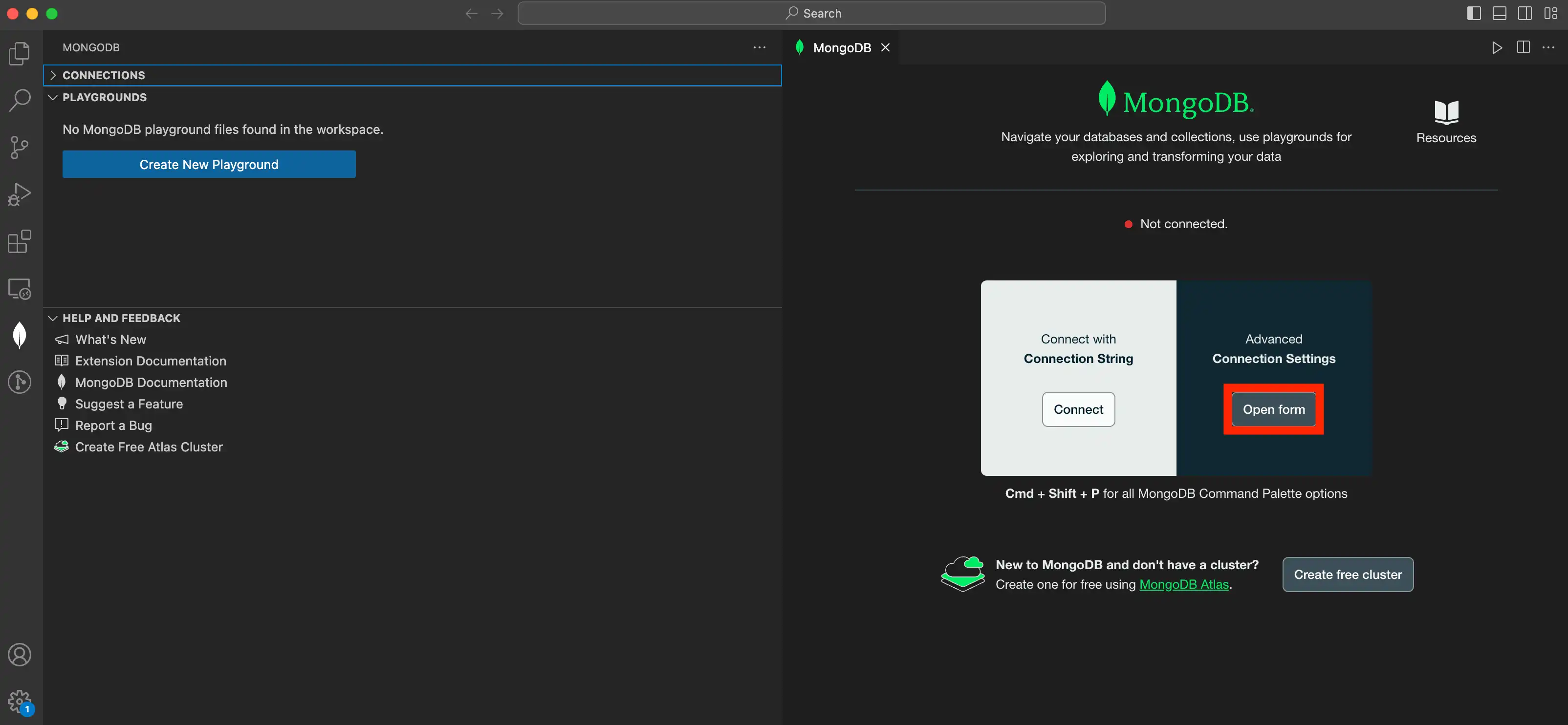
On the Overview page, click Open form under Advanced Connection Settings.在“概述”页面上,单击“高级连接设置”下的“打开表单”。
Enter your connection information.输入连接信息。
Important
VS Code Extension does not support the following connection options:VS Code扩展不支持以下连接选项:
- CSFLE In-Use Encryption
Kerberos Authenticationkerberos身份验证
The General tab contains the options Connection Type and Authentication. Use the following instructions to configure your connections options:“常规”选项卡包含“连接类型”和“身份验证”选项。使用以下说明配置连接选项:
Connection Type连接类型
To configure the Connection Type option, select the type of connection for your MongoDB deployment:要配置“连接类型”选项,请为MongoDB部署选择连接类型:
Standalone单机版
For a Standalone, specify the following:对于单机版,请指定以下内容:
Hostname of the machine where the deployment is running.运行部署的计算机的“主机名”。If you are running your deployment locally, this value is如果您在本地运行部署,则此值为localhost. If you are connecting to an Atlas cluster, you can get your hostname from your cluster detail view in Atlas.localhost。如果您要连接到Atlas集群,则可以从Atlas中的集群详细信息视图中获取主机名。If you are not sure of your hostname, contact your Database Administrator for information.如果您不确定主机名,请联系数据库管理员以获取信息。Port on which the deployment is running.运行部署的“端口”。By default, a standalone deployment operates on port默认情况下,独立部署在端口27017. For more information on the default ports MongoDB operates on, see Default MongoDB Port.27017上运行。有关MongoDB操作的默认端口的更多信息,请参阅默认MongoDB端口。If you are not sure of the port where your deployment operates, contact your Database Administrator for information.如果您不确定部署操作的端口,请联系数据库管理员以获取信息。
Click to specify additional hostnames and associated ports.单击以指定其他主机名和相关端口。
Replica Set副本集
For a replica set, specify the following:对于副本集,请指定以下内容:
Hostname of the machine where the deployment is running.运行部署的计算机的“主机名”。If you are running your deployment locally, this value is如果您在本地运行部署,则此值为localhost. If you are connecting to an Atlas cluster, you can get your hostname from your cluster detail view in Atlas.localhost。如果您要连接到Atlas集群,则可以从Atlas中的集群详细信息视图中获取主机名。If you are not sure of your hostname, contact your Database Administrator for information.如果您不确定主机名,请联系数据库管理员以获取信息。Port on which the deployment is running.运行部署的“端口”。For information on the default ports MongoDB operates on, see Default MongoDB Port.有关MongoDB操作的默认端口的信息,请参阅默认MongoDB端口。If you are not sure of the port where your deployment operates, contact your Database Administrator for information.如果您不确定部署操作的端口,请联系数据库管理员以获取信息。Optional. Replica Set Name as specified in the replica set configuration.可选。副本集配置中指定的“副本集名称”。
Click to specify additional hostnames and associated ports.单击以指定其他主机名和相关端口。
SRV Record
For an SRV Record, specify the Hostname. You do not need to specify a port.对于SRV记录,请指定主机名。您不需要指定端口。
SRV connection strings have a prefix of SRV连接字符串的前缀为mongodb+srv:. If you are using an SRV connection string, you do not need to include mongodb+srv in your Hostname.mongodb+srv::。如果您使用的是SRV连接字符串,则不需要在主机名中包含mongodb+SRV。
For example:例如:
If the following is your SRV connection string for your MongoDB deployment:如果以下是MongoDB部署的SRV连接字符串:
mongodb+srv://<username>:<password>@gettingstarted-7q2cs.mongodb.net/testThen, in VS Code Extension, you would specify your Hostname as:然后,在VS Code扩展中,您可以将“主机名”指定为:
gettingstarted-7q2cs.mongodb.netAuthentication认证
Configure authentication using the Authentication option if your deployment requires it. Atlas clusters use Username / Password authentication.如果部署需要,请使用“身份验证”选项配置身份验证。Atlas集群使用“用户名/密码”身份验证。
Select your authentication method for specific instructions:选择身份验证方法以获取具体说明:
Username / Password
Select Username / Password if the deployment uses MongoDB-CR, SCRAM-SHA-1, or SCRAM-SHA-256 as its authentication mechanism.如果部署使用MongoDB CR、SCRAM-SHA-1或SCRAM-SHA-256作为其身份验证机制,请选择用户名/密码。
Provide the Username, Password, and Authentication Database to authenticate the user.提供“用户名”、“密码”和身份验证数据库以对用户进行身份验证。
OIDC
Select OIDC if the deployment uses OpenID Connect as its authentication mechanism.如果部署使用OpenID Connect作为其身份验证机制,请选择“OIDC”。
Provide the following information:提供以下信息:
| Username | |
http://localhost:27097/redirect.http://localhost:27097/redirect。 | |
This is a less secure authentication flow that can be used as a fallback when browser-based authentication is unavailable.这是一个不太安全的身份验证流,当基于浏览器的身份验证不可用时,可以用作回退。
X.509
Select X.509 if the deployment uses X.509 as its authentication mechanism. If selected, you must provide the Username to authenticate the user.如果部署使用X.509作为其身份验证机制,请选择“X.509”。如果选中,您必须提供用户名以对用户进行身份验证。
If you are using Atlas-managed certificates , your username must be prefaced by "CN=" per RFC 2253. For example, the username "X509User" must be provided as "CN=X509User".如果您使用的是Atlas管理的证书,则根据RFC 2253,用户名必须以“CN=”开头。例如,用户名“X509User”必须以“CN=X509User“的形式提供。
LDAP
Select LDAP if the deployment uses LDAP as its authentication mechanism. If selected, you must provide the Username and Password to authenticate the user.如果部署使用LDAP作为其身份验证机制,请选择“LDAP”。如果选中,您必须提供“用户名”和“密码”以对用户进行身份验证。
AWS IAM
Select AWS IAM if the deployment uses AWS IAM as its authentication mechanism.
| AWS Access Key Id | ||
| AWS Secret Access Key | ||
| AWS Session Token |
If you are connecting to your deployment using TLS/SSL or an SSH tunnel, refer to the following tabs for specific instructions:如果您使用TLS/SSL或SSH隧道连接到部署,请参阅以下选项卡以获取具体说明:
Connect Using TLS/SSL使用TLS/SSL连接
This option directs VS Code Extension to connect to your MongoDB deployment via TLS/SSL. You can select one of the following SSL options:此选项指示VS Code扩展通过TLS/SSL连接到MongoDB部署。您可以选择以下SSL选项之一:
| |||||||||
| Server and Client Validation |
| ||||||||
Tip
For production use, your MongoDB deployment should use valid certificates generated and signed by a single certificate authority. You or your organization can generate and maintain an independent certificate authority, or use certificates generated by a third-party TLS/SSL vendor.对于生产使用,MongoDB部署应该使用由单个证书颁发机构生成和签名的有效证书。您或组织可以生成和维护独立的证书颁发机构,或使用第三方TLS/SSL供应商生成的证书。
Connect Using SSH使用SSH连接
This option directs VS Code Extension to connect to your MongoDB deployment via an SSH tunnel. The tunnel automatically starts when you connect to MongoDB and stops when you disconnect.此选项指示VS Code扩展通过SSH隧道连接到MongoDB部署。当您连接到MongoDB时,隧道会自动启动,断开连接时停止。
In the SSH Tunnel dropdown, choose either a password or an identity file to provide authentication. Once you select your identification method, specify the following options:在“SSH隧道”下拉列表中,选择密码或身份文件以提供身份验证。选择识别方法后,请指定以下选项:
| SSH Hostname | |
| |
To use an SSH tunnel through a bastion host, the SSH configuration on the bastion host must allow TCP port forwarding; i.e., the 要使用通过堡垒主机的SSH隧道,堡垒主机上的SSH配置必须允许TCP端口转发;也就是说,AllowTcpForwarding directive in the /etc/ssh/sshd_config file is set to yes. /etc/ssh/sshd_config文件中的AllowTcpCForwarding指令设置为yes。If 如果AllowTcpForwarding is not set to yes, set to yes and restart the SSH daemon (sudo service sshd restart).AllowTcpCForwarding未设置为yes,请设置为yes并重新启动SSH守护进程sudo service sshd restart)。
Instead of creating the SSH tunnel using VS Code Extension, you can also create the tunnel manually from the command line:除了使用VS Code Extension创建SSH隧道外,您还可以从命令行手动创建隧道:
ssh -L <local_port>:<mongodb_hostname>:<mongodb_port> \
<user>@<bastion_hostname> -fNExample示例
If you have a deployment running on 如果您在端口27017上的hostname-a.com on port 27017, and the bastion host is hostname-b.com with user name ec2-user, you can build the tunnel viahostname-a.com上运行部署,并且堡垒主机是用户名为ec2-user的hostname-b.com,则可以通过以下方式构建隧道
ssh -L 27000:hostname-a.com:27017 ec2-user@hostname-b.com -fNUsing this SSH tunnel, you can now connect VS Code Extension (or the 使用此SSH隧道,您现在可以将VS Code扩展(或mongo shell) to localhost:27000 to connect to the deployment running on hostname-a.com.mongo shell)连接到localhost:27000,以连接到hostname-a.com上运行的部署。
Note
You cannot connect to a replica set via an SSH tunnel. VS Code Extension cannot establish a connection to multiple servers across the same SSH tunnel.您无法通过SSH隧道连接到副本集。VS Code扩展无法通过同一SSH隧道建立到多个服务器的连接。
Optional: Specify additional options in the Advanced tab.可选:在“高级”选项卡中指定其他选项。
You can select the Read Preference, which specifies how VS Code Extension directs read operations:您可以选择“读取首选项”,该选项指定VS Code扩展如何指导读取操作:
| Primary | |
| Primary Preferred | |
| Secondary | |
| Secondary Preferred | |
| Nearest |
If omitted, defaults to Primary. To learn more about read preferences, see Read Preference.如果省略,则默认为“主要”。要了解有关阅读首选项的更多信息,请参阅阅读首选项。
You can specify additional MongoDB connection behavior with the following options:您可以使用以下选项指定其他MongoDB连接行为:
Connect to Atlas Stream Processing连接到Atlas流处理
New in version 1.50.在版本1.50中新增。
You can use VS Code Extension to connect to Atlas Stream Processing by providing a Stream Processing Workspace (SPW) connection string.您可以通过提供流处理工作区(SPW)连接字符串,使用VS Code扩展连接到Atlas流处理。
For details on how to configure Atlas Stream Processing, see Manage Stream Processing Workspaces.有关如何配置Atlas流处理的详细信息,请参阅管理流处理工作区。
Open the connections pane打开“连接”窗格
Expand the Connections pane in the left navigation if it is collapsed.如果左侧导航中的“连接”窗格已折叠,请展开它。Click the More Actions menu (...) and select Add MongoDB Connection with Connection String...单击“更多操作”菜单(…),然后选择“添加带有连接字符串的MongoDB连接…”。
Paste in an SPW connection string粘贴SPW连接字符串
To obtain an SPW connection string login to your Atlas account. 要获取SPW连接字符串,请登录Atlas帐户。Click Stream Processing from the left-hand navigation and then select a Stream Processing Workspace. Click Connect and choose MongoDB for VSCode from the Choose a Connection Method page of the connect dialog.从左侧导航中单击“流处理”,然后选择流处理工作区。单击“连接”,然后从连接对话框的“选择连接方法”页面中选择“MongoDB for VSCode”。
Tip
For full details on using and configuring Atlas Stream Processing, see Atlas Stream Processing.有关使用和配置Atlas流处理的完整详细信息,请参阅Atlas流处理。
The following code block is an example of SPW connection string:以下代码块是SPW连接字符串的示例:
mongodb://user1:password1@atlas-stream-xxxxxxxxxxxxxxxxxxxxxxxx-yyyyy.virginia-usa.a.query.mongodb.net/?authSource=admin&readPreference=primary&ssl=true&directConnection=trueOnce you are connected, the stream connection displays under the Connections pane:连接后,流连接将显示在“连接”窗格下:
Open a new VS Code Extension playground打开一个新的VS Code扩展游乐场
After successfully connecting to your Atlas Stream, click Create New Playground on the Playgrounds pane. A stream processing playground template displays with pre-populated code that allows you to list stream connections and process stream data:成功连接到Atlas流后,单击“游乐场”窗格上的“创建新游乐场”。流处理游乐场模板显示了预填充的代码,允许您列出流连接和处理流数据:
Activate a Connection激活连接
You can connect VS Code Extension to only one deployment at a time. To change the active connection to a different deployment, or to connect to a deployment from which you were disconnected:一次只能将VS Code扩展连接到一个部署。要将活动连接更改为其他部署,或连接到已断开连接的部署,请执行以下操作:
Launch MongoDB Shell启动MongoDB Shell
You can connect the MongoDB Shell or legacy 您可以将MongoDB Shell或旧版mongo shell to your active deployment.mongo Shell连接到活动部署。
Considerations注意事项
The shell that VS Code Extension uses to connect to your deployment is determined by the Shell setting in your extension settings.VS Code扩展用于连接到部署的shell由扩展设置中的shell设置决定。You can choose either the MongoDB Shell or the legacy您可以选择MongoDB Shell或传统的mongoshell.mongoShell。The path to your selected shell must exist in your system's所选shell的路径必须存在于系统的PATH. If it does not exist in yourPATH, the operation errors.PATH中。如果它不存在于PATH中,则操作错误。
Procedure过程
To connect the shell to your active deployment:要将shell连接到活动部署,请执行以下操作:
In the VS Code Extension Connections list, right-click your active deployment.在VS Code扩展“连接”列表中,右键单击活动部署。Select Launch MongoDB Shell.选择“启动MongoDB Shell”。
VS Code Extension opens the Terminal window in VS Code and launches the shell connected to your selected deployment.VS Code Extension在VS Code中打开终端窗口,并启动连接到所选部署的shell。
Edit a Connection编辑连接
In Visual Studio Code, click the MongoDB icon in the Activity Bar在Visual Studio Code中,单击“活动栏”中的MongoDB图标
Expand the Connections pane展开“连接”窗格
Expand the Connections pane in the left navigation if it's collapsed.如果左侧导航中的“连接”窗格已折叠,请展开它。
Select a connection选择连接
From the Connections menu, right-click the connection and select Edit Connection...从“连接”菜单中,右键单击连接并选择“编辑连接…”。
Make changes and save进行更改并保存
Click Advanced Connection Options to display the advanced connection form.单击“高级连接选项”以显示高级连接窗体。
Tip
You can also click the Edit Connection String toggle in the top-right of the form to edit the connection string URI directly.您还可以单击表单右上角的“编辑连接字符串”开关,直接编辑连接字符串URI。
Once you are done editing the connection options click Save & Connect.编辑完连接选项后,单击“保存并连接”。
Copy a Connection复制连接
You can copy a connection string from an existing Visual Studio Code connection.您可以从现有的Visual Studio Code连接中复制连接字符串。
Rename a Connection重命名连接
To rename a connection to a deployment in VS Code Extension:要重命名与VS Code扩展中的部署的连接,请执行以下操作:
Disconnect from a Deployment断开与部署的连接
VS Code Extension provides two methods to disconnect from a deployment. You can:VS Code扩展提供了两种断开与部署连接的方法。你可以:
Disconnect with the Command Palette.断开与命令选项板的连接。Disconnect from the MongoDB view in the Activity Bar.断开与“活动栏”中的MongoDB视图的连接。
Command Palette命令面板
MongoDB View
Disconnecting from a MongoDB instance closes the VS Code Extension connection to the active instance. You must reconnect to interact with data in your deployment again.断开与MongoDB实例的连接会关闭与活动实例的VS Code扩展连接。您必须重新连接才能再次与部署中的数据交互。
Remove a Connection删除连接
VS Code Extension provides two methods to remove a connection to a deployment from Visual Studio Code. You can:VS Code扩展提供了两种方法来从Visual Studio Code中删除与部署的连接。你可以:
Remove a connection from the MongoDB view in the Activity Bar.从“活动栏”的MongoDB视图中删除连接。Remove a connection with the Command Palette.删除与命令选项板的连接。
Important
Removing a connection from Visual Studio Code removes it both from the current workspace and from Visual Studio Code globally.从Visual Studio Code中删除连接会将其从当前工作区和Visual Studio Code全局删除。
MongoDB View
Command Palette命令选项板
Open the Command Palette打开“命令选项板”
| Operating System | Method | |
|---|---|---|
| Any | Visual Studio Code | |
| MacOS | Command + Shift + P | |
| Windows and Linux | Control + Shift + P |
From the Command Palette, select MongoDB: Remove Connection....从命令面板中,选择“MongoDB:删除连接…”。
Tip
Enter 在命令面板中输入mongodb以显示可以使用的所有VS Code扩展命令。mongodb in the Command Palette to display all of the VS Code Extension commands you can use.
If you have more than one connection, select the connection you want to remove from the Command Palette.如果有多个连接,请从命令选项板中选择要删除的连接。
atlas-cli
This page outlines how to use MongoDB for VS Code Extension to connect to a MongoDB host. You can connect to a standalone, replica set, or sharded cluster host.本页概述了如何使用MongoDB for VS Code Extension连接到MongoDB主机。您可以连接到独立、副本集或分片群集主机。
Note
MongoDB Atlas
If you need to create a MongoDB host, consider using MongoDB Atlas. Atlas is a cloud-hosted database-as-a-service which requires no installation, offers a free tier to get started, and provides a copyable URI to easily connect VS Code Extension to your deployment.如果你需要创建一个MongoDB主机,可以考虑使用MongoDB Atlas。Atlas是一种云托管的数据库即服务,不需要安装,提供免费的入门层,并提供可复制的URI,可以轻松地将VS Code扩展连接到部署。
To create a cluster on the Atlas free tier, run the command 要在Atlas自由层上创建集群,请在Visual Studio Code命令面板中运行命令MongoDB: Open Overview Page in the Visual Studio Code Command Palette and then click Create free cluster.MongoDB: Open Overview Page,然后单击“创建自由集群”。
To create an Atlas cluster using a Terraform template included with VS Code Extension, see Create an Atlas Cluster from a Template using Terraform.要使用VS Code扩展中包含的Terraform模板创建Atlas集群,请参阅使用Terraform从模板创建Atlas群集。
If you need to install VS Code Extension, see Install MongoDB for VS Code Extension for instructions.如果需要安装VS Code扩展,请参阅安装MongoDB for VS Code扩展以获取说明。
Considerations注意事项
When connecting VS Code Extension to a replica set, use either the replica set SRV record or Replica Set Name when filling in your connection information. It is not recommended to connect directly to an individual replica set member.将VS Code扩展连接到副本集时,请在填写连接信息时使用副本集“SRV记录”或“副本集名称”。不建议直接连接到单个副本集成员。You can't connect VS Code Extension directly to an analytics node.您无法将VS Code扩展直接连接到分析节点。VS Code Extension appends theVS Code扩展为所有部署连接在appNameconnection string option with a value ofmongodb-vscode <version>for all deployment connections.appName连接字符串选项后附加mongodb-vscode <version>的值。VS Code Extension automatically starts the MongoDB MCP Server when you connect to your MongoDB deployment. You can disable this behavior upon first connection, or at any time by using the mdb.mcp.server setting.当您连接到MongoDB部署时,VS Code扩展会自动启动MongoDB MCP服务器。您可以在第一次连接时禁用此行为,也可以在任何时候使用mdb.mcp.server设置禁用此行为。To learn more, see MongoDB MCP Server in MongoDB VS Code Extension.要了解更多信息,请参阅MongoDB VS Code扩展中的MongoDB MCP服务器。
Create a Connection创建连接
Select the method you want to use to connect to your deployment using the selector option at the top of the page. VS Code Extension provides three options to connect to your deployment:使用页面顶部的选择器选项选择要用于连接到部署的方法。VS Code扩展提供了三种连接到部署的选项:
| Atlas CLI |
Note
To specify where VS Code Extension connections are saved, use the Default Connection Saving Location setting.要指定VS Code扩展连接的保存位置,请使用“默认连接保存位置”设置。
VS Code Extension uses the VS Code API to store and encrypt connection strings and credentials. To learn more about how VS Code encrypts connections, see the VS Code API documentation.VS Code扩展使用VS CodeAPI存储和加密连接字符串和凭据。要了解有关VS Code如何加密连接的更多信息,请参阅VS Code API文档。
The Atlas CLI allows you to connect to both your local and Atlas deployments from MongoDB for VsCode. Before beginning, install the Atlas CLI.Atlas CLI允许您从MongoDB for VsCode连接到本地和Atlas部署。开始之前,请安装Atlas CLI。
Connect from the Atlas CLI.从Atlas CLI连接。
In your terminal, run 在终端中,运行atlas auth login to authenticate with your Atlas login credentials. atlas auth login以使用atlas登录凭据进行身份验证。To learn more, see Connect from the Atlas CLI.要了解更多信息,请参阅从Atlas CLI连接。
Run the connection command.运行连接命令。
Run 在终端中运行atlas deployment connect in your terminal.atlas deployment connect。
atlas deployment connectSelect your deployment.选择部署。
Select the deployment you wish to connect to from your list of deployments.从部署列表中选择要连接的部署。
Connect to Atlas Stream Processing连接到Atlas流处理
New in version 1.50.在版本1.50中新增。
You can use VS Code Extension to connect to Atlas Stream Processing by providing a Stream Processing Workspace (SPW) connection string.您可以通过提供流处理工作区(SPW)连接字符串,使用VS Code扩展连接到Atlas流处理。
For details on how to configure Atlas Stream Processing, see Manage Stream Processing Workspaces.有关如何配置Atlas流处理的详细信息,请参阅管理流处理工作区。
Open the connections pane打开连接窗格
Expand the Connections pane in the left navigation if it is collapsed.如果左侧导航中的“连接”窗格已折叠,请展开它。Click the More Actions menu (...) and select Add MongoDB Connection with Connection String...单击“更多操作”菜单(…),然后选择“添加带有连接字符串的MongoDB连接…”。
Paste in an SPW connection string粘贴SPW连接字符串
To obtain an SPW connection string login to your Atlas account. 要获取SPW连接字符串,请登录Atlas帐户。Click Stream Processing from the left-hand navigation and then select a Stream Processing Workspace. 从左侧导航中单击“流处理”,然后选择流处理工作区。Click Connect and choose MongoDB for VSCode from the Choose a Connection Method page of the connect dialog.单击“连接”,然后从连接对话框的“选择连接方法”页面中选择“MongoDB for VSCode”。
Tip
For full details on using and configuring Atlas Stream Processing, see Atlas Stream Processing.有关使用和配置Atlas流处理的完整详细信息,请参阅Atlas流处理。
The following code block is an example of SPW connection string:以下代码块是SPW连接字符串的示例:
mongodb://user1:password1@atlas-stream-xxxxxxxxxxxxxxxxxxxxxxxx-yyyyy.virginia-usa.a.query.mongodb.net/?authSource=admin&readPreference=primary&ssl=true&directConnection=trueOnce you are connected, the stream connection displays under the Connections pane:连接后,流连接将显示在“连接”窗格下:
Open a new VS Code Extension playground打开一个新的VS Code扩展游乐场
After successfully connecting to your Atlas Stream, click Create New Playground on the Playgrounds pane. A stream processing playground template displays with pre-populated code that allows you to list stream connections and process stream data:成功连接到Atlas流后,单击“游乐场”窗格上的“创建新游乐场”。流处理游乐场模板显示了预填充的代码,允许您列出流连接和处理流数据:
Activate a Connection激活连接
You can connect VS Code Extension to only one deployment at a time. To change the active connection to a different deployment, or to connect to a deployment from which you were disconnected:一次只能将VS Code扩展连接到一个部署。要将活动连接更改为其他部署,或连接到已断开连接的部署,请执行以下操作:
Launch MongoDB Shell启动MongoDB Shell
You can connect the MongoDB Shell or legacy 您可以将MongoDB Shell或旧版mongo shell to your active deployment.mongo Shell连接到活动部署。
Considerations注意事项
The shell that VS Code Extension uses to connect to your deployment is determined by the Shell setting in your extension settings.VS Code扩展用于连接到部署的shell由扩展设置中的shell设置决定。You can choose either the MongoDB Shell or the legacy您可以选择MongoDB Shell或传统的mongoshell.mongoShell。The path to your selected shell must exist in your system's所选shell的路径必须存在于系统的PATH. If it does not exist in yourPATH, the operation errors.PATH中。如果它不存在于PATH中,则操作错误。
Procedure过程
To connect the shell to your active deployment:要将shell连接到活动部署,请执行以下操作:
In the VS Code Extension Connections list, right-click your active deployment.在VS Code扩展“连接”列表中,右键单击活动部署。Select Launch MongoDB Shell.选择“启动MongoDB Shell”。
VS Code Extension opens the Terminal window in VS Code and launches the shell connected to your selected deployment.VS Code Extension在VS Code中打开“终端”窗口,并启动连接到所选部署的shell。
Edit a Connection编辑连接
In Visual Studio Code, click the MongoDB icon in the Activity Bar在Visual Studio Code中,单击“活动栏”中的MongoDB图标
Expand the Connections pane展开“连接”窗格
Expand the Connections pane in the left navigation if it's collapsed.如果左侧导航中的“连接”窗格已折叠,请展开它。
Select a connection选择连接
From the Connections menu, right-click the connection and select Edit Connection...从“连接”菜单中,右键单击连接并选择“编辑连接…”。
Make changes and save进行更改并保存
Click Advanced Connection Options to display the advanced connection form.单击“高级连接选项”以显示高级连接窗体。
Tip
You can also click the Edit Connection String toggle in the top-right of the form to edit the connection string URI directly.您还可以单击表单右上角的“编辑连接字符串”开关,直接编辑连接字符串URI。
Once you are done editing the connection options click Save & Connect.编辑完连接选项后,单击“保存并连接”。
Copy a Connection复制连接
You can copy a connection string from an existing Visual Studio Code connection.您可以从现有的Visual Studio Code连接中复制连接字符串。
Rename a Connection重命名连接
To rename a connection to a deployment in VS Code Extension:要重命名与VS Code扩展中的部署的连接,请执行以下操作:
Disconnect from a Deployment断开与部署的连接
VS Code Extension provides two methods to disconnect from a deployment. You can:VS Code扩展提供了两种断开与部署连接的方法。你可以:
Disconnect with the Command Palette.断开与命令选项板的连接。Disconnect from the MongoDB view in the Activity Bar.断开与“活动栏”中的MongoDB视图的连接。
Command Palette命令选项板
MongoDB View
Disconnecting from a MongoDB instance closes the VS Code Extension connection to the active instance. You must reconnect to interact with data in your deployment again.断开与MongoDB实例的连接会关闭与活动实例的VS Code扩展连接。您必须重新连接才能再次与部署中的数据交互。
Remove a Connection删除连接
VS Code Extension provides two methods to remove a connection to a deployment from Visual Studio Code. You can:VS Code扩展提供了两种方法来从Visual Studio Code中删除与部署的连接。你可以:
Remove a connection from the MongoDB view in the Activity Bar.从“活动栏”的MongoDB视图中删除连接。Remove a connection with the Command Palette.删除与命令选项板的连接。
Important
Removing a connection from Visual Studio Code removes it both from the current workspace and from Visual Studio Code globally.从Visual Studio Code中删除连接会将其从当前工作区和Visual Studio Code全局删除。
MongoDB View
Command Palette命令选项板
Open the Command Palette打开命令选项板
| Any | Visual Studio Code | |
| MacOS | Command + Shift + P | |
| Windows and Linux | Control + Shift + P |
From the Command Palette, select MongoDB: Remove Connection....从命令面板中,选择“MongoDB:删除连接…”。
Tip
Enter 在命令面板中输入mongodb以显示可以使用的所有VS Code扩展命令。mongodb in the Command Palette to display all of the VS Code Extension commands you can use.
If you have more than one connection, select the connection you want to remove from the Command Palette.如果有多个连接,请从命令选项板中选择要删除的连接。