Once you connect to your deployment using VS Code Extension, use the left navigation to:使用VS Code扩展连接到部署后,使用左侧导航:
Explore your databases, collections, read-only views, and documents.探索数据库、集合、只读视图和文档。Create new databases and collections.创建新的数据库和集合。Drop databases and collections.删除数据库和集合。
Note
If your deployment requires authentication, your database user privileges may affect the actions you can perform using VS Code Extension.如果部署需要身份验证,数据库用户权限可能会影响您可以使用VS Code扩展执行的操作。
View Databases and Collections查看数据库和集合
When you expand an active connection, VS Code Extension shows the databases in that deployment.当您展开活动连接时,VS Code Extension会显示该部署中的数据库。
Click the name of a database to view the collections it contains.单击数据库的名称以查看它包含的集合。Click the name of a collection to view its documents, schema, and indexes.单击集合的名称以查看其文档、架构和索引。
Note
VS Code Extension closes all documents when you close Visual Studio Code.关闭Visual Studio Code时,VS Code扩展会关闭所有文档。
View Collection Documents and Schema查看集合文档和架构
When you expand a collection, VS Code Extension displays the number of documents next to the Documents label in the navigation panel.展开集合时,VS Code Extension会在导航面板中的“文档”标签旁边显示文档数量。
Documents文件
When you expand a collection's documents, VS Code Extension lists the 展开集合的文档时,VS Code Extension会列出集合中每个文档的_id of each document in the collection. Click an _id value to open that document in Visual Studio Code and view its contents._id。单击_id值可在Visual Studio Code中打开该文档并查看其内容。
To open a document in the collection, you can also do the following:要打开集合中的文档,您还可以执行以下操作:
Right-click the ID of the document that you want to open.右键单击要打开的文档的ID。Click Open Document.单击“打开文档”。
To edit this single document:要编辑此单个文档,请执行以下操作:
At the top of this document, click Edit Document. VS Code Extension opens it as an editable EJSON document titled在此文档顶部,单击“编辑文档”。VS Code扩展将其作为标题为<database>.<collection>:"<_id>".json.<database>的可编辑EJSON文档打开。<database>.<collection>:"<_id>".json。Make any edits you require.根据需要进行任何编辑。Press按Ctrl+S(Windows/Linux)或Cmd+S将编辑后的文档保存到MongoDB数据库。Ctrl + S(Windows/Linux) orCmd + Sto save the edited document to the MongoDB database.If the update succeeds, VS Code Extension confirms that the database has stored the change.如果更新成功,VS Code扩展将确认数据库已存储更改。If the update results in an error, VS Code Extension displays it.如果更新导致错误,VS Code扩展将显示它。
Important
Users must have the 用户必须具有listCollections permission in order to view a collection's documents.listCollections权限才能查看集合的文档。
To view all of the collection's documents in an array, you can:要查看数组中的所有集合文档,您可以:
Right-click a collection.在集合上单击鼠标右键。Click View Documents.单击“查看文档”。
To copy a document in the collection, you can:要复制集合中的文档,您可以:
Right-click the ID of the document you want to copy.右键单击要复制的文档的ID。Click Copy Document.单击“复制文档”。VS Code Extension copies the document to your clipboard.VS Code扩展将文档复制到剪贴板。
To clone a document in the collection, you can:要克隆集合中的文档,您可以:
Right-click the ID of the document you want to clone.右键单击要克隆的文档的ID。Click Clone Document.单击“克隆文档”。VS Code Extension opens the Playground where it displays the command to insert one new document in the collection.VS Code Extension打开游乐场,显示在集合中插入一个新文档的命令。Remove or replace the删除或替换_idfield and make any other changes to the cloned document._id字段,并对克隆的文档进行任何其他更改。Click the Play Button in VS Code's top navigation bar to insert this document in the collection.单击VS Code顶部导航栏中的播放按钮,将此文档插入集合中。Click Yes to confirm.单击“是”进行确认。The Playground Result window displays the inserted ID of the new document.“游乐场结果”窗口显示新文档的插入ID。
To remove a document from the collection, you can:要从集合中删除文档,您可以:
Right-click the ID of the document you want to remove.右键单击要删除的文档的ID。Click Delete Document.单击“删除文档”。Click Yes to confirm.单击“是”进行确认。
To insert a document, you can:要插入文档,您可以:
Right-click the collection where you want to insert a document.右键单击要插入文档的集合。Click Insert Document.单击“插入文档”。VS Code Extension opens the Playground with a template for adding a document to the collection.VS Code Extension打开游乐场,其中包含一个用于向集合中添加文档的模板。Example Playground Template示例游乐场模板// MongoDB Playground
//Use Ctrl+Space inside a snippet or a string literal to trigger completions.在代码段或字符串文本中使用Ctrl+Space来触发补全。
//The current database to use.要使用的当前数据库。
use('<database-name>');
//Create a new document in the collection.在集合中创建新文档。
db.getCollection('<collection-name>').insertOne({
});Paste the document to add inside the将要添加的文档粘贴到db.collection.insertOne()method and click the Play Button.db.collection.insertOne()方法中,然后单击播放按钮。Click Yes to confirm.单击“是”进行确认。The VS Code Extension Playground Result panel displays the ID of the inserted document.VS Code扩展游乐场结果面板显示插入文档的ID。
Note
You can open a JavaScript Playground pre-configured to search a collection by hovering over the Documents label in the navigation panel and clicking the icon that appears.您可以通过将鼠标悬停在导航面板中的“文档”标签上并单击出现的图标,打开预先配置为搜索集合的JavaScript游乐场。
Schema模式
Your collection's schema defines the fields and data types within the collection. Due to MongoDB's flexible schema model, different documents in a collection may contain different fields, and data types may vary within a field. 集合的架构定义了集合中的字段和数据类型。由于MongoDB的灵活模式模型,集合中的不同文档可能包含不同的字段,字段内的数据类型也可能不同。MongoDB can enforce schema validation to ensure your collection documents have the same shape.MongoDB可以强制执行模式验证,以确保集合文档具有相同的形状。
When you expand a collection's schema, VS Code Extension lists the fields which appear in that collection's documents. If a field exists in all documents and its type is consistent throughout the collection, VS Code Extension displays an icon indicating that field's data type. 当您展开集合的架构时,VS Code扩展会列出该集合文档中出现的字段。如果一个字段存在于所有文档中,并且其类型在整个集合中是一致的,则VS Code Extension将显示一个图标,指示该字段的数据类型。Hover over the field name for a text description of the field's data type.将鼠标悬停在字段名称上,以获取字段数据类型的文本描述。
Manage Indexes管理索引
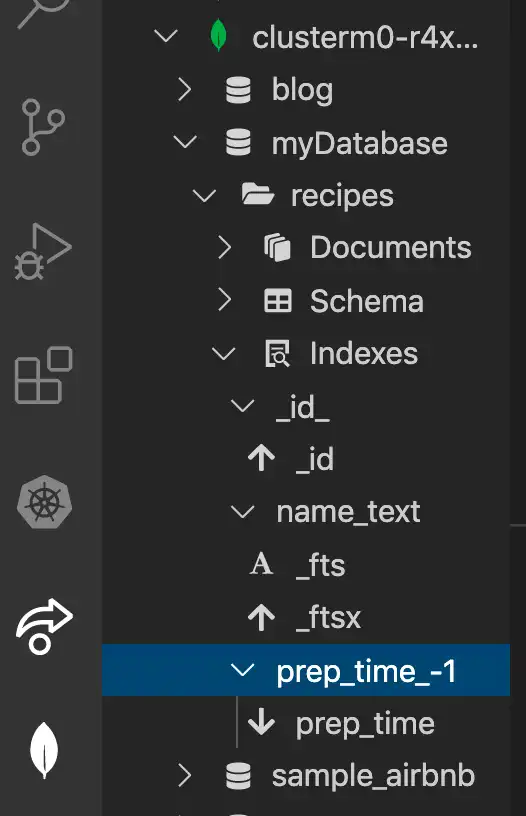
Your collections's indexes are listed under the Indexes heading. When you expand an index, each index key appears with an icon designating its type. Index key types include:集合索引列在“索引”标题下。展开索引时,每个索引键都会显示一个指定其类型的图标。索引键类型包括:
Ascending升序Descending降序Geospatial (2d, 2dsphere, geoHaystack)地理空间(2d,2dsphere,geoHaystack)Text文本Hashed哈希
Note
You can open a MongoDB Playground pre-configured to create an index by hovering over the Indexes label in the navigation panel and clicking the icon that appears.您可以通过将鼠标悬停在导航面板中的“索引”标签上并单击出现的图标,打开预先配置为创建索引的MongoDB游乐场。
Tip
To learn more about MongoDB indexes, see the server manual.要了解有关MongoDB索引的更多信息,请参阅服务器手册。
Create a New Database创建一个新数据库
When you create a new database, you must populate it with an initial collection.创建新数据库时,必须用初始集合填充它。
Hover over the connection for the deployment where you want your database to exist.将鼠标悬停在您希望数据库存在的部署连接上。Click the icon or right-click and select Add Database. VS Code Extension opens a new tab with单击图标或右键单击并选择“添加数据库”。VS Code Extension打开一个新选项卡,其中包含数据库和集合名称的常量变量。constvariables for database and collection names.Update the使用“数据库”和“集合”的名称更新数据库和集合变量。databaseandcollectionvariables with the names for your database and collection.Click the button located at the top right of the tab to execute the script. If the database and collection do not already exist, they are created.单击选项卡右上角的按钮以执行脚本。如果数据库和集合不存在,则会创建它们。
Create a New Collection创建新集合
Hover over the database name where you want your collection to exist.将鼠标悬停在您希望集合所在的数据库名称上。Right-click the database name and select Add Collection. VS Code Extension opens a new tab with右键单击数据库名称,然后选择“添加集合”。VS Code Extension打开一个新选项卡,其中包含数据库和集合名称的constvariables for database and collection names.const变量。Update the使用新的集合名称更新“集合”变量。collectionvariable with your new collection name.Click the button located at the top right of the tab to execute the script. The collection is created in the specified database.单击选项卡右上角的按钮以执行脚本。集合是在指定的数据库中创建的。
Drop a Database or Collection删除数据库或集合
Important
Dropping data from MongoDB is an irreversible process. Take caution to only drop data you are sure you want to delete, and backup your data as necessary.从MongoDB中删除数据是一个不可逆的过程。请注意,只删除您确定要删除的数据,并在必要时备份数据。
Dropping a database also drops all collections and documents within that database.删除数据库也会删除该数据库中的所有集合和文档。
To drop a database or collection:要删除数据库或集合,请执行以下操作:
Right-click the target database or collection.右键单击目标数据库或集合。Click Drop Database or Drop Collection.单击“删除数据库”或“删除集合”。In the prompt, type the name of the target database or collection.在提示中,键入目标数据库或集合的名称。Press the enter key.按enter键。
Refresh Data刷新数据
You can refresh a deployment, database, or collection at any time to re-query your deployment and populate VS Code Extension with the most up-to-date data.您可以随时刷新部署、数据库或集合,以重新查询部署并用最新数据填充VS Code扩展。
To refresh:要刷新:
Right-click the target deployment, database, or collection.右键单击目标部署、数据库或集合。Click Refresh.单击“刷新”。