MongoDB Playgrounds are JavaScript environments where you can prototype queries, aggregations, and MongoDB commands with helpful syntax highlighting.MongoDB Playgrounds是JavaScript环境,您可以在其中使用有用的语法突出显示对查询、聚合和MongoDB命令进行原型化。
MongoDB Playgrounds provide intelligent autocomplete for:MongoDB 游乐场为以下内容提供智能自动补全功能:
- The Mongo Shell API
MongoDB keywords, operators, aggregation stages, database, collection, and field names.MongoDB键、运算符、聚合阶段、数据库、集合和字段名。Any JavaScript variables or keywords.任何JavaScript变量或键。
You can save playgrounds in your workspace and use them to document how your application interacts with MongoDB. VS Code Extension interprets files with the 您可以在工作区中保存游乐场,并使用它们来记录应用程序如何与MongoDB交互。VS Code扩展将具有.mongodb.js extension as playgrounds..mongodb.js扩展名的文件解释为游乐场。
Starting in version 从0.11.0 the default file extension for MongoDB Playgrounds files is .mongodb.js. Previous versions of MongoDB Playgrounds use the default file extension .mongodb. MongoDB Playgrounds support both file extensions.0.11.0版本开始,MongoDB Playgrounds文件的默认文件扩展名是.mongodb.js。MongoDB Playgrounds的早期版本使用默认文件扩展名.mongodb。MongoDB Playgrounds支持这两种文件扩展名。
Note
VS Code Extension splits your Playground window to display your Playground Result in the right-side pane. You can perform one of two actions on the result depending on the query you ran in the Playground.VS Code扩展拆分游乐场窗口,在右侧窗格中显示游乐场结果。根据您在Playground中运行的查询,您可以对结果执行以下两个操作之一。
You may save any Playground Result to a file.您可以将任何游乐场结果保存到文件中。You may edit any JSON document that VS Code Extension returns in the Playground Result from a findOne or find query.您可以编辑VS Code Extension在findOne或find查询的游乐场结果中返回的任何JSON文档。VS Code Extension returns these results in JSON format with JSON syntax highlighting. Each JSON document has an Edit Document link at its top.VS Code Extension以JSON格式返回这些结果,并突出显示JSON语法。每个JSON文档的顶部都有一个编辑文档链接。Click Edit Document at the top of the document you want to edit.单击要编辑的文档顶部的“编辑文档”。VS Code Extension opens this one JSON document in a new window as an editable document.VS Code Extension在新窗口中以可编辑文档的形式打开此JSON文档。Make any changes you need.根据需要进行任何更改。Press按Ctrl+S(macOS上的Cmd+S)将这些更改保存在数据库中。Ctrl+S(Cmd+Son macOS) to save those changes in the database.
Prerequisite先决条件
To run a playground, you must connect to a MongoDB deployment using VS Code Extension. To learn how to connect to a deployment, see either:要运行游乐场,您必须使用VS Code扩展连接到MongoDB部署。要了解如何连接到部署,请参阅:
Open a Playground打开一个游乐场
Create a New Playground创建新游乐场
You can create a new playground from the Playgrounds panel, the VS Code Extension Overview page, or the Microsoft Visual Studio Code Command Pallette.您可以从“游乐场”面板、“VS Code扩展概述”页面或Microsoft Visual Studio Code命令托盘创建新的游乐场。
Playgrounds Panel游乐场面板
If you have no saved playgrounds in your Visual Studio Code workspace, in the Playgrounds panel of VS Code Extension, click Create New Playground.如果Visual Studio Code工作区中没有保存的游乐场,请在VS Code扩展的“游乐场”面板中,单击“创建新游乐场”。
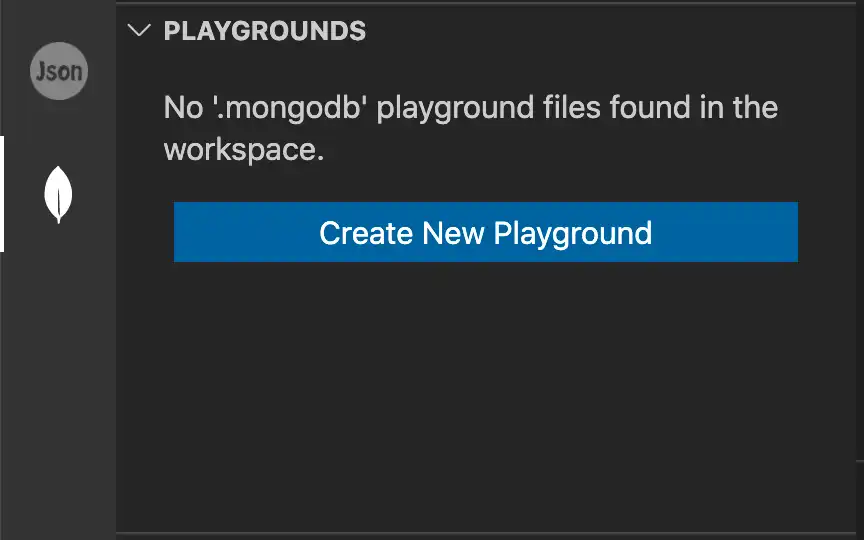
If you have saved playgrounds in your Microsoft Visual Studio Code workspace, click the ... menu icon of the Playgrounds panel and select Create MongoDB Playground.如果已将游乐场保存在Microsoft Visual Studio Code工作区中,请单击游乐场面板的菜单图标,然后选择“创建MongoDB游乐场”。
Overview Page概述页面
In Visual Studio Code, press one of the following key combinations:在Visual Studio Code中,按以下组合键之一:Control + Shift + P on Windows or Linux.Windows或Linux上的Control+Shift+P。Command + Shift + P on macOS.macOS上的Command+Shift+P。
The Command Palette provides quick access to commands and keyboard shortcuts.“命令选项板”提供对命令和键盘快捷键的快速访问。Find and run the MongoDB: Open Overview Page command.查找并运行“MongoDB:打开概述页面”命令。Tip
Enter在命令面板中输入mongodbin the Command Palette to display all of the VS Code Extension commands you can use.mongodb以显示可以使用的所有VS Code扩展命令。Click Create Playground to open a VS Code Extension playground pre-configured with a few commands.单击“创建游乐场”打开一个预先配置了几个命令的VS Code扩展游乐场。
VSCode Command PaletteVSCode命令面板
Open the Visual Studio Code Command Palette.打开Visual Studio Code“命令选项板”。
In Visual Studio Code, press one of the following key combinations:在Visual Studio Code中,按以下组合键之一:
Control + Shift + P on Windows or Linux.Windows或Linux上的Control+Shift+P。Command + Shift + P on macOS.macOS上的Command+Shift+P。
The Command Palette provides quick access to commands and keyboard shortcuts.“命令选项板”提供对命令和键盘快捷键的快速访问。
Find and run the "Create MongoDB Playground" command.找到并运行“创建MongoDB游乐场”命令。
Use the Command Palette search bar to search for commands. All commands related to VS Code Extension are prefaced with MongoDB:.使用“命令选项板”搜索栏搜索命令。所有与VS Code扩展相关的命令都以MongoDB开头:。
When you run the MongoDB: Create MongoDB Playground command, VS Code Extension opens a default playground template pre-configured with a few commands.当您运行“MongoDB:创建MongoDB游乐场”命令时,VS Code Extension会打开一个预先配置了几个命令的默认游乐场模板。
Note
To load new Playgrounds without the template, disable the Use Default Template For Playground setting. 要加载没有模板的新游乐场,请禁用“使用默认游乐场模板”设置。To learn more about VS Code Extension settings, see Visual Studio Code Settings.要了解有关VS Code扩展设置的更多信息,请参阅Visual Studio Code设置。
Note
You can also open a new playground to test and export queries with the MongoDB Extension for Github Copilot. For more information, see Export and Test Queries with Copilot.您还可以打开一个新的游乐场,使用Github Copilot的MongoDB扩展测试和导出查询。有关更多信息,请参阅使用副副本导出和测试查询。
Open a Saved Playground打开已保存的游乐场
If you have files in your Visual Studio Code workspace with the 如果Visual Studio Code工作区中有带有.mongodb.js or .mongodb extension, VS Code Extension displays these files in the Playgrounds panel..mongodb.js或.mongodb扩展名的文件,VS Code扩展将在Playgrounds面板中显示这些文件。
Double click a file to open that playground.双击文件以打开该游乐场。
Run a Playground运行游乐场
To run a playground, click the Play Button in VS Code's top navigation bar. Your playground runs against the deployment specified in your active connection.要运行游乐场,请单击VS Code顶部导航栏中的“播放”按钮。游乐场与活动连接中指定的部署相反。
Connect to a Deployment from a Playground从游乐场连接到部署
If VS Code Extension is not connected to a MongoDB deployment, you can specify a connection string for the deployment you want to run your playground against.如果VS Code扩展未连接到MongoDB部署,则可以为要运行游乐场的部署指定连接字符串。
If you have a playground file open in Visual Studio Code and do not have an active connection, VS Code Extension displays Click here to add connection at the top of your playground.如果您在Visual Studio Code中打开了游乐场文件,但没有活动连接,则VS Code Extension将在游乐场顶部显示“单击此处添加连接”。
Select Click here to add connection选择“单击此处添加连接”
After you click Click here to add connection, VS Code Extension displays the connection string drop-down menu.单击“单击此处添加连接”后,VS Code扩展将显示连接字符串下拉菜单。
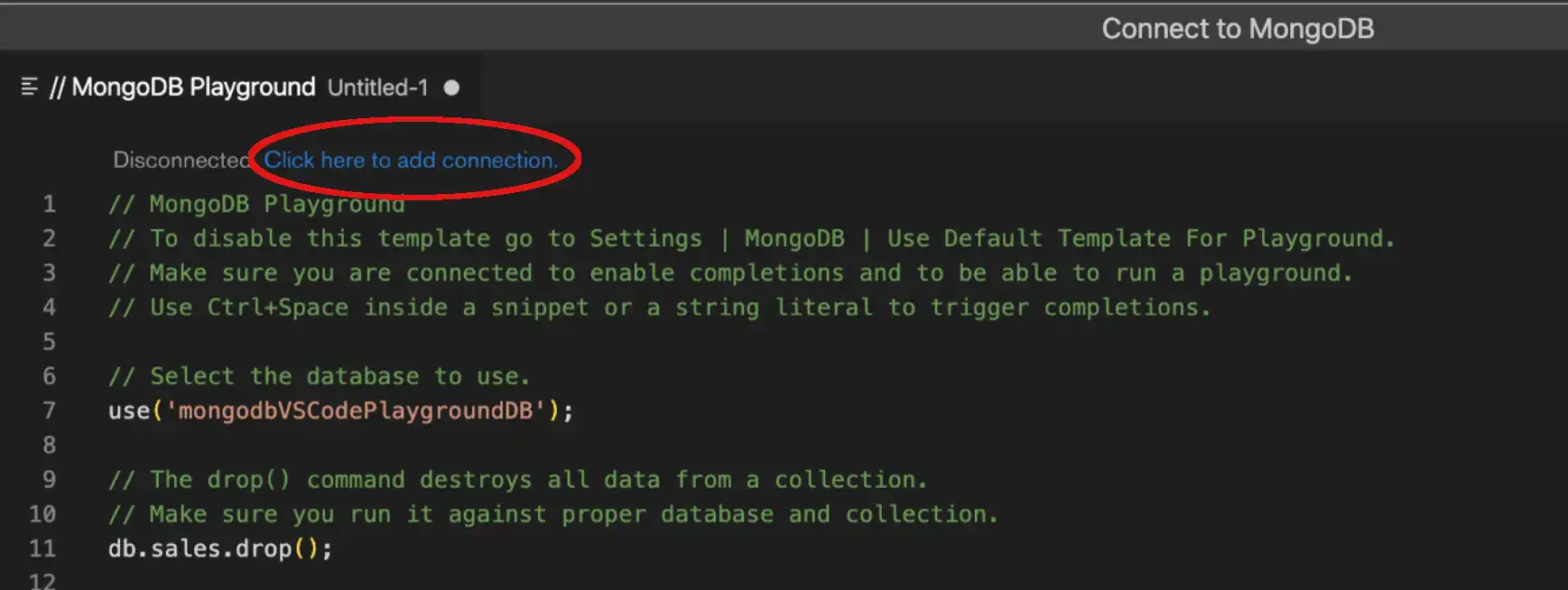
Click Add new connection单击“添加新连接”
In the connection string drop-down menu, select Add new connection to enter a new connection string. If you have previously connected to the playground with another deployment, the connection string will appear as an option under the drop-down menu.在连接字符串下拉菜单中,选择“添加新连接”以输入新的连接字符串。如果您之前已使用其他部署连接到游乐场,则连接字符串将作为下拉菜单下的选项显示。
Enter your connection string输入连接字符串
Enter the connection string to connect to your deployment.输入连接字符串以连接到部署。
Note
If the connection string specifies a database the playground runs against that database by default. To switch databases, call 如果连接字符串指定了一个数据库,则默认情况下游乐场会针对该数据库运行。要切换数据库,请调用use('<database_name>').use('<database_name>')。
If you are connected to a default database, the playground autocompletes only for collection names available on that database.如果您连接到默认数据库,则游乐场仅对该数据库上可用的集合名称自动完成。
Note
When you connect to a deployment through the playground connection dialog, that connection is added to your VS Code Extension Connections list.当您通过操场连接对话框连接到部署时,该连接将添加到VS Code扩展“连接”列表中。
Run Selected Lines of a Playground运行游乐场的选定线路
If you select a section of your playground, you may optionally run only the selected portion. You may run either a single line or multiple lines of your playground.如果你选择了操场的一部分,你可以选择只跑选定的部分。你可以在操场上跑一条线或多条线。
VS Code Extension shows the Run Selected Lines from Playground link immediately above your selected section. Click this link to test and troubleshoot specific lines or sections of your playground.VS Code扩展在所选部分的正上方显示“从操场运行选定行”链接。单击此链接测试和排除游乐场的特定线路或部分的故障。
Code Formatting and Linting Tools代码格式化和高亮着色工具
MongoDB Playgrounds are JavaScript files and can work with popular Visual Studio Code formatting and linting extensions like Prettier and ESLint.MongoDB游乐场是JavaScript文件,可以与流行的Visual Studio Code格式化和高亮着色扩展(如Prettier和ESLint)一起使用。
If you use a code formatting extension, MongoDB Playgrounds suggest autocompletion and linting hints for:如果你使用代码格式化扩展,MongoDB Playgrounds建议自动补全和linting提示:
System variables such as系统变量,如$$ROOTand$$NOW$$ROOT和$$NOWuseand和dbcommands命令Collection names, in bracketed notation such as括号内的集合名称,如db["collection"].find({})Alternative commands for shell commands not supported in MongoDB Playgrounds such asMongoDB Playgrounds不支持shell命令的替代命令,如show usersshow users
For a full list of autocompletion and linting improvements, see the v0.11.1 release notes.有关自动补全和linting改进的完整列表,请参阅v0.11.1发行说明。
Log to Console from a Playground从游乐场登录到控制台
VS Code Extension supports the following methods to log messages to the console. Logged messages appear in the Output panel in VSCode.VS Code扩展支持以下方法将消息记录到控制台。记录的消息显示在VSCode的“输出”面板中。
console.log()print()printjson()
Logging to the console can be useful to track the output of certain commands in your playground, such as results after a particular query or aggregation.登录到控制台对于跟踪游乐场中某些命令的输出非常有用,例如特定查询或聚合后的结果。
Tutorials教程
To learn how to use MongoDB Playgrounds for CRUD operations, see Perform CRUD Operations with VS Code.要了解如何使用MongoDB Playgrounds进行CRUD操作,请参阅使用VS Code执行CRUD操作。To learn how to use MongoDB Playgrounds to run aggregation pipelines, see Run Aggregation Pipelines with VS Code.要了解如何使用MongoDB Playgrounds运行聚合管道,请参阅使用VS Code运行聚合管道。
Consideration for Authentication身份验证考虑因素
If your deployment requires authentication, your database user privileges may affect the actions you can perform using VS Code Extension.如果部署需要身份验证,数据库用户权限可能会影响您可以使用VS Code扩展执行的操作。