Navigating the SketchUp Interface浏览SketchUp界面
Getting to know the SketchUp interface is a great way to start understanding all the tools and features available to you. After all, it's the first thing you see when you open a new SketchUp model.了解SketchUp界面是了解所有可用工具和功能的好方法。毕竟,这是打开新SketchUp模型时看到的第一件事。
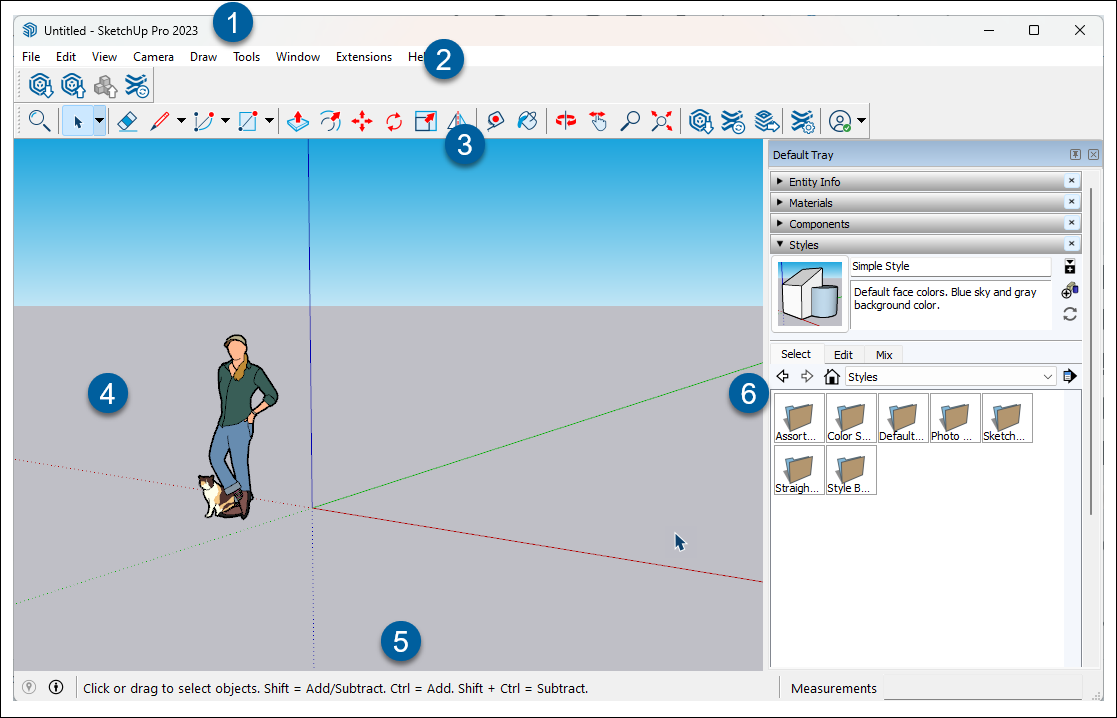
At the top of the interface you'll see the Title bar. The Title bar contains your standard window controls, the name of your model, and the version of SketchUp you are using.在界面顶部,您将看到标题栏。标题栏包含您的标准窗口控件、模型名称和您正在使用的SketchUp版本。The Menu bar provides access to menus containing most of SketchUp's tools, commands, and settings. The following menus appear on the Menu bar:菜单栏提供对包含SketchUp大多数工具、命令和设置的菜单的访问。菜单栏上显示以下菜单:- SketchUp (iOS Only)
File文件Edit编辑View视图Camera相机Draw绘制Tools工具Window窗口Extensions扩展Help帮助
The Getting Started toolbar is the default toolbar and contains all the basic tools you need to begin creating 3D models. Take a look at Toolbars for more information.“入门”工具栏是默认工具栏,包含开始创建3D模型所需的所有基本工具。请查看工具栏以获取更多信息。The Drawing area is where you create your model. The drawing axes define the 3D space of the drawing area and provide a sense of direction in 3D space while you work.绘图区域是创建模型的地方。绘图轴定义绘图区域的三维空间,并在您工作时提供三维空间的方向感。When you first open a model, you may also see a simple model of a person to help give you a sense of scale.当你第一次打开一个模型时,你也可能会看到一个人的简单模型,以帮助你有一种规模感。The Status bar contains four important parts:状态栏包含四个重要部分:- Geo-location –
If you have geolocated your model you'll see location data if you hover over the pin icon.如果你已经对模型进行了地理定位,当你将鼠标悬停在图钉图标上时,你会看到位置数据。Clicking the icon opens Geo-location options.单击图标打开地理位置选项。See Importing Pre Existing Terrain into SketchUp (and Geolocate a Model) for more information.有关详细信息,请参阅将现有地形导入SketchUp(和对模型进行地理定位)。 - Model Info –
A quick link to the Model Info dialog. For more information on these options see the Model Info section in Model Templates.指向“模型信息”对话框的快速链接。有关这些选项的详细信息,请参阅模型模板中的模型信息部分。Hovering over the Model Info button will show you who created a the currently selected entity.将鼠标悬停在“模型信息”按钮上,将显示谁创建了当前选定的实体。We call this the Credits and you can find out more in Using the Credits Feature.我们称之为积分,您可以在使用积分功能中了解更多信息。 Tooltips工具提示 –Whenever you use a tool you will see helpful information about that tool in the middle area of the status bar including usage and modifiers.无论何时使用某个工具,您都会在状态栏的中间区域看到有关该工具的有用信息,包括用法和修饰符。Measurements测量 –As you draw you'll see the corresponding measurements appear in the Measurements section of the status bar.绘制时,您将看到相应的测量值出现在状态栏的“测量”部分。You can also use this box to modify the measurements of selected entities or create evenly spaced copies.您还可以使用此框修改选定图元的测量值或创建等距副本。
- Geo-location –
SketchUp's Panels contain even more options to help you fine-tune your models. You can customize which panels appear using the Window menu. If you are on MacOS, these panels are available as dialog boxes.SketchUp的面板包含更多选项,可帮助您微调模型。您可以使用“窗口”菜单自定义显示哪些面板。如果您使用的是MacOS,这些面板可以作为对话框使用。
Interface Options界面选项
SketchUp also offers quite a few ways you can customize your interface to help you model the way you want to. Take a look at these articles for more information:SketchUp还提供了多种自定义界面的方法,以帮助您按照自己的方式建模。有关更多信息,请查看这些文章:
Model Templates模型模板–Templates help determine a model’s default settings. SketchUp includes several default templates, but you can also create your own.模板有助于确定模型的默认设置。SketchUp包括几个默认模板,但您也可以创建自己的模板。Units of Measurement计量单位–SketchUp offers several options for more precise measurements.SketchUp提供了几种更精确的测量选项。Toolbars工具栏–SketchUp is nothing without its tools. You can use SketchUp’s default toolbars or create your own.SketchUp没有工具就什么都不是。您可以使用SketchUp的默认工具栏或创建自己的工具栏。